Bug fixes
- Fixed an issue where creating an alert for a dag through the Astro API would apply the alert to the incorrect Deployment.
- Fixed an issue where Deployment worker Pods could crash when running the Kubernetes executor.
- Fixed an issue where Deployment API key expiration dates were not applied correctly if you configured multiple API keys at once.
- Fixed an issue where logging features could be disrupted if you set
AZURE_CLIENT_IDas an environment variable. Note that this fix applies only to Astro Runtime 10 and later.
Bug fixes
- Fixed an issue where the Astro UI would produce an error if you updated an environment variable on an Astro Hybrid Deployment running the Kubernetes Executor.
Additional improvements
- The Astro Environment Manager is now generally available. This feature allows you to create and manage Airflow connections in the Astro UI.
Bug fixes
- Fixed an issue where dag code that appeared in the Airflow UI did not roll back when you rolled back a Deployment, even though the running code was successfully rolled back.
- Fixed an issue where you could not view billing information from the Astro UI when you installed Astro through the Azure Marketplace.
- Fixed an issue where the Astro UI would produce a console error when a user accessed their Workspace list.
Support for Microsoft Entra Workload ID
You can now use Microsoft Entra Workload ID to authorize Deployments to resources in Azure. Workload identity is a simple and secure way to authorize access external resources, as it doesn’t require creating or storing long-term credentials. To set up Microsoft Entra Workload ID, see Authorize Deployments to cloud resources.Bug fixes
- Removed the ability to create Hybrid Azure clusters in
eastasiabecause some workload identity features aren’t supported in this region.
Install Astro from the Azure Marketplace
Astro is now available as an Azure Native ISV Service. If your team is considering Astro and you use Azure, Astronomer recommends installing Astro from the Azure Marketplace because:- You can manage billing from the Azure Portal.
- Microsoft Entra ID is pre-configured for all Organizations.
- It’s easier to create Astro resources and get started directly from Azure.
Create Airflow connections in the Astro UI and link them to Deployments
You can now create Airflow connections in the Astro UI through the new Environment Manager menu. The Environment Manager lets you create Airflow connections directly in the Astro UI and stores all connections in an Astro-managed secrets backend. You can then share connections between Deployments and set default connections so that your team members always have access to external resources when they create new Deployments. See Create Airflow connections in the Astro UI.Note that this feature is currently available only for Deployments running the Celery executor.Trigger a dag from an Astro alert
You can now configure Astro alerts to trigger any dag in your Workspace through the Airflow REST API. You can configure the triggered dag to complete any action, such as sending an alert through a custom communication channel or writing data about the incident to a table.New Azure regions available on Astro Hosted
You can now create Hosted dedicated clusters in the following Azure regions:eastuscanadacentraluksouthbrazilsouthcentralindiafrancecentraljapaneast
Roll back Deployments to previous versions of your code
Astro now maintains snapshots of your past deploys, including your Deployment image and dag code, for the previous three months. If you need to quickly revert a Deployment back to a working version of your code, you can roll back to a past deploy from the Deploy History page in the Astro UI.Deploy rollbacks are a powerful safety mechanism to ensure that your production pipelines continue to run when something unexpected happens after a deploy. See Roll back to a past deploy for more information and configuration steps.Bug fixes
- Fixed an issue where, you could inadvertently open the support request window if you opened a dag that included “Support” in its name from the DAGs view. As a result of this change, the support request window URL has been updated from
https://cloud.astronomer.io/supporttohttps://cloud.astronomer.io/open-support-request. - Fixed an issue where the Deployment configuration menu in the Astro UI didn’t always show your Deployment’s current configuration.
- Fixed an issue where you could not create a Deployment with some stable Runtime versions using the Astro Platform API.
Deployment API keys are now deprecated
Deployment API keys have been officially deprecated in favor of Deployment API tokens. This means:- You can’t create new Deployment API keys.
- If a Deployment has no configured Deployment API keys, the API keys tab will not appear.
- You can continue using existing Deployment API keys until a future end-of-support date.
Additional improvements
- Workspace Operators can now create, update, and delete Deployment API tokens.
Bug fixes
- Fixed an issue where a Deployment’s Updated By field was not updated if you transferred the Deployment.
New Azure regions available on Astro Hosted
You can now create Deployments in standard clusters in the following Azure regions:eastus2westus2westeurope
Bug fixes
- Fixed an issue where Deployment API tokens weren’t deleted after their associated Deployment was deleted.
- Fixed an issue where you could not create a Deployment with some available Runtime versions using the Astro Platform API.
Additional improvements
- You can now view deploy history for both Hosted and Hybrid Astro Deployments in the Astro UI. For more information, see View deploy history.
Bug fixes
- Modified behavior for Astro Hosted so that KubernetesExecutor and KubernetesPodOperator pods running in-cluster have equivalent resource requests and limits. If you don’t configure them to have equivalent resource requests and limits, Astro modifies them to the become the limits. Previously, the dag deploy would fail if
resourcesdid not equallimits.
Deployment API tokens
Deployment API tokens are now generally available and replace Deployment API keys as the most secure and customizable way to programmatically update Deployments. This includes using them to deploy code and update environment variables.See Deployment API tokens to learn how to create and manage Deployment API tokens.New Edit Deployments in the Astro UI
Editing Deployments in the Astro UI has a new, consolidated flow. All of the configuration options are now editable in a single form, similar to Deployment creation, instead of spread across multiple forms. See Deployment Settings for a detailed description of how to create, update, and configure your Deployment options.Additional Improvements
- Added a DAG Success alert so you can now set up an alert for successful completion events. See how to set up Astro alerts.
Bug Fixes
- Fixed a problem in the Astro UI where a warning about Deployment Health was displayed when a Workspace had zero Deployments.
Introducing the Astro API
The Astro API is currently in beta. See Astro API versioning and support.
Manage Deployments programmatically using Deployment API tokens
Deployment API tokens replace Deployment API keys as the most secure and customizable way to manage Deployments programmatically. You can use Deployment API tokens to perform all of the same actions as a Deployment API key, including:- Pushing code to a Deployment.
- Updating a Deployment’s environment variables.
- Making requests to update your Deployment’s Airflow environment using the Airflow REST API.
Additional improvements
- When you create a new Deployment, the Astro UI now presents new options and suggestions for running your first dag.
- You can now retrieve a Workspace’s ID from the Astro UI. To find a Workspace’s ID, open the Workspace in the Astro UI and go to Workspace Settings > General.
Per-Deployment IAM workload identities on AWS
Astro Hybrid clusters on AWS now support per-Deployment IAM workload identities, meaning that you can now limit your trust policies to authorize only specific Deployments to your cloud resources.This change required an automatic update to the cross-account role that Astro uses to manage clusters in your cloud. In addition to enabling per-Deployment IAM workload identities, this update also adds the following permissions to reduce the risk of partial deletions in your cloud:For more information about this change, see Automatic updates coming to cross-account roles for Astro Hybrid on AWS.
-
In the AWS Management Console, go to the Identity and Access Management (IAM) dashboard. Identify all of your trust policies that specify your cluster workload identity. They should look similar to the following trust policy:
-
For each trust policy, add the workload identities for any Deployments that you want to access the related resource. To locate your Deployment workload identity, open the Deployment in the Astro UI and copy the Workload Identity from the Details page. Your trust policy should now look like the following:
- For each Deployment that you specified in your trust policies, open the Deployment in the Astro UI and click Details, then click Edit Details. In the Workload Identity section, select the new Deployment identity from the dropdown list, then click Update. To avoid disruption to tasks, don’t complete this step until you have added the Deployment workload identity to all of the trust policies it needs for access.
- Upgrade to the latest Astro CLI release, which includes support for Per Deployment IAM Workload Identity.
- After you’ve tested the policies with your Deployment workload identities, remove the cluster workload identity from your trust policies
Bug fixes
- Fixed an issue where Billing Admins could view task usage on the Usage page only for Workspaces that they belonged to. Now, Billing Admins can view usage for all Workspaces regardless of their Workspace role.
Additional improvements
- The Astro UI Usage page now shows task usage for deleted Deployments. If you’re an Astro Hybrid Billing Admin, this means that task usage metrics now better reflect your billable usage.
- When you create a Deployment through the Astro UI and choose an Astro Runtime version, you can now select only the most recent supported patch for each major version of Astro Runtime.
- You can now filter task logs by log level or source from the DAGs page in the Astro UI.
View deploy history in the Astro UI
When you view a Deployment in the Astro UI, you can now open the Deploy History tab to view a table of all code deploys. The table shows who made deploys, when they made the deploys, and what Astro Runtime image they used for the deploy.You can also now use the Astro CLI to specify an optional description for your deploys using the--description flag. Deploy descriptions appear in the Deploy History table and are useful for telling other Workspace members why you made a deploy or what changes it contains. For more information, see View deploy history.View rendered data figures in the Astro Cloud IDE
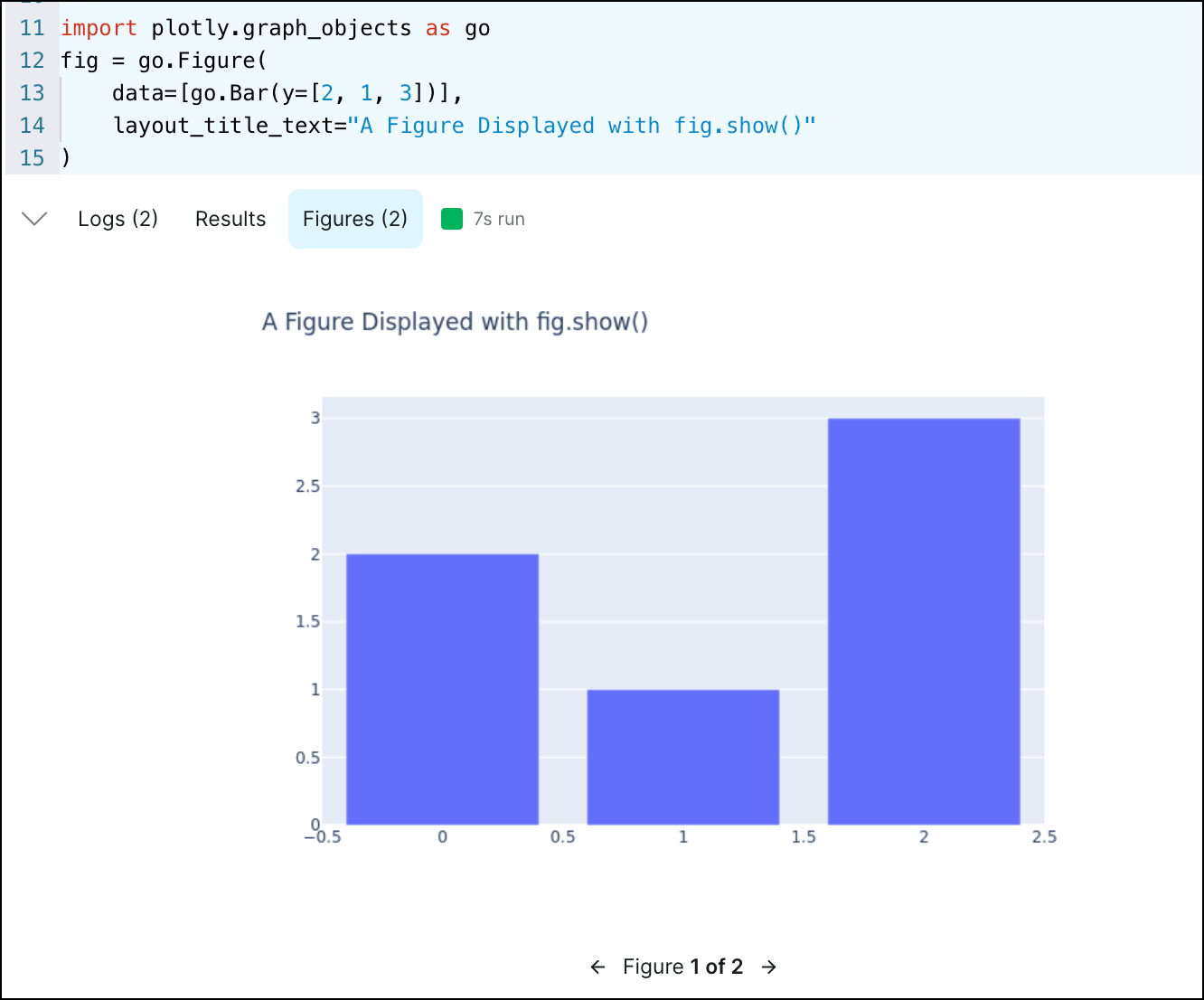
Python cells that generate figures using Matplotlib, Plotly, or any libraries that extend these tools now show the figures they render in the Astro Cloud IDE. When you run a Python cell, any figures it generates appear in a new Figures tab.
Changes to Workspace user roles
Upgrade the Astro CLITo take advantage of these new user roles programmatically, you must upgrade the Astro CLI to version 1.19 or later.
- The Workspace Author role is a new role for users who primarily write and deploy dags. Users with this role can push code changes, but they can’t update Deployment or Airflow settings such as Airflow variables, Astro environment variables, or connections.
- The Workspace Admin role has been renamed to Workspace Owner. Users with this role are responsible for administrating membership to the Workspace.
- The Workspace Editor role has been renamed to Workspace Operator. In addition to pushing code changes, Workspace Editors can now also edit Airflow objects such as variables, connections, and XComs. Users with this role are responsible for managing the environments that dags run in.
- The Workspace Viewer role has been renamed to Workspace Member. Users with this role only need viewing permissions for a Deployment and don’t have permissions to make any code or configuration changes.
Additional improvements
- The lifespan of the personal user access token you can retrieve from
cloud.astronomer.io/tokenhas been reduced from 24 hours to 1 hour. - The DAGs view of the Astro UI now shows your configured dependency edge labels in the graph view.
- The Astro UI now shows more detailed instructions for deploying code when you create a new Deployment.
- The Deployment Analytics page in the Astro UI has been renamed to Overview.
Bug fixes
- Fixed an issue where Deployments using the Kubernetes executor could not run dags with lower resource requests than the Default Pod Size. Minimum requests are now hard-coded and decoupled from default requests.
Additional improvements
- You can now configure task log forwarding to Datadog at the Deployment level.
- In the DAGs view of the Astro UI, you can now double click a task run node in the graph view to view the task run’s logs and mapped tasks.
- The A50 worker type has been renamed to A60 to make it consistent in scale with other worker types.
- The max possible CPU quota and Memory quota for a Deployment running in a Hosted dedicated cluster has increased to 1600 vCPU/ 3200 GiB respectively.
Additional improvements
- You can now see how many Astro alerts you’ve configured for a dag in the DAGs page of the Astro UI.
Bug fixes
- Fixed an issue where you couldn’t run Astro Cloud IDE pipelines that included a Markdown cell.
- Fixed an issue where an Organization’s SSO bypass link was formatted incorrectly in the Astro UI.
New Hosted worker type
You can now configure Deployments with theA50 machine type, which has 12 vCPU and 24 GiB. See Astro hosted resource reference.Additional improvements
- When you create a new Astro Cloud IDE project, you can now specify whether you want the project to include an example pipeline.
- You can now access Organization-level settings in the Astro UI only through the Organization Settings link. Additionally, some Organization settings have been moved to the top level of navigation so that there is no longer a Settings menu.
- You can now use commas, apostrophes, and ampersands in Workspace and Organization names.
- The Workspace list view in the Astro UI has been redesigned so that Organization Owners can now edit and delete Workspaces directly from the list.
Bug fixes
- Fixed an issue where the Astro UI showed incorrect CPU and memory limits in bar charts on the Deployments list and Details page.
Hosted Deployments have dag-only deploys enabled by default
New Astro Hosted Deployments now have dag-only deploys enabled by default. When dag-only deploys are enabled, some workflows for your Deployment, including image-based deploys, are different compared to when dag-only deploys are disabled. For more information about how code and image deploys work when dag-only deploys are enabled, see What happens during a project deploy. To disable dag-only deploys, see Enable/ disable dag-only deploys on a Deployment.Teams now have Organization-level roles
All Teams on Astro now have an Organization role. Existing Teams have been given the Organization Member role, which doesn’t result in any additional automatic permissions.Coupled with SCIM user groups, you can now manage your Organization Owners and Billing Admins from your identity provider. See Manage teams for more information.Additional improvements
- The Astro UI now shows how many Workspaces, dags, clusters, and Astro Cloud IDE projects you have in the left sidebar.
- You can now create Deployments in standard clusters hosted in
europe-west2on GCP andeu-central-1on AWS. - The default metadata database instance type for new Deployments on GCP clusters in Astro Hybrid has been reduced to
Small General Purposewith 2 vCPUs and 8GiB. See GCP Hybrid cluster settings.
Bug fixes
-
Because some regions don’t support specific machine types that Astro Hosted uses, you can no longer create Hosted dedicated clusters in the following AWS regions:
af-south-1ap-east-1ap-northeast-2ap-northeast-3ca-central-1eu-south-1eu-west-3me-south-1
Additional improvements
- The templates for Astro alert messages have been updated to include more information about the Deployment that the alert was triggered in, including a link to the dag that triggered the alert.
Bug fixes
- Fixed an issue where Azure AD single sign-on (SSO) connections were incorrectly labeled as SAML connections in the Astro UI.
Configure default Pod sizes
You can now configure the default minimum CPU and memory for tasks that you run with the Kubernetes executor or KubernetesPodOperator. If you don’t specify CPU or memory in a task definition, Astro runs the task in a Pod that uses your default resource configurations. Configure default minimum resources to ensure that tasks always have enough CPU and memory to run successfully. See Deployment settings.New regions available on Astro Hosted
You can now create Hosted dedicated clusters in the following regions:-
AWS
af-south-1- Africa (Cape Town)ap-east-1- Asia Pacific (Hong Kong)ap-northeast-1- Asia Pacific (Tokyo)ap-northeast-2- Asia Pacific (Seoul)ap-northeast-3- Asia Pacific (Osaka)ap-southeast-1- Asia Pacific (Singapore)ap-southeast-2- Asia Pacific (Sydney)ap-south-1- Asia Pacific (Mumbai)ca-central-1- Canada (Central)eu-central-1- Europe (Frankfurt)eu-south-1- Europe (Milan)eu-west-1- Europe (Ireland)eu-west-2- Europe (London)eu-west-3- Europe (Paris)me-south-1- Middle East (Bahrain)sa-east-1- South America (São Paulo)us-east-1- US East (N. Virginia)us-east-2- US East (Ohio)us-west-1- US West (N. California)us-west-2- US West (Oregon)
-
GCP
asia-east1- Taiwan, Asiaasia-northeast1- Tokyo, Asiaasia-northeast2- Osaka, Asiaasia-northeast3- Seoul, Asiaasia-south1- Mumbai, Asiaasia-south2- Delhi, Asiaasia-southeast1- Singapore, Asiaasia-southeast2- Jakarta, Asiaaustralia-southeast1- Sydney, Australiaaustralia-southeast2- Melbourne, Australiaeurope-central2- Warsaw, Europeeurope-north1- Finland, Europeeurope-southwest1- Madrid, Europeeurope-west1- Belgium, Europeeurope-west2- England, Europeeurope-west3- Frankfurt, Europeeurope-west4- Netherlands, Europeeurope-west6- Zurich, Europeeurope-west8- Milan, Europeeurope-west9- Paris, Europenorthamerica-northeast1- Montreal, North Americanorthamerica-northeast2- Toronto, North Americasouthamerica-east1- São Paulo, South Americasouthamerica-west1- Santiago, South Americaus-central1- Iowa, North Americaus-east1- South Carolina, North Americaus-east4- Virginia, North Americaus-east5- Columbus, North Americaus-south1- Dallas, North Americaus-west1- Oregon, North Americaus-west2- Los Angeles, North Americaus-west3- Salt Lake City, North Americaus-west4- Nevada, North America
Bug fixes
- You can no longer create Hybrid GCP clusters in
eu-north-1.
Send Astro alerts to email
You can now send Astro alerts to multiple email addresses. Sending Astro alerts to email requires no configuration outside of Astro, which makes it a quick option to improve your alerting infrastructure. See Configure Astro alerts for setup steps.Configure SCIM provisioning for Azure AD
If your Organization uses Azure for single sign-on (SSO), you can now set up SCIM provisioning for Astro. SCIM provisioning simplifies user management by allowing you to add and remove Astro users from Okta based on your existing user groups. See Set up SCIM provisioning for more information.Additional improvements
- On Astro Hosted deployments, the
astronomer_monitoring_daghas been paused for all image-based Deployments and removed entirely from all Deployments with dag deploys enabled. It has been replaced with an implementation that allows workers on Deployments to fully scale to 0.
Configure SCIM provisioning for Okta
If your Organization uses Okta for single sign-on (SSO), you can now set up SCIM provisioning for Astro. SCIM provisioning simplifies user management by allowing you to add and remove Astro users from Okta based on your existing user groups. See Set up SCIM provisioning for more information.See pricing estimate when creating a Deployment
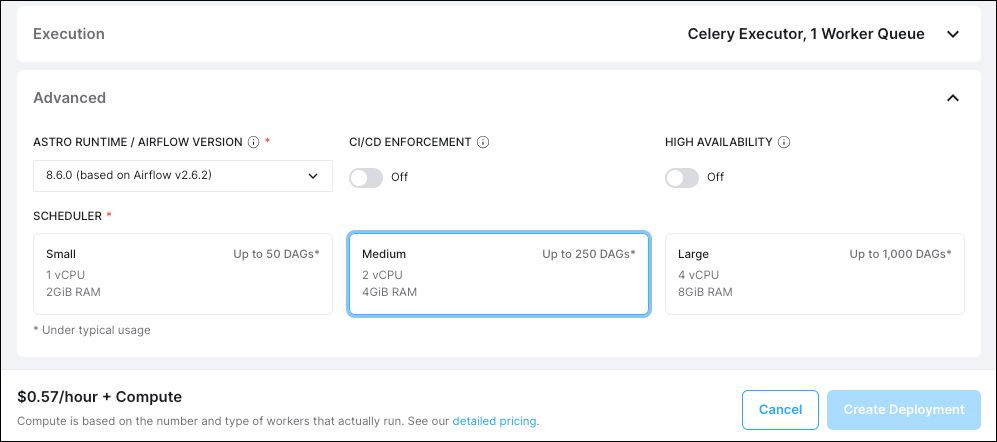
The Deployment creation page in the Astro UI has been reorganized to make it easier to focus on specific configurations for your Deployment. Each configuration is now collapsible and includes guidance for different environment sizes. Additionally, the page now shows cost estimates for a Deployment before you create it.
Additional improvements
- You can now configure Deployments with the
A40machine type, which has 8 vCPU and 16 GiB. See Astro hosted resource reference. - You can now access your Organization settings from a Workspace by clicking the name of your Organization/ Workspace.
- On Astro Hybrid, the default Azure DB instance is now
Standard D2ds_v4. - The Deployment creation screen for Astro Hybrid has received several updates that were previously only available on Astro Hosted.
Bug fixes
- Fixed an issue where dags that used the KubernetesPodOperator and had tasks with
in_cluster=Falsecould not be parsed.
Support for dedicated clusters on Azure
You can now create a dedicated cluster in the following Azure regions:australiaeasteastus2northeuropewesteuropeuswest2
Additional improvements
- The Astro UI now shows how many Workspaces each Team belongs to in Settings > Access Management > Teams.
- You can now create dedicated clusters in
us-west1on GCP.
Additional improvements
- You can now add a new Astro user to Workspaces before the user has accepted their invite.
- If you have Organization Owner permissions, you can now add a user to a Workspace even if the user hasn’t been added to your Organization. Users added to Workspaces this way are automatically added to your Organization as an Organization Member.
- The Astro UI now shows your Team IDs in Settings > Access Management > Teams. Use Team IDs to add Teams to Workspaces using the Astro CLI.
- A Team’s Updated At and Updated By values are now updated when you change the Team’s permissions in a Workspace or Organization.
Bug fixes
- Fixed an issue where a Workspace descriptions were incorrectly required when creating a new Workspace through the Astro CLI.
Manage billing and track usage for Astro Hosted
Use the new Billing page in the Astro UI to see both high-level and detailed metrics about your spend in Astro Hosted. You can also use this page to configure your billing details and view invoices. See Manage billing for more details.New cell type for using Airflow operators in the Astro Cloud IDE
You can now use any Airflow operator available on the Astronomer Registry in your Astro Cloud IDE pipeline. Operator cells apply formatting and checks for parameter inputs, making it easy to configure operators as part of your pipeline.Additionally, you can configure custom cells to use your team’s custom operators in a pipeline.IMDSv2 is now enforced on AWS clusters
Astronomer now enforces IMDSv2 on all AWS clusters. Any requests for resources on your clusters are now session-based and muse include a token in the request body.Additional improvements
- Trial Deployments now have dag-only deploys enabled by default.
- The Astro UI now shows your Organization Short Name and Astro SAML Connection Name in the Astro UI.
- You can now view mapped tasks from the DAGs page in the Astro UI.
Bug fixes
- Fixed an issue where worker node pools in Hosted dedicated clusters on Azure were not being updated correctly.
- Fixed an issue the Astro UI would reset a Deployment’s Min Worker Count from 0 to 1 after you edited the Deployment in any way.
Track user actions and ensure compliance with audit logs
You can now export audit logs from the Astro UI to view all actions taken in your Organization over a given time period. See Export audit logs for setup steps.Additional improvements
- You can now configure Hybrid GCP clusters with additional Memory Optimized and Compute Optimized Cloud SQL instance types. See Supported Cloud SQL instance types.
Manage permissions for groups of users with Teams
Configure Teams from the Astro UI to manage the permissions for many users across Workspaces from a single page. Teams are a group of users in an Organization that you grant the same Workspace permissions, without needing to define them individually.See Make a Team for setup steps.Bug fixes
- In Astro Hosted, an irrelevant AWS external ID info page has been removed from the Astro UI.
- Fixed an issue where dag-only deploys could be unreliable due to the deploy process not requesting enough resources in the cluster.
Introducing Astro Hosted and Hybrid
Astro Hosted is a new way to run Airflow on Astronomer’s cloud. On Astro Hosted, Airflow environments are managed and hosted entirely by Astronomer, enabling you to shift your focus from infrastructure to data.For more information about how Astro Hosted works, see the Architecture overview.If you’re already an Astro user and your Deployments run in your company’s own cloud, you’re using Astro Hybrid. This version of Astro was formerly known as Astro - Bring Your Own Cloud.To see whether you’re an Astro Hybrid user, open your Organization in the Astro UI and go to Settings > General. Your version of Astro is listed under Product Type.See Documentation refactor for Astro Hybrid to learn how the documentation has changed for current Astro Hybrid users.Configure default Kubernetes Pods on Astro Hosted
One of the biggest risks of running the Kubernetes executor or KubernetesPodOperator is that your tasks can accidentally request more resources than expected, which can drive up costs. To limit this risk, you can now configure default and maximum Pod resources from the Astro UI. If a task tries to request Pod resources that are more than your configured limits, the task fails.See Configure Kubernetes Pod resources for setup steps.Documentation refactor for Astro Hybrid
The following updates have been made to documentation to accommodate new Astro Hosted information:- Astro Hybrid documentation now has a dedicated menu under “Administration” that contains all docs related to Hybrid installation and cluster management. See Astro Hybrid overview.
- All other docs now assume Astro Hosted by default. If a feature is functionally different between Hosted and Hybrid, the documentation for that feature will include a note about how that setup differs for Hybrid. Look for the blue Alternative Astro Hybrid setup notes throughout documentation.
Automate Organization management with Organization API tokens
You can now create Organization API tokens to automate key actions across your Organization and all of the Workspaces in it. You can customize the role and expiration date of the token to give it the minimum required permissions for the task it completes. Some common actions that you can automate with Organization API token are:- Creating Workspaces.
- Inviting users to an Organization or Workspace.
- Creating and updating Deployments using a Deployment file.
- Exporting audit logs.
- Gathering metadata about Deployments using the Airflow REST API.
- Completing any of the actions you can complete with a Workspace API token or Deployment API key across all Deployments in your Organization.
Receive Astro alerts on Slack or PagerDuty
Astro alerts are a new way to be notified when your dags aren’t running as expected. Unlike Airflow callbacks and SLAs, Astro alerts require no changes to dag code and integrate with Slack and PagerDuty.You can set an alert on any dag to be notified when the dag fails or when a task takes longer to run than expected. See Astro alerts for configuration steps.Bug fixes
- Fixed an issue where SSO configurations made through Astronomer support could be overridden by updating the SSO configuration through the Astro UI.
Improved log viewing in the Astro UI
The Deployment Logs page in the Astro UI now shows logs for your Deployment’s workers, schedulers, triggerers, and webserver. Additionally, you can now view up to the last 10,000 logs emitted by your Deployment from the Astro UI.To make it easier to parse this larger log volume, the Logs page now lets you filter by log type, date, and keyword. See View logs for more information.Self-service configuration for single sign-on (SSO) connections
You can now configure SSO connections directly from the Astro UI without assistance from Astronomer support. Use the Authentication page to configure different authentication environments for your Organization by creating and managing multiple SSO connections and domains.To review the new process for creating SSO connections, see Set up authentication and SSO. To create new managed domains to map to your SSO connections, see Manage domains.Additional improvements
- The node type for running Airflow system components on GCP clusters has been reduced from
n2-standard-4toe2-standard-4. - To optimize infrastructure costs for running the Kubernetes executor, Kubernetes executor worker Pods from different Deployments can now run on the same worker node. This occurs only when the Deployments are hosted in the same cluster and use the same worker node instance type.
Preview Deployments
You can now create preview Deployments from feature branches in your Git repository. Use a preview Deployment template or GitHub Actions template to configure your Astro pipelines to:- Create the preview Deployment when you create a new branch.
- Deploy code changes to Astro when you make updates in the branch.
- Delete the preview Deployment when you delete the branch.
- Deploy your changes to your base Deployment after you merge your changes into your main branch.
Additional improvements
- Added the ability to enforce CI/CD deploys. You can now configure your Deployment to only accept code deploys if they are triggered by a Deployment API key or Workspace token.
- When you create a new cell in the Astro Cloud IDE, the editor auto-scrolls to your new cell and selects it.
Bug fixes
- Fixed a bug where the UI passed the wrong cluster type.
- Fixed an issue where the Deployment status shows as ‘deploying’ when KPOs are running.
New GCP node instance types available
You can now use the following node instance types for worker nodes in GCP clusters:e2-standard-32e2-highcpu-32n2-standard-32n2-standard-48n2-standard-64n2-highmem-32n2-highmem-48n2-highmem-64n2-highcpu-32n2-highcpu-48n2-highcpu-64
Additional improvements
- You can now use
db.m6ganddb.r6gRDS instance types on AWS clusters. - The default RDS instance type for new AWS clusters has been reduced from
db.r5.largetodb.m6g.large - The default CIDR range for new AWS clusters has been reduced from /19 to /20.
- You can now submit a Request type in the Astro UI support form. When you choose a request type, the form updates to help you submit the most relevant information for your support request.
- You can no longer delete a Workspace if there are any Astro Cloud IDE projects still in the Workspace.
- Organization role permissions have changed so that only Organization Owners can create Workspaces.
Bug fixes
- Fixed an issue where you could set a Deployment’s scheduler resources to less than 5 AU.
Automate Workspace and Deployment actions using Workspace API tokens
Use Workspace API tokens to automate Workspace actions, such as adding users to a Workspace and creating new Deployments, or for processes that a Deployment API key can automate. You can customize the role and expiration date of the token to give it the minimum required permissions for the task it completes.To create and use Workspace API tokens, see Workspace API tokens.Additional improvements
- In the Astro Cloud IDE, you can now specify the output table for a Warehouse SQL cell using both literal and Python expressions.
- Port 80 is no longer used for certificate management on the data plane.
-
To switch Organizations in the Astro UI, you now use the Switch Organization button next to your Organization’s name.

Run the Kubernetes executor in Astro
You can now configure your Deployments to use the Kubernetes executor for executing tasks. Using the Kubernetes executor, you can:- Run tasks with different version dependencies in the same Astro project.
- Request specific amounts of CPU and memory for individual tasks.
- Automatically down your resources when no tasks are running.
Simplified Organization management in the Astro UI
The Astro UI has been redesigned so that Organization settings tabs are now available in the left menu. Use this new menu to switch between pages as you can for Workspace settings.While most tabs were migrated directly to the left menu with the same name, some pages have been renamed and moved:- Formerly located in Overview, your Workspace list is now available in Workspaces.
- Formerly located in the People tab, Organization user management settings are now in Settings > Access Management.
- Formerly located in the Settings tab, general Organization settings are now in Settings > General.
New Astro Cloud IDE integration with GitLab
You can now configure a GitLab repository in your Astro Cloud IDE project. Configuring a GitLab repository allows you to commit your pipelines and deploy them to Astro directly from the Astro Cloud IDE.Additional improvements
- Clusters on an Astro - Hosted installation no longer retain Airflow logs which are older than 90 days.
- The Data Plane System node pool instance type on GCP clusters has been reduced from
n2-standard-4ton2-standard-2.
Get expert advice on Astro and Airflow in office hours
Office hours are a new way for Astro customers to meet with the Astronomer Data Engineering team. In an office hour meeting, you can ask questions, make feature requests, or get expert advice for your data pipelines.You can now schedule a 30-minute office hour meeting in the Help menu next to your user profile in the Astro UI.
Additional improvements
- The node pool instance type used for Astro system components on GCP clusters has been reduced from
n2-standard-4ton2-standard-2. - Dags generated by the Astro Cloud IDE now use UTC instead of your current timezone as the default timezone for scheduling dag runs.
Bug fixes
- Fixed an issue in the Astro Cloud IDE where you could not update a pipeline that was configured with an invalid cyclic dependency chain.
- Fixed an issue where deploying an Astro project with a custom Docker image tag resulted in the Deployment always having the Deploying status in the Astro UI.
- Fixed an issue where worker Pods on Azure clusters were sometimes unable to scale because there was no prioritization for starting up essential scheduling Pods.
Astro no longer requires administrator access on AWS
Astro no longer requires administrator permissions for its dedicated AWS account. Instead, Astro now assumes a cross-account IAM role with the minimum necessary permissions for running and managing clusters. See Install Astro on AWS for more information.IdP-initiated logins through the Okta dashboard
If your Organization uses Okta as your Astro identity provider, you can now log in to Astro directly from your Okta Apps dashboard. If you’ve been authenticated by Okta, you no longer need to be authenticated by Astro when you access it through your dashboard.Additional improvements
- Ingress to the Kubernetes API on Google Cloud Platform (GCP) and Azure clusters is now limited to Astro control plane IPs. This change will be implemented on all clusters in the coming weeks.
Bug fixes
-
To protect the functionality of Astro monitoring services, you can no longer override the values of the following environment variables:
-
AIRFLOW__METRICS__STATSD_ON -
AIRFLOW__METRICS__STATSD_HOST -
AIRFLOW__METRICS__STATSD_PORT -
AIRFLOW__METRICS__STATSD_ALLOW_LIST -
AIRFLOW__METRICS__STATSD_STATSD_CUSTOM_CLIENT_PATH -
AIRFLOW__METRICS__STATSD_PREFIXYou can still set new values for these variables, but the values will be automatically overwritten in the Astro data plane. See Platform variables.
-
- Fixed an issue where a user could provision multiple accounts when their login email address included differently cased characters.
New identity-first authentication model
Astro has migrated to an identity-first authentication model. Users now authenticate to the Astro platform instead of individual Organizations, and Organizations can set permissions for how users can modify and access resources. This model prioritizes identity verification and enforces authentication policies for user email domains.For all users logging in to Astro, this migration has the following effects:- Instead of being redirected to separate login pages for each Organization, all Astro users log in through a universal login page.
- Users belonging to multiple Organizations no longer have to log in again when switching Organizations.
- Users no longer need to enter their email on a separate page before they log in to the Astro UI.
- If your Organization enforces single sign-on (SSO), users can now authenticate to Astro with a username and password when your email domain doesn’t enforce SSO.
- You can now use an SSO bypass link to log in to Astro if your SSO connection is disrupted.
- Your Organization now has a list of owned email domains, and any users logging into Astro with one of those domains will be redirected to your configured identity provider.
New Hosted regions available
You can now create clusters in the following regions on an Astro - Hosted installation.-
AWS
ap-northeast-1ap-southeast-2eu-central-1eu-west-1us-east-1us-west-2
-
Google Cloud
asia-northeast1australia-southeast1europe-west1europe-west2us-central1us-east4
-
Microsoft Azure
australiaeastjapaneastnortheuropewesteuropeeastus2westus2
Additional improvements
The default CIDR ranges for new GCP clusters have been reduced. The following are the new CIDR ranges:- Subnet CIDR:
172.20.0.0/22 - Pod CIDR:
172.21.0.0/19 - Service Address CIDR:
172.22.0.0/22 - Service VPC Peering:
172.23.0.0/20
Bug fixes
In the Astro UI, when using Compare on the Lineage Graph page, you can now compare shorter run lengths.Authorize Workspaces to clusters
You can now keep teams and projects isolated by authorizing Workspaces to specific clusters. Use this feature to better manage cloud resources by ensuring that only authorized Deployments are running on specific clusters.New Deployment health statuses and information in the Astro UI
The Astro UI now includes three additional Deployment health statuses that you might see when creating or pushing code to a Deployment.- The Creating status indicates that Astro is still provisioning the resources for the Deployment.
- The Deploying status indicates that a code deploy is in progress. Hover over the status indicator to view specific information about the deploy, including whether it was an image deploy or a dag-only deploy.
- The Unknown status indicates that Deployment status can’t be determined.
View OpenLineage facets for lineage job runs
OpenLineage facets are JSON objects that provide additional context about a given job run. By default, a job run includes facets that show what kind of job was completed, whether the job run was successful, and who owns the job.You can now view all available facets for a job run, including custom facets, by opening the job run’s Lineage Graph and then selecting the Info tab. You can check the status of your facets, including whether they are correctly formatted, so that you can resolve potential issues in your data pipelines.
Additional improvements
- You can now create AWS clusters in
ap-northeast-1andap-southeast-2on an Astro - Hosted installation. - You can now create GCP clusters in
australia-southeast1on an Astro - Hosted installation.
Security fixes
- Fixed CVE-2023-0286.
Additional improvements
- The instructions on the welcome page for new Astro users who are not yet part of an Organization have been improved to make getting started easier.
Bug fixes
- Removed nonfunctioning date filtering functionality from the Lineage UI.
- Fixed an issue where triggering an image deploy from an older version of the Astro CLI could unintentionally turn off dag deploys on a Deployment.
Bug fixes
- When you select Mark Success or Clear for Deployment task actions in the Airflow UI, you are now correctly redirected to the dag Tree view instead of the DAGs homepage.
- Fixed CVE-2022-41721.
New Workspace Home page
When you select a Workspace in the Astro UI, the Home page now appears first. On this page, you can:- Check the status of your Deployments.
- Quickly access your most recently viewed Deployments and Cloud IDE projects.
- View release notes for all Astro products.

Additional improvements
- Ingress to the Airflow UI and API on Astro clusters is now limited to control plane IPs. This change will be implemented on all clusters in the coming weeks.
- You can now request custom tags for your AWS clusters by submitting a support request to Astronomer support. You can view your cluster tags in the Astro UI by selecting Clusters, selecting a cluster, and then clicking the Details tab.
- You can now create new clusters in France Central for Bring Your Own Cloud installations of Astro on Azure.
- Improved the speed of dags appearing in the Airflow after completing a dag-only deploy.
Bug fixes
- Fixed CVE-2022-48195.
Bug fixes
- Fixed an issue with Google Cloud Platform (GCP) clusters where the metadata database for a Deployment could persist after the Deployment was deleted.
New Astro Cloud IDE cell types
To simplify the creation of new tasks, the following new cell types are now available in the Astro Cloud IDE:- SQL: Run a SQL query against an existing database connection and save the query results in an XCom file for use by other cells. Use this cell type to run smaller queries and store the results in Airflow for quick access by other cells.
- Warehouse SQL: Run a SQL query against an existing database connection and store the query results in your data warehouse. Use this cell type for data operations that require more storage and reliability.
- Markdown: Add inline Markdown comments to your generated dag code. Use this cell type to document code decisions and to make it easier for team members to collaborate on shared pipelines.
Additional improvements
- To reduce the time it takes for Airflow to parse new dag files, the default value for
AIRFLOW__SCHEDULER__DAG_DIR_LIST_INTERVALhas been reduced from 5 minutes to 30 seconds for all Deployments regardless of Runtime version. For most users, this means that you will see new dags appear in the Airflow UI faster. - In the Astro UI, a banner now appears if there is an incident reported on the Astro status page.
Bug fixes
- Sorting the Organization Role column in the People tab of the Astro UI now works as expected.
- Fixed an issue where lineage groups would occasionally not collapse as expected in the Lineage Graph view.