Subscribe to Astro release notes to receive updates via RSS, email, or Slack.
Astro release notes from 2022. See the current release notes for the latest updates.

Additional improvements

  • You can now configure OneLogin and Ping Identity as identity providers on Astro.
  • Workspace Members can now view Workspace settings in the Astro UI.
  • Node groups that are collapsed in the lineage graph in the Astro UI now show only the total number of connected Jobs and Datasets, instead of listing each job and dataset. This makes the lineage graph easier to navigate.
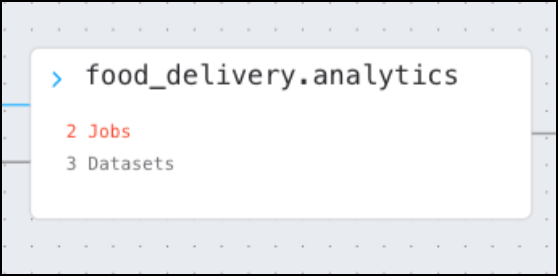
    Collapsed node in lineage graph of Astro UI

Bug fixes

  • Fixed an issue where the lineage UI did not show dataset metrics when a dataset had no column-level metrics.
  • Fixed an issue where some instances of a dataset’s name were inconsistent in the lineage UI.

Improvements to the Cloud IDE

The Cloud IDE includes several new features which improve dag authoring and testing:
  • There is a new Commit button in the Astro UI that is separate from the Configuring GitHub menu.
  • The default CI/CD pipeline included in the Cloud IDE project supports dag-only deploys. Deploying dag changes to Astro using the CI/CD pipeline is now significantly faster.
  • The Configure GitHub menu in the Astro UI now includes a Clone Repo settings menu. Enabling this option makes other files in your GitHub repository, such as helper functions in the include folder of your project, accessible when you run dags in the Cloud IDE.
  • You can now explicitly mark upstream dependencies for a task cell from the cell’s configuration menu.

Support for n2 worker types on GCP

You can now configure worker queues with the following n2 worker types on Google Cloud Platform (GCP) clusters:
  • n2-standard-4
  • n2-standard-8
  • n2-standard-16
  • n2-highmem-4
  • n2-highmem-8
  • n2-highmem-16
  • n2-highcpu-4
  • n2-highcpu-8
  • n2-highcpu-16
For more information about these worker types, see N2 machine series. For a list of all worker types available on GCP, see Worker node size resource reference.

Additional improvements

  • In the Clusters tab of the Astro UI, you can now click a cluster entry to see details about the cluster configuration, including which Worker Types are enabled for the cluster.
  • The Deployment details page in the Astro UI now includes an ID pane. A Deployment ID is required when you deploy code using a CI/CD process.
  • The OpenLineage URL for your Organization is now available on the Settings page in the Astro UI. An OpenLineage URL is required to integrate data lineage from some external systems.
  • Workspaces are now sorted alphabetically in the Astro UI.
  • In Astro CLI version 1.8.0 or later, running astro deploy with an empty or missing dags folder does not erase or override existing dags. Instead, the directory is excluded from the build and push process to Astro. This lets you manage your dags and project files in separate repositories when using dag-only deploys.

Bug fixes

  • Fixed an issue where Astro temporarily stored dags for dag-only deploys in a new directory named /usr/local/airflow/dags/current, which could cause import errors in user code.
  • Fixed an issue where task runs triggered in the Cloud IDE did not have access to project environment variables.
  • Fixed an issue where Deployment metrics for memory usage were not always accurate.

Additional improvements

  • In the Astro UI, the People page now shows the IDs of users belonging to your Organization.
  • In the Astro UI, the Deployments page now shows the user or API key that most recently updated each Deployment and when they updated it.

Bug fixes

  • Availability zone (AZ) rebalancing has been disabled for worker node pools on AWS clusters. This change should result in fewer zombie tasks and less volatility across workers. AZ rebalancing is enabled for other system components on Astro.
  • The Updated at field for a transferred Deployment now displays the correct time.
  • astro deploy --dags now handles deferrable tasks correctly.

Deploy only dags with astro deploy -—dags

Using Astro CLI 1.7, you can run astro deploy -—dags to push only the dags directory of your Astro project to a Deployment on Astro. This is an additional option to astro deploy that makes for a faster development experience and gives you more flexibility in how you configure CI/CD processes.For more information, see Astro CLI 1.7 or Deploy dags only. For example CI/CD workflows with this feature enabled, see CI/CD.

Improved data lineage interface

The Lineage tab has new features and is better integrated into the Astro UI.

Updated lineage page
Specifically, the tab includes the following improvements:
  • The process for comparing runs uses a simpler interface and provides more information about the runs you’re comparing.
  • Names for UI elements have been updated to more clearly represent Airflow resources. For example, jobs is now runs, and the Explore tab is now Runs.
  • Lineage graphs include new colors and animations to show the flow of data as it moves between runs and datasets.

Transfer a Deployment

You can now transfer a Deployment from one Workspace to another in your Organization. This feature is helpful if you need to change the group of users that have access to a Deployment, or if you create a Deployment in the wrong Workspace.See Transfer a Deployment to another Workspace.

Additional improvements

  • The Kubernetes API is no longer exposed to the public internet on AWS data planes. The allowlist is limited to control plane IPs. New clusters will be created with this configuration, while all existing clusters will be updated by end of next week.

Introducing the Astro Cloud IDE, a new Airflow development experience

Astronomer is excited to introduce the Astro Cloud IDE, which is a notebook-inspired development environment for writing, running, and deploying data pipelines. Now you can develop an entire Airflow project, including dags, dependencies, and connections entirely within the Astro UI.
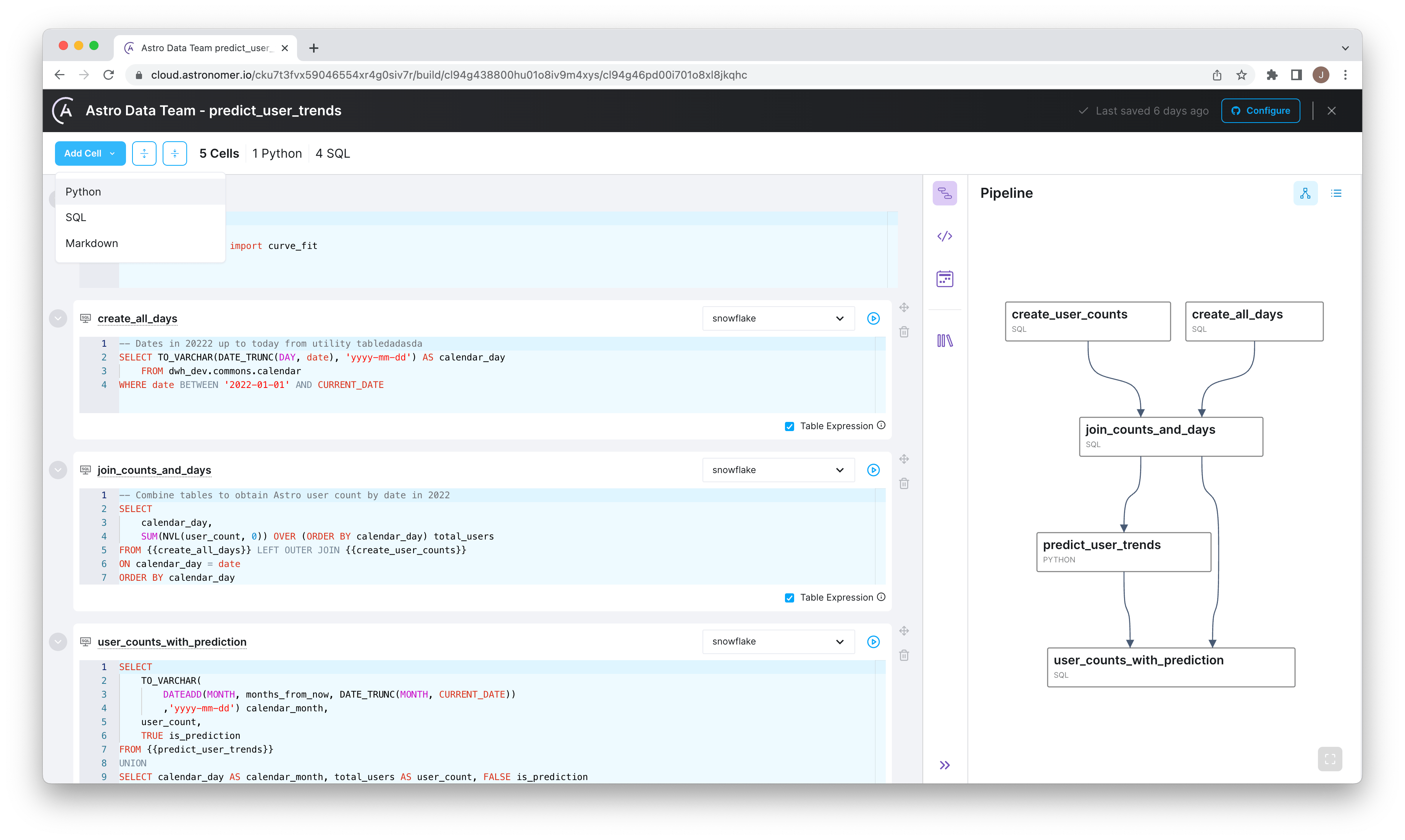
Example page in the Astro Cloud IDE
The Astro Cloud IDE was created with the following objectives:
  • Configuring Airflow shouldn’t be a barrier to running Airflow.
  • Passing data between tasks should be seamless regardless of what language is used to write the task.
  • Data pipelines should be quick to deploy and easy to test with CI/CD.
Most importantly, the Astro Cloud IDE was developed to make it easier for new Airflow users to get started and to provide experienced users with a robust development environment.

Additional improvements

  • In the Astro UI, cluster selection menus are now alphabetized.

Bug fixes

  • Fixed an issue where the KubernetesPodOperator was not aware of available ephemeral storage in m5d and m6id worker nodes. This issue resulted in Pods being evicted to free up storage even when there was enough available storage for tasks.
  • Fixed an issue in the Astro UI where you could select a worker type before selecting a cluster when creating a Deployment.
  • Fixed an issue where Deployments on Runtime 5.0.10 and earlier showed a nonfunctional Configuration tab in the Airflow UI.
  • Fixed CVE-2022-32149.

Additional improvements

  • In the Astro UI, you can now view a cluster’s external IP addresses in the Clusters tab.

Bug fixes

  • Fixed an issue where some Deployments were running tasks after being deleted.

Additional improvements

  • In the Astro UI, Access has been moved from the left menu to a tab on the Workspace Settings page.
  • In the Astro UI, Workspace Settings in the left menu is now available to all Workspace members.

New Azure regions

You can now create an Astro cluster on Azure in the following regions:
  • japaneast
  • southafricanorth
  • southcentralus

Additional improvements

  • New worker node pools on Azure and Google Cloud Platform (GCP) clusters can now scale to zero. When you set your minimum worker count to 0, you don’t incur costs for enabling a new worker type for your cluster until it’s used in a Deployment.

Bug fixes

  • Fixed an issue where worker queues with a minimum worker count of zero would appear with a minimum worker count of one in the Astro UI.

New permissions boundary for managed AWS Accounts

The operational roles that Astronomer assumes on dedicated customer AWS accounts now have new permissions boundaries that limit the roles to a subset of their permissions. The remote management role is now limited to the following actions across all contexts:
  • autoscaling:*
  • cloudformation:*
  • cloudwatch:*
  • ec2:*
  • ecr:*
  • eks:*
  • elasticloadbalancing:*
  • iam:*OpenID*
  • kms:DescribeKey
  • lambda:*
  • logs:*
  • route53:AssociateVPCWithHostedZone
  • s3:*
  • secretsmanager:*
  • servicequotas:*
  • ssm:*
  • tag:*
These permissions might change in the future to enable new Astro features or to refine permissions for specific contexts.

Additional improvements

  • Users with the required permissions can now access a Configuration tab in the Admin menu of the Airflow UI. This page no longer shows sensitive values in plain-text and can be used to verify all configurations running on your Deployment.
  • In the Astro UI, the maximum time for Deployment metrics has been extended from 24 hours to 7 days.
  • The Deployment metrics overview now shows metrics for the default worker queue instead of an aggregate of all worker queues. Improved worker queue metrics coming soon.

Bug fixes

  • Added the global environment variable AIRFLOW__LOGGING__DAG_PROCESSOR_LOG_TARGET=stdout so that a scheduler’s logs don’t overcrowd its local storage
  • Removed misleading maximum CPU and memory lines from Deployment metric graphs

Additional improvements

  • All worker queue configurations in the Worker Queues tab of the Astro UI now have tooltips.
  • The Worker CPU and Worker Memory metrics in the Analytics tab of the Astro UI now show metrics only for the default worker queue instead of an average across queues. Improved worker queue metrics coming soon.

Bug fixes

  • Values in the Organization Settings page no longer overlap with other UI elements.
  • Organization Owners can now push code to a Deployment even if they aren’t explicit members of the Deployment’s Workspace.

A simpler Deployment page

All of a Deployment’s configurations, including analytics, API keys, environment variables, and resource configurations, are now organized as tabs within the Deployment’s page in the Astro UI.This new UI moves the Analytics and Logs from the left sidebar to the main Deployment page so that you no longer have to filter those views separately by Deployment. The left sidebar now exclusively contains Workspace-level menus.

New Account Dashboard

You can now access your Account Dashboard to manage your user account settings and find links to helpful resources. Access this page by going to account.astronomer.io in your browser or by clicking Profile > Manage your Astro Account in the Astro UI. You must be authenticated to Astro.

Additional improvements

  • You can now use the m6id worker node type series for Deployments on AWS clusters. This worker type is general purpose and includes significant storage as well as up to 15% better performance compared to m5d nodes. For more information, see Worker instance types.
  • New worker node pools on Amazon Web Services (AWS) clusters can now scale to zero. This means that enabling a new worker type for your cluster does not cost you until it’s used in a Deployment.

Bug fixes

  • Fixed an issue where the Astro UI Deployment metrics showed a maximum worker CPU and memory that was inconsistent with your configured worker queues.

Additional improvements

  • When you create a new worker queue, the default worker type in your cluster is now pre-selected in the Worker Type list.
  • You can now configure multiple instances of the same identity provider (IdP). See Configure an identity provider.
  • You can now expand and collapse the Workspace menu in the Astro UI.

Bug fixes

  • Fixed an issue where you could not open the Airflow UI from a Deployment.

Export Deployment metrics to Datadog

You can now export over 40 Airflow metrics related to the state of your Astro Deployment to Datadog by adding a Datadog API key to the Deployment. Metrics include task successes, dag processing time, frequency of import errors, and more.For organizations already using the observability service, this integration allows your team to standardize on tooling and gain a more granular view of Deployment metrics in a single place. Once the integration is configured, Astro automatically exports all available metrics to Datadog. For a complete list of supported metrics, see Data Collected.To learn more, see Export Airflow metrics to Datadog.

Additional improvements

  • The Astro UI now automatically ensures that worker queue names are valid as you type in real time.
  • The number of times that a user can enter the wrong credentials for Astro before being locked out has been reduced from 10 to 6.
  • You can now configure worker queues to have a minimum Worker count of 0 workers. Note that depending on your cloud provider and Deployment configurations, some Deployments still might not be able to scale to 0 workers.

Bug fixes

  • The timestamp shown in the Updated field of the Deployment view in the Astro UI is now properly updated when you create or modify environment variables.
  • Fixed an issue where logging in to the Airflow UI with unrecognized credentials could freeze you on an error page.

Additional improvements

  • When you configure worker queues in the Astro UI, the total CPU and memory capacity of each worker instance type is now shown instead of the nominal available resources.
  • Improved error handling for creating new worker queues when soft-deleted worker queues might still exist on the data plane.

Bug fixes

  • Fixed an issue where running astro deploy with a Deployment API key could revert changes to a worker queue’s size that were previously set in the Astro UI.
  • Fixed an issue where the Lineage tab in the Astro UI showed all job durations as having a length of 0.

Create multiple worker queues

Worker queues are a new way to configure your Deployment to best fit the needs of your tasks. A worker queue is a set of configurations that apply to a group of workers in your Deployment. Within a worker queue, you can configure worker type and size as well as autoscaling behavior. By configuring multiple worker queues for different types of tasks, you can better optimize for the performance, reliability, and throughput of your Deployment.In the Astro UI, you can now create multiple worker queues. Once you create a worker queue, you can assign a task to that worker queue by adding a simple queue='<worker-queue-name>' argument in your dag code.This feature enables the ability to:
  • Use more than one worker type within a single Deployment and cluster. Previously, a single cluster on Astro supported only one worker type.
  • Isolate long-running tasks from short-running tasks to avoid errors related to competing resource requests.
  • Fine-tune autoscaling behavior for different groups of tasks within a single Deployment.
For example, if you have a task that requires significantly more CPU than memory, you can assign it to a queue that’s configured with workers that are optimized for compute usage.To learn more about configuring worker queues, see Configure Deployment resources.

New worker sizing

This Astro release introduces a new, simple way to allocate resources to the workers in your Deployment. Instead of choosing a varying combination of CPU and memory, you can now select a worker type in the Astro UI as long as it’s enabled in your cluster. For example, m5.2xlarge or c6i.8xlarge on AWS. Once you select a worker type, Astronomer will create the biggest worker that the worker type can support to ensure that your tasks have enough resources to execute successfully.Astro’s worker sizing enables a few benefits:
  • You can no longer configure a worker that is too large or otherwise not supported by your underlying cluster. Previously, misconfiguring worker size often resulted in task failures.
  • A more efficient use of infrastructure. Astronomer has found that a lower number of larger workers is more efficient than a higher number of smaller workers.
  • A higher level of reliability. This worker sizing model results in less volatility and a lower frequency of cluster autoscaling events, which lowers the frequency of errors such as zombie tasks and missing task logs.
  • The legacy AU unit is no longer applicable in the context of the worker. You only have to think about CPU, memory, and worker type.
Worker sizing on Astro is now defined in the context of worker queues. For more information about worker sizing, see Configure Deployment resources. For a list of supported worker types, see the AWS, GCP, and Azure resource references.

New Maximum Tasks per Worker setting

A new Maximum Tasks per Worker configuration is now available in the Deployment view of the Astro UI. Maximum tasks per worker determines the maximum number of tasks that a single worker can process at a time and is the basis of worker autoscaling behavior. It is equivalent to worker concurrency in Apache Airflow.Previously, maximum tasks per worker was permanently set to 16 and was not configurable on Astro. Now, you can set maximum tasks per worker anywhere between 1 and 64 based on the needs of your tasks. It can be set per worker queue on a Deployment.To learn more, see Worker autoscaling logic.

New Worker Count (Min-Max) setting

A new Worker Count (Min-Max) configuration is now available in the Deployment view of the Astro UI. This value defines the minimum and maximum number of workers that can run at a time.Use this setting to fine-tune worker autoscaling behavior in your Deployment. By default, the minimum number of workers is 1 and the maximum is 10.

Support for multiple Organizations

A single user account can now belong to multiple Organizations. A user with multiple Organizations can switch to another Organization by clicking on their current Organization’s name in the Astro UI and then clicking Switch Organization.Note that switching Organizations with the Astro CLI is not yet supported. For more information, see Switch Organizations.

New Azure region (Australia East)

You can now create an Astro cluster on Azure in Australia East (New South Wales).

New Google Cloud Platform regions

You can now create an Astro cluster on GCP in the following regions:
  • australia-southeast2 (Melbourne)
  • asia-east1 (Taiwan)
  • asia-south2 (Delhi)
  • asia-southeast2 - (Jakarta)
  • europe-north1 (Finland)
  • europe-southwest1 (Madrid)
  • europe-west8 (Milan)
  • europe-west9 (Paris)
  • northamerica-northeast2 (Toronto)
  • southamerica-west1 (Santiago)
  • us-east5 (Columbus)
  • us-south1 (Dallas)

Bug fixes

  • Fixed an issue where the Astro UI’s Resource Settings page wasn’t showing units for CPU and Memory values.

Updated user permissions for Organization and Workspace roles

The following user roles have new and modified permissions:
  • Organization Owners now have Workspace Admin permissions for all Workspaces in their Organization. This role can now access Organization Workspaces, Deployments, and usage data.
  • Organization Billing Admins can now view usage for all Workspaces in their Organization regardless of their Workspace permissions.
  • Workspace Editors can now delete any Deployment in their Workspace.

Automatic access for new users authenticating with an identity provider

If your organization has implemented an identity provider (IdP), any new user who authenticates to Astro through your IdP is now automatically assigned the Organization Member role. This means that users authenticating through your IdP don’t need to be invited by email before joining your Organization.

Additional improvements

  • Added a security measure that ensures Workspace roles can only be assigned to users who have an Organization role in the Organization in which the Workspace is hosted. This ensures that a user who does not belong to your Organization cannot be assigned a Workspace role within it.

Support for Astro on Azure Kubernetes Service (AKS)

Astro now officially supports Astro clusters on AKS. This includes support for an initial set of AKS regions.For more information about the installation process and supported configurations, see Install Astro on Azure and Resource Reference Azure.

Bug fixes

  • Pending invites no longer appear for active users in the Astro UI.

New Deployment optimizations for high availability (HA)

This release introduces two changes that ensure a higher level of reliability for Deployments on Astro:
  • PgBouncer, a microservice that increases resilience by pooling database connections, is now considered highly available on Astro. Every Deployment must now have 2 PgBouncer Pods instead of 1, each assigned to a different node within the cluster. This change protects against pod-level connection issues resulting in zombie tasks, which was previously seen during cluster downscaling events. PgBouncer is fully managed by Astronomer and is not configurable.
  • The Airflow scheduler is now configured with an anti-affinity policy to limit the possibility of all schedulers for a single Deployment being impacted by an incident within a single node on an Astro cluster. For users who set Scheduler Count in the Astro UI to 2, this means that those 2 scheduler Pods cannot be assigned to the same node and instead require a minimum of 2 nodes total. To avoid significant increases in cost, 3 or 4 schedulers can share the same 2 nodes and will not necessarily result in a higher node count minimum.
For more information on Deployment configurations, see Deployment settings.

Additional improvements

Additional improvements

  • You can now access an Organization’s AWS external ID from the Settings tab of the Astro UI.
  • Organizations now need only a single AWS external ID for all clusters. Previously, each cluster required a unique external ID, which added complexity to the installation and cluster creation process.
  • You can now remove a user from an Organization from the Astro UI.
  • Organization Billing Admins can now view task usage for all Workspaces regardless of their Workspace permissions.

Additional improvements

  • The Astro UI Clusters page now includes the cluster ID value.
  • Organization Owners and Organization Billing Admins can now update the Organization name in the Astro UI Settings page.
  • The Astro UI Analytics page can now show data for the last 30 minutes.

Bug fixes

  • When you change Worker Resources for a Deployment in the Astro UI, any errors related to your worker size request are now based on the correct node instance type that your cluster is running.
  • When you select a Workspace and click Go back in a browser, the page now reloads as expected.
  • A Page not found error message no longer appears when you select a Deployment in the Usage page of the Astro UI.
  • The Deployment Analytics page now displays the correct date.
  • Deprecated versions of Astro Runtime now appear correctly in the Deployment page of the Astro UI. Previously, versions were appended with -deprecated.

New Google Cloud Platform regions

You can now create an Astro cluster on GCP in the following regions:
  • asia-northeast1 (Tokyo)
  • asia-northeast2 (Osaka)
  • asia-northeast3 (Seoul)
  • asia-south1 (Mumbai)
  • europe-central2 (Warsaw)
  • europe-west6 (Zurich)
  • northamerica-northeast1 (Montreal)
  • us-west3 (Salt Lake City)

Additional improvements

  • You can now search for Organization members by name, email address, and role in the People tab of the Organization view in the Astro UI. You can also search for members in the Access tab of the Workspace view.

Bug fixes

  • Fixed an issue where you could not use the KubernetesPodOperator to execute tasks in a Kubernetes cluster outside of your Astro cluster. See KubernetesPodOperator.

New Google Cloud Platform regions

You can now create an Astro cluster on GCP in the following regions:
  • asia-southeast1 (Singapore)
  • australia-southeast1 (Sydney)
  • europe-west1 (Belgium)
  • europe-west2 (England)
  • europe-west3 (Frankfurt)
  • southamerica-east1 (São Paulo)
  • us-west2 (Los Angeles)
  • us-west4 (Nevada)

Submit Support Requests in the Astro UI

Support requests can now be created and submitted in the Astro UI. You no longer need to open an account on the Astronomer support portal to reach the Astronomer team. To streamline the request process, the Submit Support Request form auto-populates your currently selected Workspace and Deployment in the Astro UI.

Parallelism Now Autoscales with a Deployment’s Worker Count

To better scale concurrent task runs, Astro now dynamically calculates parallelism, which is an Airflow configuration that determines the maximum number of tasks that can run concurrently within a single Deployment.A Deployment’s parallelism is now equal to the current number of workers multiplied by the worker_concurrency value. This change ensures that your task runs won’t be limited by a static parallelism limit as workers autoscale in your Deployment. See Worker Autoscaling Logic for more information.Note that you can still use a static parallelism value by setting AIRFLOW__CORE__PARALLELISM as an environment variable.

Bug Fixes

  • Fixed a rare issue where some user emails would be associated with the wrong username.
  • Fixed an issue where you could not properly sort entries in the People tab by name.

Update Deployment configurations with the Astro CLI

You can now programmatically update the configurations for your Astro Deployments using Deployment API keys and the Astro CLI. Updating a Deployment with an API key doesn’t require manual user authentication, meaning that you can now add Deployment configuration steps to automated processes such as CI/CD pipelines.Specifically, you can now run the following commands with Deployment API keys:

Bug fixes

  • Fixed an issue where a Deployment’s logs wouldn’t load in the Astro UI if it was the only Deployment in the Workspace

Support for the us-east4 GCP region

You can now create an Astro cluster on GCP in the us-east4 region, which is located in northern Virginia, USA.

New Datasets page in the Astro UI

You can now use the new Datasets page in the Lineage tab to view a table of datasets that your dags have read or written to. This information can help you quickly identify dataset dependencies and data pipeline access requirements.Click the name of a dataset to show its lineage graph.

Bug fixes

  • Fixed an issue where the Astro Runtime field of the Astro UI listed the running version as Unknown for Deployments using an unsupported version of Astro Runtime

Data lineage Is now available on Astro

We are excited to introduce data lineage to Astro. You now have access to a new Lineage view in the Astro UI that visualizes data movement across datasets in your Organization based on integrations with Airflow, Apache Spark, dbt, Great Expectations, and more.Built around the OpenLineage open source standard, the data lineage graphs and metadata in the Astro UI can help you better understand your ecosystem and diagnose issues that may otherwise be difficult to identify.For example, if an Airflow task failed because the schema of a database changed, you might go to the Lineage page on Astro to determine which job caused that change and which downstream tasks failed because of it.To learn more about data lineage and how you can configure it on Astro, see:
This functionality is still early access and under active development. If you have any questions or feedback about this feature, reach out to Astronomer support.

Support for Astro on Google Cloud Platform (GCP)

Astro now officially supports Astro clusters on Google Cloud Platform (GCP). This includes support for an initial set of GCP regions as well as Workload Identity for secure connection to other GCP data services in your ecosystem.For more information about the installation process and supported configurations, see Install Astro on GCP and Resource Reference GCP.

Support for Organization-Level user invites

You can now invite users to an Astro Organization without having to first invite them to a specific Workspace. Users invited to an Organization will receive an activation email which brings them directly to the Organization view of the Astro UI.

Additional improvements

  • Improved the templated emails sent out for user invites with clear instructions for how to get started on Astro
  • Improved error messaging behavior on the DAGs and Usage pages of the Astro UI
  • New user accounts must now be verified via email before they can access Astro

New AWS node instance types available

To widen our support for various use cases and levels of scale, we’ve expanded the types of AWS node instances that are supported on Astro. You can now create clusters with:To modify an existing Astro cluster to use any of these instance types, see Modify a Cluster.

Additional improvements

  • Improve the error message that renders in the Astro UI if you try to create a worker that is too large for the Deployment’s node instance type to support. This error message now specifies a clear call to action

Feedback in Astro UI on worker size limits

The Astro UI now renders an error if you try to modify the Worker Resources to a combination of CPU and memory that is not supported by the node instance type of the cluster that the Deployment is hosted on. This validation ensures that the worker size you request is supported by the infrastructure available in your Astro cluster, and minimizes silent task failures that might have occurred due to invalid resource requests.If your Astro cluster is configured with the m5d.8xlarge node type, for example, the Astro UI will show an error if you try to set Worker Resources to 350 AU. This is because the maximum worker size an m5d.8xlarge node can support is 307 AU.

Additional improvements

  • The data plane now connects to various AWS services via AWS PrivateLink. This ensures that traffic to AWS services is kept private and does not traverse the NAT and Internet gateways, reducing the risk of exposing your resources to the internet.

Bug fixes

  • Fixed an issue where you could not add a new user to a Workspace if the user had an email address that contained uppercase characters

New analytics page in Astro UI to monitor Deployments

The Astro UI now includes a dedicated Analytics page that contains various Deployment-level metrics. These metrics are collected in real time and can provide insight into how your data pipelines are performing over time.For more information about accessing the Analytics page and the available metrics, see Deployment Analytics.

Lineage backend upgrade scheduled for all Organizations

As part of Astronomer’s acquisition of Datakin, data lineage features are coming soon to Astro. The first step in enabling these features is to implement lineage backends for existing Astro customers.Starting on March 31st and continuing over the next couple of weeks, all Astro Deployments on Runtime 4.2.0+ will be upgraded to emit lineage events. As a result of this change, you might start seeing lineage-related scheduler logs such as the following:
A few additional notes about this upgrade:
  • You can ignore any lineage logs that indicate an error or failed process, such as the first line in the example logs above. These logs will more accurately reflect the state of your lineage functionality once lineage features are launched on Astro.
  • Deployments on Runtime 4.2.0+ will be updated to emit data lineage events only after you push code. Until you do so, this change will not be applied.
  • Because Astronomer is upgrading each customer individually over time, the exact date that you will start seeing these logs will vary.
  • When you push code to a Deployment on Runtime 4.2.0+ and trigger this update, all other Deployments on Runtime 4.2.0+ in the same Workspace will also restart in order to receive the lineage backend update. If you plan to push code to any Deployment affected by this change, then we recommend doing so at a time where you can tolerate some Airflow components restarting. For more information about expected behavior, see What Happens During a Code Deploy.
For more information about what to expect when lineage tools go live, read Astronomer’s OpenLineage and Airflow guide.

New AWS regions available

You can now create new Clusters in:
  • af-south-1 (Cape Town)
  • ap-east-1 (Hong Kong)
  • ap-northeast-3 (Osaka)
  • me-south-1 (Bahrain)

Additional improvements

  • The Astro UI now includes a button that links to Astronomer support and status pages.

Maximum node count is now configurable per Cluster

As of this release, Maximum Node Count is now a configurable setting for new and existing clusters. On Astro, maximum node count represents the total number of EC2 nodes that your cluster can support at any given time. For an Astro cluster on AWS, EC2 nodes are the primary unit of infrastructure required to run a Deployment and its components, including workers and the Airflow scheduler. New clusters have a maximum node count of 20 by default, but the setting can be modified to any value from 2 to 100 at any time.Previously, maximum node count was a fixed, global setting that applied to all customers on Astro and could not be configured per cluster. Now, your organization can modify this setting as your workloads evolve and more Deployments are created. Once the limit is reached, your cluster will not be able to auto-scale and worker pods may fail to schedule.To update this setting for an existing cluster, reach out to Astronomer support and provide the name of your cluster and the desired maximum node count.

Additional improvements

  • In Resource Settings, the maximum allowed value for Worker Resources has been increased to 400 AU.

Export task usage as a CSV file

In the Astro UI, you can now export your task usage data from the Usage tab as a CSV file to perform more complex data analysis related to your Airflow usage and costs. For example, you can use the file as the basis for a pivot table that shows total task usage by Workspace.To export your task usage data as a CSV file, click the Export button in the Usage tab.

Bug fixes

  • Fixed an issue where saving new environment variables in the Astro UI would occasionally fail

Running Docker image tag in Airflow UI

The Docker image that is running on the Airflow webserver of your Deployment is now shown as a tag in the footer of the Airflow UI. Depending on how your team deploys to Astro, this tag is either a unique identifier generated by a CI tool or a timestamp generated by the Astro CLI on astro deploy. Both represent a unique version of your Astro project.
Runtime Tag banner
When you push code to a Deployment on Astro via the Astro CLI or CI/CD, reference this tag in the Airflow UI to verify that your changes were successfully applied.To upgrade a Deployment to the latest Runtime version, see Upgrade Runtime.
While it is a good proxy, the tag shown in the Airflow UI does not forcibly represent the Docker image that is running on your Deployment’s scheduler, triggerer, or workers.This value is also distinct from the Docker Image that is shown in the Deployment view of the Astro UI, which displays the image tag as specified in the Cloud API request that is triggered on astro deploy. The image tag in the Airflow UI can be interpreted to be a more accurate proxy to what is running on all components of your Deployment.If you ever have trouble verifying a code push to a Deployment on Astro, reach out to Astronomer support.

Additional improvements

  • The threshold in order for bars in the Worker CPU and Worker Memory charts to appear red has been reduced from 95% to 90%. This is to make sure that you get an earlier warning if your workers are close to hitting their resource limits.

Bug fixes

  • Fixed an issue where malformed URLs prevented users from accessing the Airflow UI of some Deployments on Astro
  • Fixed an issue where Astro Runtime 4.0.11 wasn’t a selectable version in the Astro Runtime menu of the Deployment creation view in the Astro UI

Bug fixes

  • Removed the Teams tab from the Astro UI. This view was not yet functional but coming back soon
  • Fixed an issue where the number of users per Workspace displayed in the Organization view of the Astro UI was incorrect
  • Fixed an issue where if a secret environment value was updated in the Astro UI and no other values were modified, the change was not applied to the Deployment

Introducing Astro and a new look

This week’s release introduces a reimagined Astronomer brand that embraces Astro as a rename of Astronomer Cloud. The rebrand includes a new Astronomer logo, color palette, and font.The new Astronomer brand is now reflected both in the Astro UI as well as in the main Astronomer website and documentation.In addition to visual changes, we’ve renamed the following high-level Astro components:
  • Astronomer Cloud CLI is now Astro CLI
  • Astronomer UI is now Cloud UI
  • Astro Runtime is now Astro Runtime
We hope you find this exciting. We’re thrilled.

New Organization roles for users

The following Organization-level roles are now supported on Astro:
  • Organization Member: This role can view Organization details and membership. This includes everything in the People, Clusters, and Settings page of the Astro UI. Organization members can create new Workspaces and invite new users to an Organization.
  • Organization Billing Admin: This role has all of the Organization Member’s permissions, plus the ability to manage Organization-level settings and billing. Organization Billing Admins can access the Usage tab of the Astro UI and view all Workspaces across the Organization.
  • Organization Owner: This role has all of the Organization Billing Admin’s permissions, plus the ability to manage and modify anything within the entire Organization. This includes Deployments, Workspaces, Clusters, and users. Organization Owners have Workspace Admin permissions to all Workspaces within the Organization.
Organization roles can be updated by an Organization Owner in the People tab of the Astro UI. For more information about these roles, see User permissions.

Create new Workspaces from the Astro UI

All users can now create a new Workspace directly from the Overview tab of the Astro UI:When you create a new Workspace, you will automatically become a Workspace Admin within it and can create Deployments. For more information about managing Workspaces, see Manage Workspaces.

Bug fixes

  • Fixed an issue where authentication tokens to Astro weren’t properly applied when accessing the Airflow UI for a Deployment. This would result in an authenticated user seeing Error: Cannot find this astro cloud user in the Airflow UI.
  • Fixed an issue where long environment variable values would spill out of the Value column and onto the Updated column in the Environment Variables view of a Deployment in the Astro UI.

Monitor dag runs across all Deployments in a Workspace

You can view key metrics about recent dag runs through the new DAGs page in the Astro UI. Use this page to view dag runs at a glance, including successes and failures, across all Deployments in a given Workspace. You can also drill down to a specific dag and see metrics about its recent runs.For more information about the DAGs page, see Deployment metrics.

Additional improvements

  • All resource settings in the Deployment view of the Astronomer UI now show exact CPU and Memory usage to the right of every slider, previously shown only in Astronomer Units (AUs). This makes it easy to know exactly how many resources you allocate to each component.
  • A banner now appears in the Astronomer UI if a Deployment is running a version of Astro Runtime that is no longer maintained. To make the most of features and bug fixes, we encourage users to upgrade to recent versions as much as possible.
  • Added more ways to sort pages that utilize card views, such as the Deployments page
  • Added user account avatars next to usernames in several places across the Astro UI

Bug fixes

  • Removed the Environment field from the Deployment view of the Astronomer UI. This field is not currently functional and will be re-added as soon as it is.

Support for third-party identity providers

You can now integrate both Azure AD and Okta as identity providers (IdPs) for federated authentication on Astro. By setting up a third-party identity provider, a user in your organization will be automatically logged in to Astro if they’re already logged in via your IdP. By adding new Astro users through your IdP’s own user management system, Workspace Admins can automatically add new users to their Workspace without those users needing to individually sign up for Astro.For more information about this feature read Set up an identity provider.

Support for the Astro CLI

The Astro CLI (astro) is now generally available as the official command-line tool for Astro. It is a direct replacement of the previously released astro executable and comes with various significant improvements. We encourage all customers to upgrade.For more information on the Astro CLI, see CLI Release Notes. For install instructions, read Install the CLI.

Multiple authentication methods for a single user account

Astro now supports multiple authentication methods for a single user account. This means that as long as you’re using a consistent email address, you now have the flexibility to authenticate with GitHub, Google, username/password, and/or an external identity provider (idP) at any time. Previously, a single user account could only be associated with one authentication method, which could not be changed after the account was created.This also means that all Organizations now have GitHub, Google, and username/password authentication methods enabled by default for all users.

Additional improvements

  • Changed the default RDS instance type for new clusters from db.r5.xlarge to db.r5.large, which represents a monthly cost reduction of ~50% for newly provisioned clusters. Customers with existing clusters will need to request a downscale via Astronomer support

Identity-based login flow

Astro now utilizes an identity-based login flow for all users. When you first log in via the Astro UI, you now only need to enter the email address for your account. Astro assumes your Organization and brings you directly to your Astro Organization’s login screen.This change serves as a foundation for future SSO and authentication features. In upcoming releases, users will be able to authenticate via custom identity providers like Okta and Azure Active Directory.

Additional improvements

  • Significant improvements to the load times of various Astro UI pages and elements.
  • In the Astro UI, the tooltips in the Resource Settings section of a Deployment’s page now show the definition of 1 AU. This should make it easier to translate AU to CPU and Memory.
  • Scheduler logs in the Astro UI no longer show DEBUG-level logs.
  • To ensure that all workers have enough resources to run basic workloads, you can no longer allocate less than 10 AU to Worker Resources.

Improvements to “Scheduler Logs” in the Astro UI

The Scheduler Logs tab in the Astro UI has been updated to make logs easier to read, separate, and parse. Specifically:
  • You can now filter logs by type (DEBUG, INFO, WARN, and ERROR).
  • The page now shows logs for the past 24 hours instead of the past 30 minutes.
  • The page now shows a maximum of 500 logs instead of a lower maximum.
  • When looking at a Deployment’s logs, you can return to the Deployment’s information using the Deployment Details button.

Removal of worker termination grace period

The Worker Termination Grace Period setting is no longer available in the Astro UI or API. Previously, users could set this to anywhere between 1 minute and 24 hours per Deployment. This was to prevent running tasks from being interrupted by a code push. Today, however, existing Celery workers don’t have to terminate in order for new workers to spin up and start executing tasks. Instead, existing workers will continue to execute running tasks while a new set of workers gets spun up concurrently to start executing the most recent code.To simplify Deployment configuration and reflect current functionality:
  • The worker Termination Grace Period was removed from the Astro UI
  • This value was permanently set to 24 hours for all Deployments on Astro
This does not change or affect execution behavior for new or existing Deployments. For more information, read What Happens During a Code Deploy.

Additional improvements

  • Removed Kubernetes Version column from the Clusters table. This value was previously inaccurate and is not needed. The Kubernetes version of any particular Astro cluster is set and modified exclusively by Astro as part of our managed service.