

LabsThis feature is in Labs and is only available for Airflow 3.2+ Deployments.
When to use Sub-Second Pipelines
Sub-Second Pipelines are designed for API-triggered workloads where throughput, startup latency, or both are critical. Common use cases include:- High-throughput triggered workflows: Applications, agents, or upstream systems that fire thousands of Dag runs per minute through the Airflow REST API. Sub-Second Pipelines sustain approximately 3,000 Dag runs per minute, where the Celery executor queues and falls behind well before that point.
- On-demand inference: Machine learning pipelines triggered by an application or service through the Airflow REST API, where end-to-end latency directly affects the user experience.
- Programmatic workflow invocation: Backend services that call the Airflow REST API to start a pipeline and need it to start immediately.
- Reverse ETL and operational pipelines: API-driven workflows where freshness budgets are measured in seconds rather than minutes.
How it works
Sub-Second Pipelines introduce an Event Scheduler that runs alongside the Airflow standard scheduler in your Deployment. When you trigger a Dag run through the Airflow REST API, the Event Scheduler picks up the request from an internal event bus and immediately spawns the Dag run, bypassing the polling interval that the standard scheduler relies on. Because the Event Scheduler is event-driven rather than poll-driven, it scales linearly with trigger volume instead of being bottlenecked by a fixed scheduling loop. Combined with the Astro executor’s centralized task assignment, this is what enables approximately 3,000 Dag runs per minute. Sizing the Event Scheduler with additional replicas lets it sustain higher throughput under bursty load. A Dag uses the faster path only when both of the following are true:- The run was triggered through the Airflow REST API, or the Trigger Dag button in the Airflow UI.
- The Dag’s tasks are routed to a worker queue that has the Sub-Second toggle enabled.
How to tell whether a Dag qualifies
Astro automatically tags each Dag based on whether it qualifies for sub-second scheduling, so that you can confirm a Dag’s status from its tags in the Airflow UI:- A qualifying Dag is tagged
sub_second. - A Dag that doesn’t qualify is tagged
sub_second_excluded, plus a second tag that names the reason, such assub_second_excluded_mixed_queues.
depends_on_past=True. The Dag warning on the Dag’s page in the Airflow UI names the specific reason. A Dag that doesn’t qualify still runs; it uses the standard scheduler instead of the sub-second path.
Prerequisites
- A Deployment running Astro Runtime 3.2 or later, which is based on Airflow 3.2 or later.
- A Deployment that uses the Astro executor. Sub-Second Pipelines don’t support the Celery or Kubernetes executor.
- Permission to edit Deployment settings.
Enable Sub-Second Pipelines on the Deployment
1
Open the Deployment
In the Astro UI, open your Deployment and click the Details tab.
2
Edit the execution settings
In the Execution section, click Edit.
3
Confirm the executor
Confirm that Executor is set to Astro Executor.
4
Enable the toggle
Set the Sub-Second Pipelines toggle to On.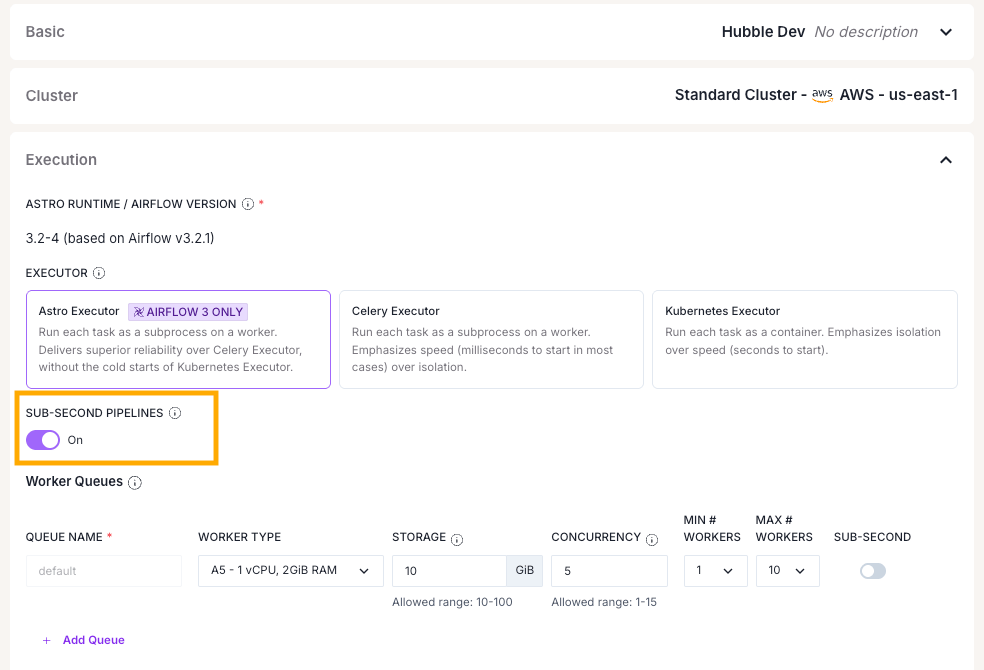
Create a sub-second worker queue
Sub-second behavior is opt-in for each worker queue. Astronomer recommends creating a dedicated queue for your latency-sensitive Dags instead of enabling it on the default queue, so that you can size and scale the queue independently.1
Add a worker queue
In the Execution section, scroll to Worker Queues and click Add Queue.
2
Configure the queue
Configure the following settings:
- Queue Name: Enter a short, descriptive name, such as
fast-high-priority. You reference this name from your Dag code. - Worker Type: Choose a worker size appropriate for your tasks. For low-latency workloads, a smaller worker type with more workers is often a better fit than a large worker type with few workers.
- Storage: Keep the default of 10 GiB unless your tasks need more ephemeral storage.
- Concurrency: Set the number of tasks that a single worker can run in parallel.
- Min # Workers: Set this to at least
1. Sub-second startup depends on having a worker already warm and ready, so scale-to-zero defeats the purpose of the feature. - Max # Workers: Size this for your expected peak concurrency.
3
Enable the Sub-Second toggle
Set the Sub-Second toggle in the queue row to On.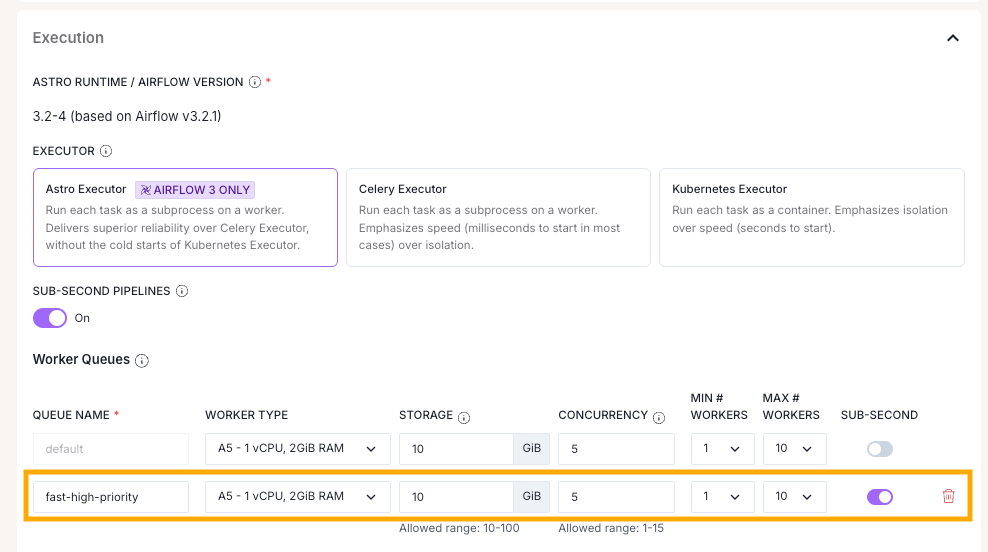
4
Save the configuration
Click Update Deployment.
Size the Event Scheduler
The Event Scheduler runs as one or more replicas in your Deployment. For production workloads, run at least two replicas so that the scheduler stays available during restarts and can absorb bursts.1
Open the Advanced section
In the Deployment edit view, expand the Advanced section.
2
Set the replica count
Set Scheduler Replicas to 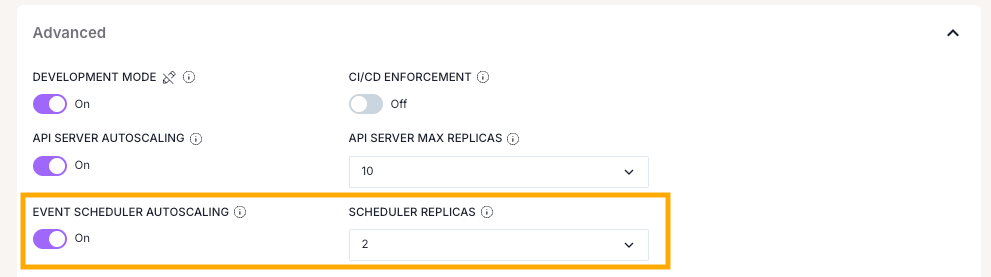
2, or higher if you expect heavy concurrent trigger volume.3
Save the configuration
Click Update Deployment.
Route your Dag to the sub-second queue
A Dag runs on the sub-second path only if its tasks are assigned to the sub-second worker queue. Set the queue indefault_args so that every task in the Dag inherits it. The queue value must exactly match the Queue Name you set in Create a sub-second worker queue. If a task is assigned to a queue that doesn’t exist or isn’t referenced properly, the task might remain in a queued state and fail to execute.
The following example assigns every task in the Dag to the fast-high-priority queue:
queue argument to the @task decorator instead:
astro deploy, a Git-based deploy, or the Astro IDE.
Verify sub-second behavior
After you deploy, trigger a run of your Dag through the Airflow REST API or the Trigger Dag button in the Airflow UI:<your-deployment-url> with your Deployment’s Airflow API URL and $ASTRO_API_TOKEN with a valid Deployment API token.
You can confirm that a run took the sub-second path in several ways. The Airflow UI is the quickest place to check, and the SLA Metrics API is available for programmatic access.
Check the Dag’s tags
In the Airflow UI, open the Dag and check its tags. A Dag on the sub-second path is taggedsub_second. If it’s tagged sub_second_excluded instead, the run uses the standard scheduler. See How to tell whether a Dag qualifies for the reason tags.
Check the Sub-Second Metrics tab in the Airflow UI
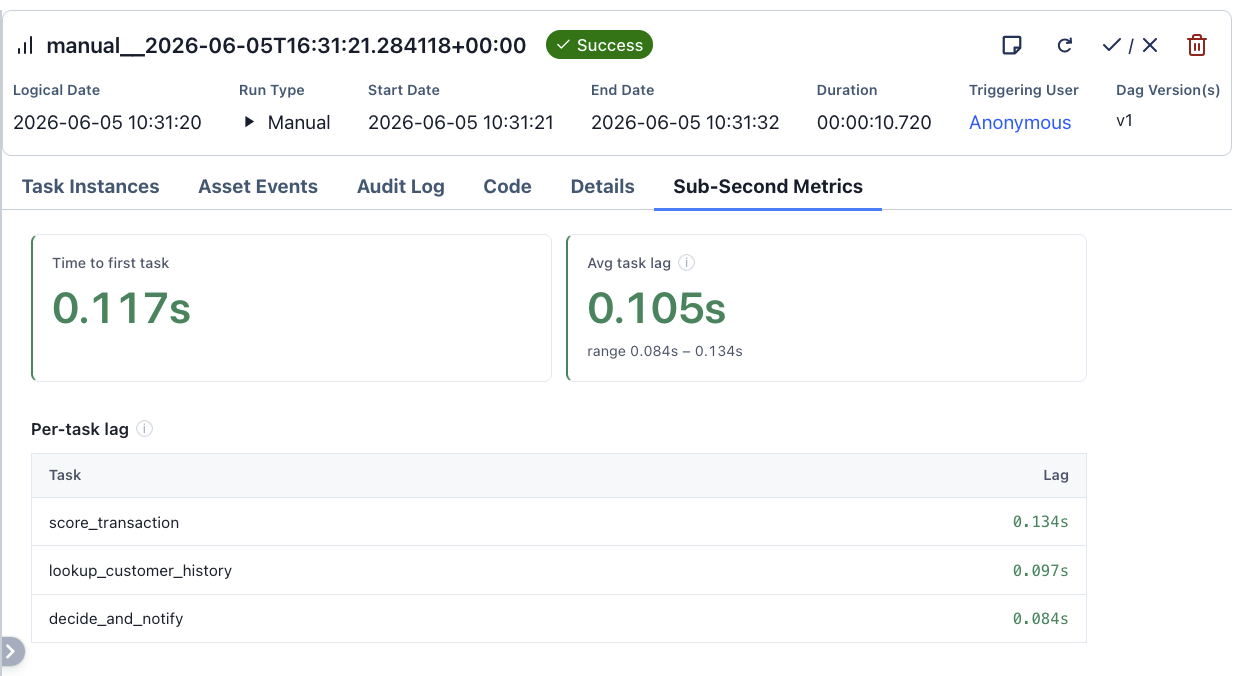
Each sub-second Dag has a Sub-Second Metrics tab in the Airflow UI that shows time to first task and per-task lag. Open the tab from a Dag’s page for a windowed aggregate across recent runs, which is useful for spotting regressions. Select the time window with the Window menu.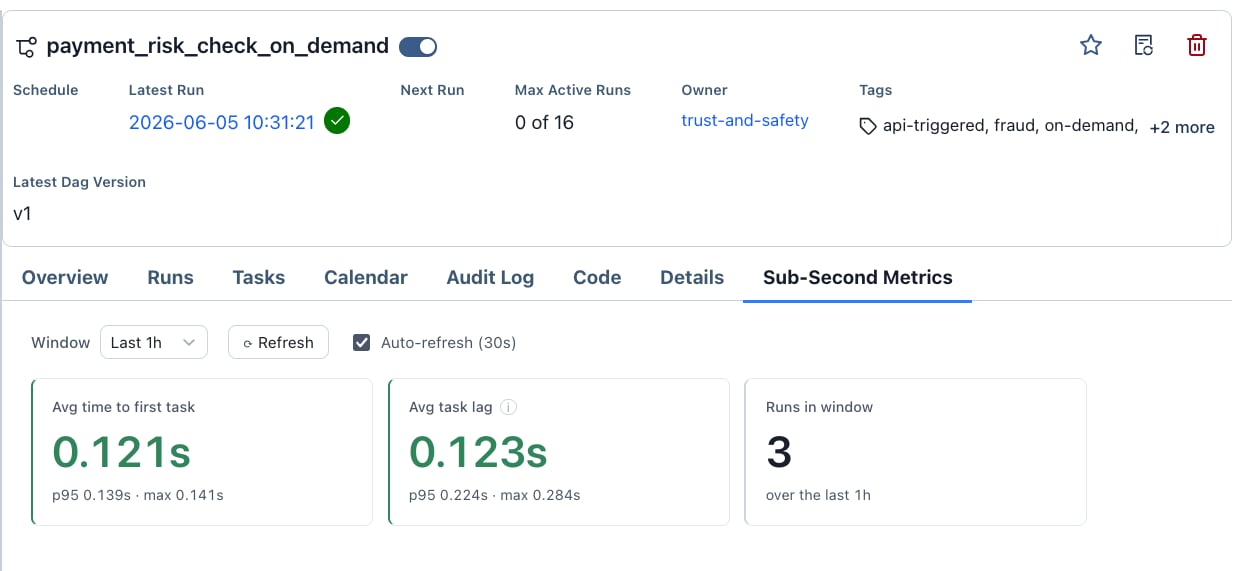
Check the Event Scheduler logs
In the Astro UI, open the Deployment’s Logs tab and set the Source filter to Event Scheduler. After you trigger a run, watch for log lines from theastronomer.event_scheduler component that confirm the run was received and scheduled, with timestamps milliseconds apart.
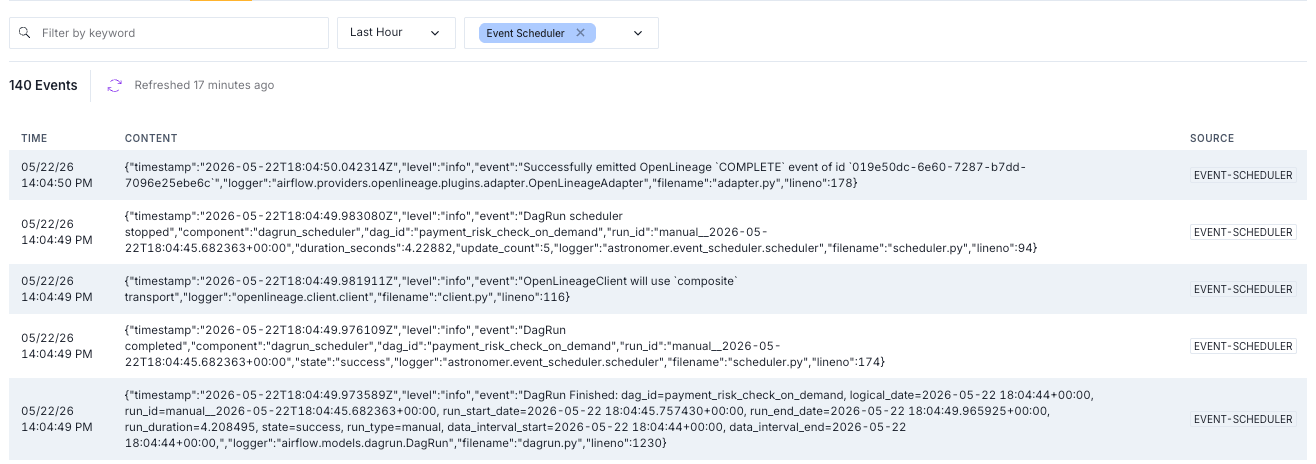
duration_seconds value on the final line shows the total run time.
Query the SLA Metrics API
For programmatic access, such as monitoring dashboards or latency alerts, the Event Scheduler exposes two endpoints with the same metrics shown in the Sub-Second Metrics tab. Use the per-run endpoint to retrieve metrics for a specific Dag run:time_to_first_task value for the run, and one task_lag entry for each task instance (except for the root task), including each mapped task instance. In each task_lag entry, map_index is the dynamic map index, which is -1 for non-mapped tasks, and task_start_lag is the per-task scheduling lag.
Use the aggregate endpoint to retrieve metrics across a time window:
time_to_first_task: The distribution oftime_to_first_taskvalues across all Dag runs considered.task_lag: The distribution oftask_start_lagvalues across all task instances in those runs.
Troubleshoot Sub-Second Pipelines
If the run doesn’t appear in the Sub-Second Metrics tab, the Event Scheduler logs, or the SLA Metrics API, confirm the following:- You triggered the run through the Airflow REST API or the Airflow UI Trigger Dag button, not through a cron schedule, timetable, or asset update.
- The Dag’s
queuevalue matches a worker queue that has Sub-Second enabled. - The Deployment-level Sub-Second Pipelines toggle is on.
- The Dag isn’t tagged
sub_second_excluded. Check the tag and the Dag warning for the reason. - The Deployment uses the Astro executor on Astro Runtime 3.2 or later.
Best practices
- Don’t enable sub-second on every queue. The Event Scheduler is most efficient when it focuses on the workloads that need it. Keep batch and scheduled Dags on the default queue.
- Size workers for throughput, not size. Many smaller workers usually outperform a few large workers for latency-sensitive workloads. Choose a worker type that matches the per-task resource needs of your Dag, not the largest type available.
- Test under realistic load. Trigger your Dag through the Airflow REST API at the rate you expect in production and watch the Event Scheduler metrics. If you see queue buildup, increase Max # Workers on the queue or add more Event Scheduler replicas.