

Astro supports rolling back from Airflow 3 to Airflow 2 but not all Airflow 3.x Deployments can be reverted to all Airflow 2.x versions. Review the Airflow 3 to Airflow 2 rollback requirements.
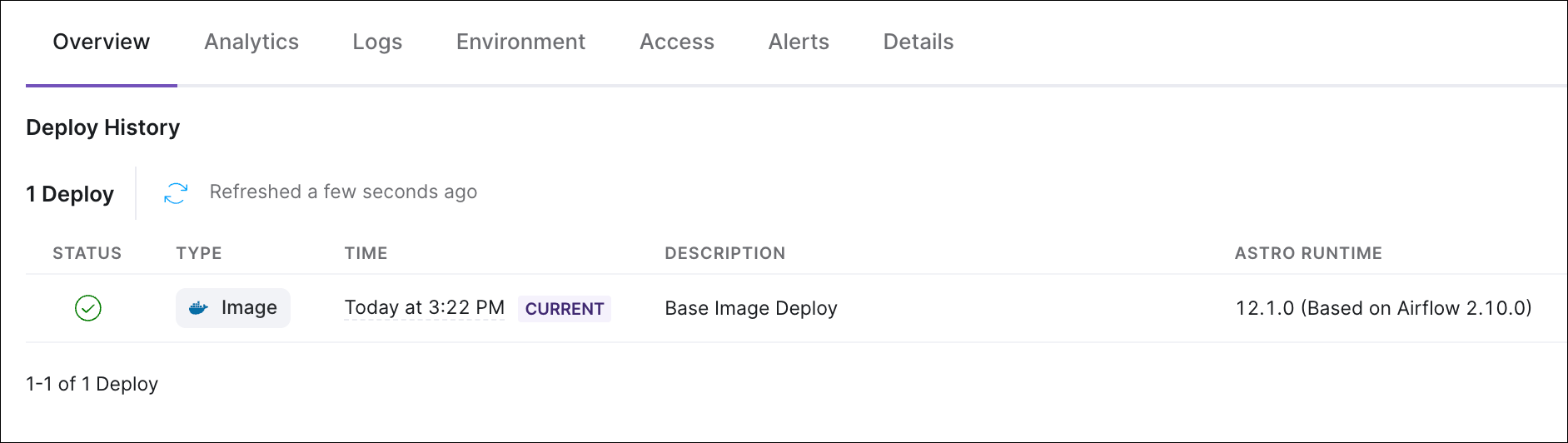
View deploy history
- In the Astro UI, click Deployments, then select a Deployment.
- Click Overview.
Types of deploys
There are different types of deploys, which are shared in the Deploy History table. You can read more about the different deploy options in Deploy code to Astro. These deploy types include:- Image-only deploy
- Dag-only deploy
- GitHub deploy
- dbt project deploy
Add a description to a deploy
Adding a description to a deploy is a helpful way to let other users know why you made a deploy and what the deploy contains. Descriptions appear in your deploy’s entry in the Deploy History table. To add a description to a deploy, specify the--description flag when you run astro deploy. For example:
Roll back to a past deploy
Astronomer recommends triggering Deployment rollbacks only as a last resort for recent deploys that aren’t working as expected. Deployment rollbacks can be disruptive, especially if you triggered multiple deploys between your current version and the rollback version. See What happens during a deploy rollback before you trigger a rollback to anticipate any unexpected effects.
- In the Astro UI, click Deployments, then select a Deployment.
- Click Overview.
- Locate the deploy you want to roll back to. In the Rollback to column for the deploy, click Deploy.
- Provide a description for your rollback, then complete the confirmation to trigger the rollback.
- Time: 14:00 11/8/2023
- Docker image: deploy-2023-11-6T14-00 (Or the custom name of your historical image tag)
- Dag Bundle Version: 2023-11-16T14:00:00.0000000Z
- Deploy description: Your rollback description.
Roll back a Deployment that has multiple bundles
A Deployment rollback applies to every bundle on the Deployment. To roll back one bundle and leave the rest of your Deployment as it is, see Roll back one bundle. Rolling back the Deployment returns every bundle to the state captured in the deploy you select:- Bundles that changed after that deploy return to their earlier versions.
- Bundles you created after that deploy are deleted.
- Bundles you deleted after that deploy are restored.
What happens during a deploy rollback
A deploy rollback is a new deploy of a previous version of your code. This means that the rollback deploy appears as a new deploy in Deploy History, and the records for any deploys between your current version and rollback version are still preserved. In Git terms, this is equivalent togit revert.
When you trigger a rollback, the following information is rolled back:
- All project code, including Dags.
- Your Astro Runtime version.
- Your Deployment’s Dag deploy setting.
- Every bundle on your Deployment, if you use Dag bundles.
- Your Deployment’s resource configurations, such as executor and scheduler configurations.
- Your Deployment’s environment variable values.
- Any other Deployment settings that you configure through the Astro UI, such as your Deployment name and description.
- For Runtime version downgrades, any data related to features that are not available in the rollback version are erased from the metadata database and not recoverable.
- If a rollback downgrades a Deployment to a previous version of Astro Runtime, all currently running tasks fail immediately. If a task has any remaining retries, those retries will run after the rollback is complete.
- If a rollback doesn’t include a downgrade, any currently running tasks from before the rollback continue to run your latest code, while new Pods for downstream tasks run the code from the rollback version. This is identical behavior to pushing new code as described in What happens during a code deploy.
Roll back a Remote Execution Deployment
Remote Execution Agent Deployments require special handling for rollbacks. The standard Astro deploy rollback doesn’t manage Agent versions. This means you must manually roll back Remote Execution Agents before rolling back your Deployment in Astro. Failing to do so can result in incompatibility between your Remote Agent and Astro Deployment causing interrupted workflows.1
Roll back your Remote Execution Agents
Update each Remote Execution Agent to the desired target Runtime/Agent version by reverting their containers to the appropriate image. Ensure all agents are successfully reverted before proceeding to the next step.
2
Roll back your Astro Deployment
Trigger a Astro Deployment rollback to a deployment that is compatible with your Remote Agent’s updated version.