

Deployment health
After you create a Deployment, its real-time health status appears at the top of the Deployment information page. Deployment health indicates if the components within your Deployment are running as expected.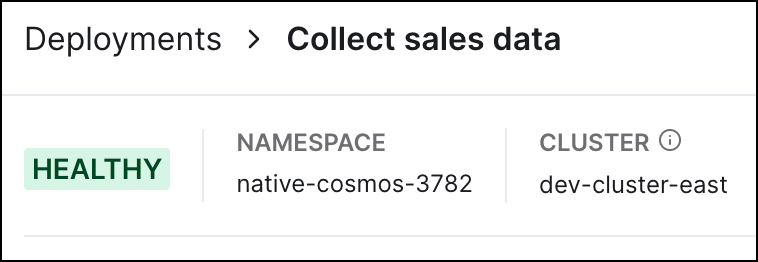
- Creating (Grey): Astro is still provisioning Deployment resources. It is not yet available to run dags. See Create a Deployment.
- Deploying (Grey): A code deploy or environment update is in progress. Hover over the status indicator to view specific information about the deploy, including whether it was an image deploy or a dag-only deploy.
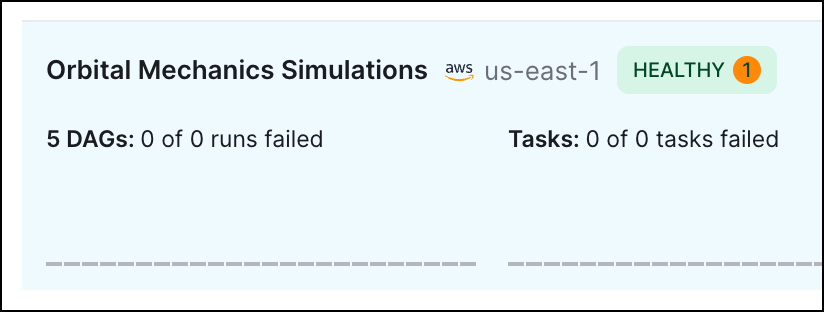
- Healthy (Green): The Airflow webserver and scheduler are both healthy and running as expected.
- Unhealthy (Red): Your Deployment webserver or scheduler are restarting or otherwise not in a healthy, running state.
- Hibernating (Grey): Your Deployment is currently hibernating.
- Unknown (Grey): The Deployment status can’t be determined.
Deployment incidents
Astro automatically monitors your Deployments and sends messages when your Deployment isn’t running optimally or as expected. These messages are known as Deployment incidents. To view information about an incident, click your Deployment’s health status, then click View details at the bottom of the list. The Active Incidents page appears.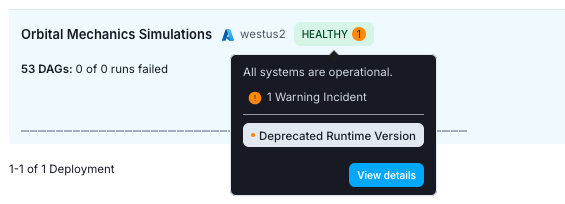
Use the following topics to address each of these incidents.
Preview: Deployment Health AlertsYou can configure alerts for Deployment health incidents so that you are automatically notified via Slack, PagerDuty, or email if certain Deployment health incidents occur. See Astro Alerts for setup information.
Scheduler Heartbeat Not Found
The scheduler has not sent a heartbeat for longer than 10 minutes. This could be a sign that the scheduler is down. Tasks will keep running, but new tasks will not be scheduled. If you receive this incident notification, Astronomer Support has already been notified and no action is required from you. Ensure that you configured a Deployment contact email so that you can be notified if this issue requires additional follow-ups.Airflow Database Storage Unusually High
Your Deployment metadata database is currently storing tables that are larger than 50GiB (Info) or 75GiB (Warning). To view the affected tables and their sizes, click your Deployment’s health status, then click View details. Even with large tables, Airflow continues to operate as normal, but tables that are larger than 75GiB might cause degraded scheduler performance. As a result, you may need to clean up the relevant tables in the metadata database to avoid the risk of delayed task runs. The tables that are currently monitored for size are:dagdag_runtask_instancejoblogxcom
xcom is listed in the affected tables, consider taking one of the following actions:
- Configure an external backend for XCom data, such as AWS S3. See the Astronomer XCom Backend Tutorial.
- Implement intermediary data storage for tasks so that Airflow doesn’t store large amounts of data when passing data between tasks. See Intermediary data storage.
Deprecated Runtime Version
The Astro Runtime version being used by the Deployment has been deprecated. Airflow will continue to run as normal, but you should upgrade as soon as possible. To upgrade to a supported version, see Upgrade Astro Runtime.Job Scheduling Disabled
The Airflow scheduler is currently disabled and will not automatically schedule new tasks. To run a new task in this state, you must manually trigger a dag run. To resume all scheduling, remove any overrides to theAIRFLOW__SCHEDULER__USE_JOB_SCHEDULE environment variable.
This variable might be configured in the Astro UI or in your Dockerfile.