

This is feature is only available if you are on the Enterprise tier or above. See Astro Plans and Pricing.
- Create and remove users in your Organization.
- Update user profile information.
- Create and remove Astro Teams.
- Add and remove Team members.
- Retrieve user and Team information.
Some user management features on Astro behave differently after you set up SCIM provisioning. See Manage Teams for more information.
Astro doesn’t support group nesting for SCIM provisioning. Access levels assigned to parent groups don’t automatically propagate to child groups, so each group must be individually assigned the required access levels.
SCIM and existing Astro users
If you set up SCIM provisioning for an Organization that already has users, your IdP sends a create-user request for each user it provisions. When the email in the request matches an existing Astro user, Astro links that user to your IdP instead of creating a new user. Linking changes the user’s Organization role:- Astro sets the user’s Organization role to Organization Member and marks the user as IdP-managed. This happens even if the user was an Organization Owner. To keep a user as an Organization Owner, reassign the role in Astro after the user is linked.
- Astro doesn’t change the user’s Workspace or Deployment roles. Only the Organization role is overwritten.
- If the user is the last Organization Owner in the Organization, Astro rejects the request and doesn’t change the user. Assign the Organization Owner role to another user before you provision the last Owner through SCIM. Teams with the Organization Owner role don’t count toward this check.
- Astro ignores activate, deactivate, and profile updates for a user who is currently an Organization Owner. Revoking or suspending an Organization Owner in your IdP doesn’t remove them from the Organization. To remove an Organization Owner, remove the user in Astro.
- If your IdP sends a delete request instead of deactivating the user, Astro removes the user regardless of their Organization role. Okta doesn’t send delete requests, but Microsoft Entra ID does.
- When your IdP deactivates a user, Astro removes the user from the Organization. This removes their Organization, Workspace, and Deployment roles, their Team memberships, and any pending invite for that Organization. If the user doesn’t belong to any other Organization, Astro deletes the user record.
Supported SSO identity providers
Astro supports SCIM provisioning with the following IdPs:Supported Okta features
Okta’s Astro integration supports the following SCIM actions:- Create users
- Update user attributes
- Deactivate users
- Group push
Prerequisites
- A configured identity provider. See Set up SSO.
Setup
- Okta - Astro integration (Recommended)
- Okta - Manual
- Microsoft Entra ID
- Create an Organization API token with Organization Owner permissions. See Organization API tokens. Copy the token to use later in this setup.
- In the Astro UI, go to Settings.
- Copy your Organization ID to use later in this setup.
- Go to Settings, then in the Security section, click Authentication, then in the Advanced Settings section, click Edit Settings and turn on the SCIM integration toggle.
- In the Okta admin dashboard, open your Astro app integration and click Provisioning.
-
Click Configure API integration, check Enable API integration, then configure the following values:
- Organization ID: Enter your Organization ID.
- API token: Enter your Organization API token.
- Test your API credentials, then click Save.
- In the Provisioning menu, click To App and configure the following:
- Provisioning to App: Select only Create Users, Update User Attributes, and Deactivate Users. See Okta documentation for more information on configuring these values.
- Create user groups and push them to Astro. User groups pushed to Astro appear as Teams in the Astro UI. See Okta documentation for setup steps.
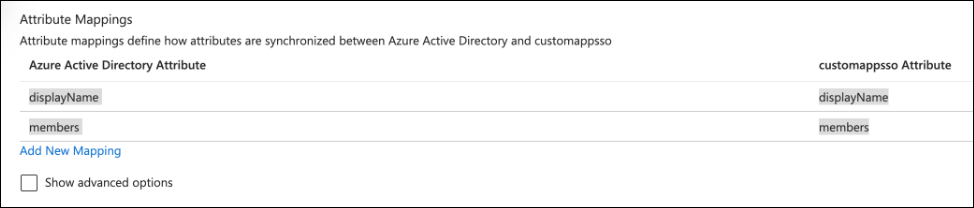

Frequently asked questions
What if an Okta group is out of sync with an Astro Team?
What if an Okta group is out of sync with an Astro Team?
- In the Okta dashboard, open the Astro application and click Push Groups.
- Click the value in Push Status for the group that’s out of sync, then click Push now.
What if an Okta user is out of sync with their Astro user account?
What if an Okta user is out of sync with their Astro user account?
If you removed an Okta user but their Astro account remains, delete the account from Astro.If an Astro user isn’t appearing for an Okta user as expected, remove and re-assign the user in Okta.