

Prerequisites
- The Astro CLI.
- A locally running Astro project.
- A Databricks account.
Get connection details
A connection from Airflow to Databricks requires the following information:- Databricks URL
- Personal access token
- In the Databricks Cloud UI, copy the URL of your Databricks workspace. For example, it should be formatted as either
https://dbc-75fc7ab7-96a6.cloud.databricks.com/orhttps://your-org.cloud.databricks.com/. - To use a personal access token for a user, follow the Databricks documentation to generate a new token. To generate a personal access token for a service principal, see Manage personal access tokens for a service principal. Copy the personal access token.
Create your connection
Astro users can also create connections using the Astro Environment Manager, which stores connections in an Astro-managed secrets backend. These connections can be shared across multiple deployed and local Airflow environments. See Create Airflow connections in the Astro UI.
-
Open your Astro project and add the following line to your
requirements.txtfile:This will install the Databricks provider package, which makes the Databricks connection type available in Airflow. -
Run
astro dev restartto restart your local Airflow environment and apply your changes inrequirements.txt. - In the Airflow UI for your local Airflow environment, go to Admin > Connections. Click + to add a new connection, then select the connection type as Databricks.
-
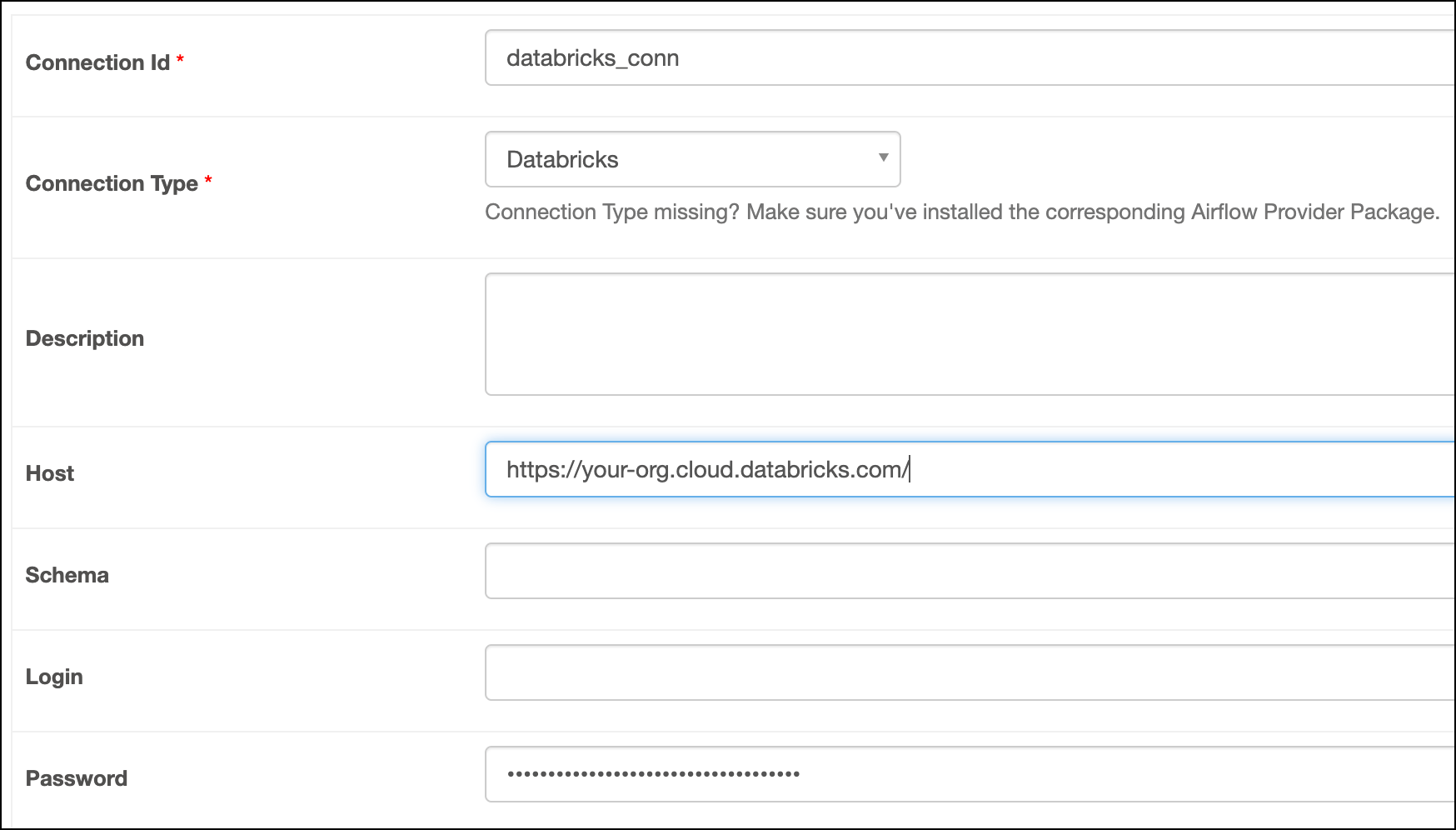
Fill out the following connection fields using the information you retrieved from Get connection details:
- Connection Id: Enter a name for the connection.
- Host: Enter the Databricks URL.
- Password: Enter your personal access token.
-
Click Test. After the connection test succeeds, click Save.
How it works
Airflow uses Python’srequests library to connect to Databricks through the BaseDatabricksHook.