Time to complete
This tutorial takes approximately 30 minutes to complete.Assumed knowledge
To get the most out of this tutorial, make sure you have an understanding of:- Ray basics. See the Getting Started section of the Ray documentation.
- Anyscale basics. See Get started section of the Anyscale documentation.
- Airflow operators. See Airflow operators.
Prerequisites
- The Astro CLI.
- An Anyscale account with AI platform features enabled. You also need to have at least one suitable image and compute config available in your Anyscale account.
Step 1: Configure your Astro project
Use the Astro CLI to create and run an Airflow project on your local machine.-
Create a new Astro project:
-
In the
requirements.txtfile, add the Anyscale provider. -
Run the following command to start your Airflow project:
Step 2: Configure a Ray connection
For Astro customers, Astronomer recommends taking advantage of the Astro Environment Manager to store connections in an Astro-managed secrets backend. These connections can be shared across multiple deployed and local Airflow environments. See Manage Astro connections in branch-based deploy workflows.
- In the Airflow UI, go to Admin -> Connections and click +.
-
Create a new connection and choose the Anyscale connection type. Enter the following information:
- Connection ID:
anyscale_conn - API Key: Your Anyscale API key
- Connection ID:
- Click Save.
Step 3: Write a DAG to orchestrate Anyscale jobs
-
Create a new file in your
dagsdirectory calledanyscale_script.pyand add the following code: -
Create a new file in your
dagsdirectory calledanyscale_tutorial.py. -
Copy and paste the code below into the file:
- The
generate_datatask randomly generates a list of 10 integers. - The
get_mean_squared_valuetask submits a Ray job on Anyscale to calculate the mean squared value of the list of integers.
- The
Step 4: Run the DAG
- In the Airflow UI, click the play button to manually run your DAG.
-
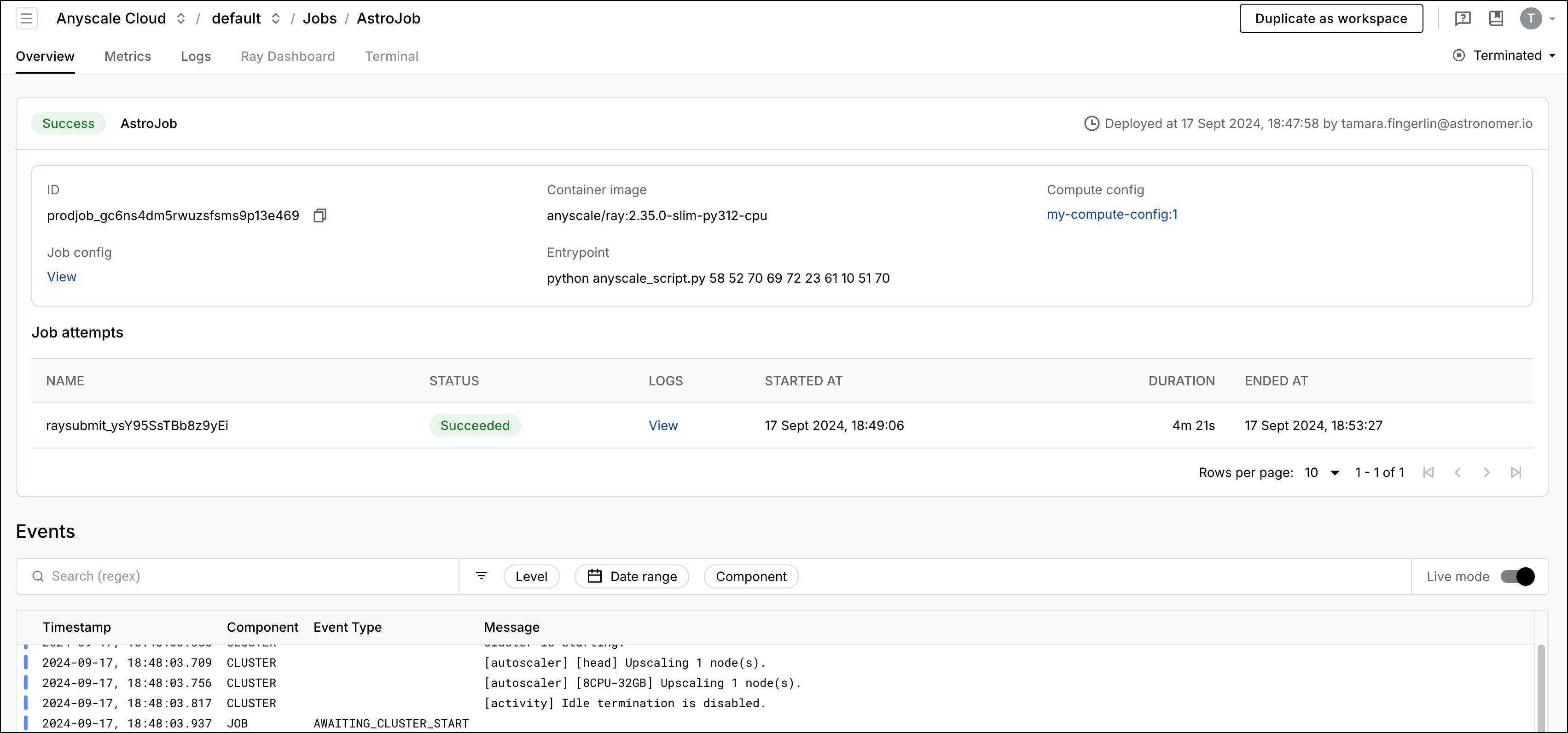
After the DAG runs successfully, check your Anyscale account to see the job submitted by Airflow.