

This page hasn’t yet been updated for Airflow 3. The concepts shown are relevant, but some code may need to be updated. If you run any examples, take care to update import statements and watch for any other breaking changes.
Why use Airflow with Weaviate?
Weaviate allows you to store objects alongside their vector embeddings and to query these objects based on their similarity. Vector embeddings are key components of many modern machine learning models such as LLMs or ResNet. Integrating Weaviate with Airflow into one end-to-end machine learning pipeline allows you to:- Use Airflow’s data-driven scheduling to run operations on Weaviate based on upstream events in your data ecosystem, such as when a new model is trained or a new dataset is available.
- Run dynamic queries based on upstream events in your data ecosystem or user input via Airflow params against Weaviate to retrieve objects with similar vectors.
- Add Airflow features like retries and alerts to your Weaviate operations.
Time to complete
This tutorial takes approximately 30 minutes to complete.Assumed knowledge
To get the most out of this tutorial, make sure you have an understanding of:- The basics of Weaviate. See Weaviate Introduction.
- Airflow fundamentals, such as writing DAGs and defining tasks. See Get started with Apache Airflow.
- Airflow decorators. Introduction to the TaskFlow API and Airflow decorators.
- Airflow hooks. See Hooks 101.
- Airflow connections. See Managing your Connections in Apache Airflow.
Prerequisites
- The Astro CLI.
- (Optional) An OpenAI API key of at least tier 1 if you want to use OpenAI for vectorization. The tutorial can be completed using local vectorization with
text2vec-transformersif you don’t have an OpenAI API key.
The example code from this tutorial is also available on GitHub.
Step 1: Configure your Astro project
-
Create a new Astro project:
-
Add
build-essentialto yourpackages.txtfile to be able to install the Weaviate Airflow Provider. -
Add the following two packages to your
requirements.txtfile to install the Weaviate Airflow provider and the Weaviate Python client in your Astro project: -
This tutorial uses a local Weaviate instance and a text2vec-transformer model, with each running in a Docker container. To add additional containers to your Astro project, create a new file in your project’s root directory called
docker-compose.override.ymland add the following: -
To create an Airflow connection to the local Weaviate instance, add the following environment variable to your
.envfile. You only need to provide anX-OpenAI-Api-Keyif you plan on using the OpenAI API for vectorization. To create a connection to your Weaviate Cloud instance, refer to the commented connection version below.
Step 2: Add your data
The DAG in this tutorial runs a query on vectorized movie descriptions from IMDB. If you run the project locally, Astronomer recommends testing the pipeline with a small subset of the data. If you use a remote vectorizer liketext2vec-openai, you can use larger parts of the full dataset.
Create a new file called movie_data.txt in the include directory, then copy and paste the following information:
Step 3: Create your DAG
-
In your
dagsfolder, create a file calledquery_movie_vectors.py. -
Copy the following code into the file. If you want to use
text2vec-openaifor vectorization, change theVECTORIZERvariable totext2vec-openaiand make sure you provide an OpenAI API key in theAIRFLOW_CONN_WEAVIATE_DEFAULTin your.envfile.This DAG consists of five tasks to make a simple ML orchestration pipeline.- The
check_for_collectiontask uses theWeaviateHookto check if a collection of the nameCOLLECTION_NAMEalready exists in your Weaviate instance. The task is defined using the@task.branchdecorator and returns the id of the task to run next based on whether the collection of interest exists. If the collection exists, the DAG runs the emptycollection_existstask. If the collection doesn’t exist, the DAG runs thecreate_collectiontask. - The
create_collectiontask uses theWeaviateHookto create a collection with theCOLLECTION_NAMEand specifiedVECTORIZERin your Weaviate instance. - The
import_datatask is defined using theWeaviateIngestOperatorand ingests the data into Weaviate. You can run any Python code on the data before ingesting it into Weaviate by providing a callable to theinput_jsonparameter. This makes it possible to create your own embeddings or complete other transformations before ingesting the data. In this example we use automatic schema inference and vector creation by Weaviate. - The
query_embeddingstask uses theWeaviateHookto connect to the Weaviate instance and run a query. The query returns the most similar movie to the concepts provided by the user when running the DAG in the next step.
- The
Step 4: Run your DAG
-
Run
astro dev startin your Astro project to start Airflow and open the Airflow UI atlocalhost:8080. -
In the Airflow UI, run the
query_movie_vectorsDAG by clicking the play button. Then, provide Airflow params formovie_concepts. Note that if you are running the project locally on a larger dataset, theimport_datatask might take a longer time to complete because Weaviate generates the vector embeddings in this task.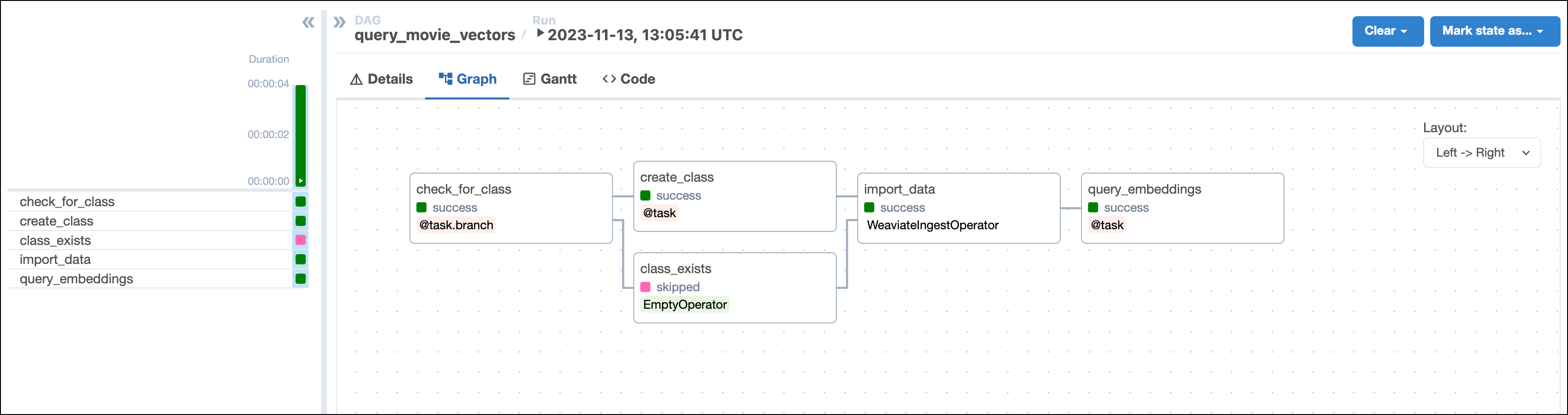
-
View your movie suggestion in the task logs of the
query_embeddingstask: