- When to use assets in Airflow.
- Basic asset concepts and terminology.
- How to schedule Dags based on basic asset schedules.
- How to update assets in Airflow.
- How to view asset dependencies in the Airflow UI.
- Which options exist for advanced asset-based scheduling.
Assets are a separate feature from object storage, which allows you to interact with files in cloud and local object storage systems. To learn more about using Airflow to interact with files, see Use Airflow object storage to interact with cloud storage in an ML pipeline.
Assumed knowledge
To get the most out of this guide, you should have an existing knowledge of:- Airflow scheduling concepts. See Schedule Dags in Airflow.
When to use Airflow assets
Assets allow you to define explicit dependencies between Dags and updates to your data. Basic asset-based scheduling helps you to:- Standardize communication between teams. Assets can function like an API to communicate when data in a specific location has been updated and is ready for use.
- Reduce the amount of code necessary to implement cross-Dag dependencies. Even if your Dags don’t depend on data updates, you can create a dependency that triggers a Dag after a task in another Dag updates an asset.
- Get better visibility into how your Dags are connected and how they depend on data. The Assets graphs in the Airflow UI display how assets and Dags depend on each other and can be used to navigate between them.
- Reduce costs, because assets don’t use a worker slot in contrast to sensors or other implementations of cross-Dag dependencies.
- Create cross-deployment dependencies using the Airflow REST API. Astro customers can use the Cross-deployment dependencies best practices documentation for guidance.
When not to use Airflow assets
Airflow is only aware of updates to assets that occur by tasks, API calls, or in the Airflow UI. It doesn’t monitor updates to assets that occur outside of Airflow. For example, Airflow won’t notice if you manually add a file to an S3 bucket referenced by an asset. To create Airflow dependencies based on outside events, you can use:- Airflow sensors: Synchronously check for a condition to be met. A lot of sensors have a deferrable mode.
- Async functions in @task decorators: Asynchronously check for a condition to be met.
- Deferrable operators: Use the Airflow triggerer component to asynchronously check for a condition to be met, releasing the worker slot during long-running tasks.
Basic asset concepts
You can define assets in your Dag code and use them to create cross-Dag dependencies. Airflow uses the following terms related to asset-based scheduling:- Asset: an object in Airflow that represents a concrete or abstract data entity and is defined by a unique name. Optionally, a URI can be attached to the asset, when it represents a concrete data entity, like a file in object storage or a table in a relational database.
- Asset schedule: the schedule of a Dag that is triggered as soon as asset events for one or more assets are created. All assets a Dag is scheduled on are shown in the Dag graph in the Airflow UI, as well as reflected in the dependency graph of the Assets tab.
- Producer task: a task that produces updates to one or more assets provided to its
outletsparameter, creating asset events when it completes successfully. - Asset event: an event that is attached to an asset and created whenever a producer task updates that particular asset. An asset event is defined by being attached to a specific asset plus the timestamp of when a producer task updated the asset. Optionally, an asset event can contain an
extradictionary with additional information about the asset or asset event.
outlets: a task parameter that contains the list of assets a specific task produces updates to, as soon as it completes successfully. All outlets of a task are shown in the Dag graph in the Airflow UI, as well as reflected in the dependency graph of the Assets tab as soon as the Dag code is parsed, independently of whether or not any asset events have occurred. Note that Airflow is not yet aware of the underlying data. It is up to you to determine which tasks should be considered producer tasks for an asset. As long as a task has an outlet asset, Airflow considers it a producer task even if that task doesn’t operate on the referenced asset.inlets: a task parameter that contains the list of assets a specific task has access to, typically to accessextrainformation from related asset events. Defining inlets for a task does not affect the schedule of the Dag containing the task.
outlets parameter, and this action creates asset events. Dags can be scheduled based on asset events created for one or more assets, and tasks can be given access to all events attached to an asset by defining the asset as one of their inlets. An asset is defined as an object in the Airflow metadata database as soon as it is referenced in either the outlets parameter of a task or the schedule of a Dag.
Using advanced asset-based scheduling introduces additional concepts, see Advanced asset-based scheduling for more information.
Asset definition
An asset is defined as an object in the Airflow metadata database as soon as it is referenced in either theoutlets parameter of a task, the inlets parameter of a task, or the schedule of a Dag.
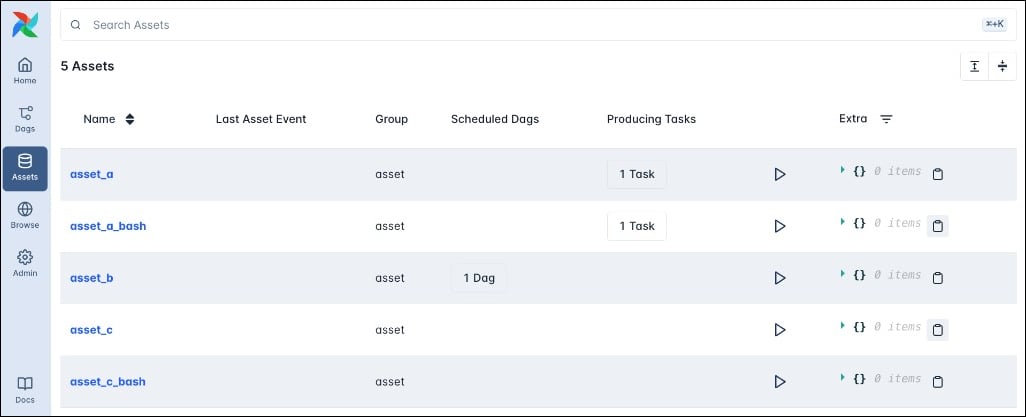
The code snippet below shows how you can define an asset using the outlets parameter in both a @task decorator and a traditional operator (BashOperator).
schedule parameter. This creates a schedule for the Dag to run as soon as the asset is updated (an asset event is created for the asset).
inlets parameter of any task. Note that inlets don’t affect the schedule of the Dag containing the task.
Updating an asset
There are five ways to update an asset by creating an asset event.- A task with an
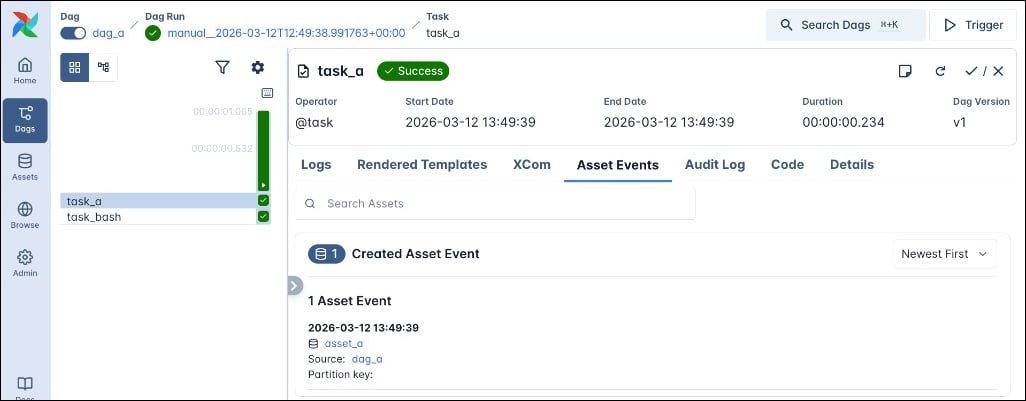
outletsparameter that references the asset completes successfully, in the example above thetask_atask produces an update to theasset_aasset and thetask_bashtask produces an update to theasset_a_bashasset. You can provide several assets in the list of assets, for exampleoutlets=[Asset("asset_a"), Asset("asset_b")], then successful task completion will produce an asset event for each of the assets in the list.
-
A
POSTrequest to the assets endpoint of the Airflow REST API. -
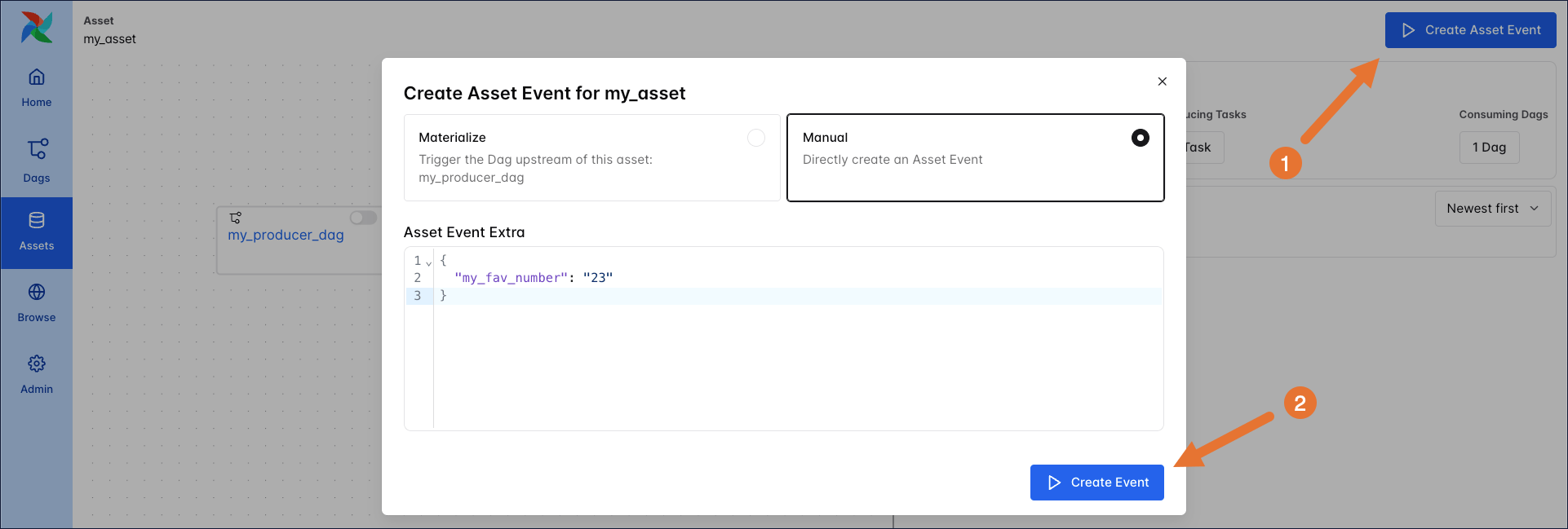
A manual update in the Airflow UI by using the Create Asset Event button on the asset graph. There are two options when creating an asset event in the UI:
- Materialize: This option runs the full Dag which contains the task that produces the asset event.
- Manual: This option directly creates a new asset event without running any task that would normally produce the asset event. This option is useful for testing or when you want to create an asset event for an asset that isn’t updated from within a Dag in this Airflow instance.
-
A Dag defined using
@assetcompletes successfully. Under the hood,@assetcreates a Dag with one task which produces the asset, see asset decorator syntax for more information. -
An
AssetWatcherthat listens for aTriggerEventcaused by a message in a message queue. See event-driven scheduling for more information.
Asset schedule
Once a Dag is scheduled on one (or more) assets and unpaused in the Airflow UI, it will run as soon as an asset event is created for each of the assets it is scheduled on, regardless of the method that created the asset event. In the Dags view you can see which asset a Dag is scheduled on in the Schedule column.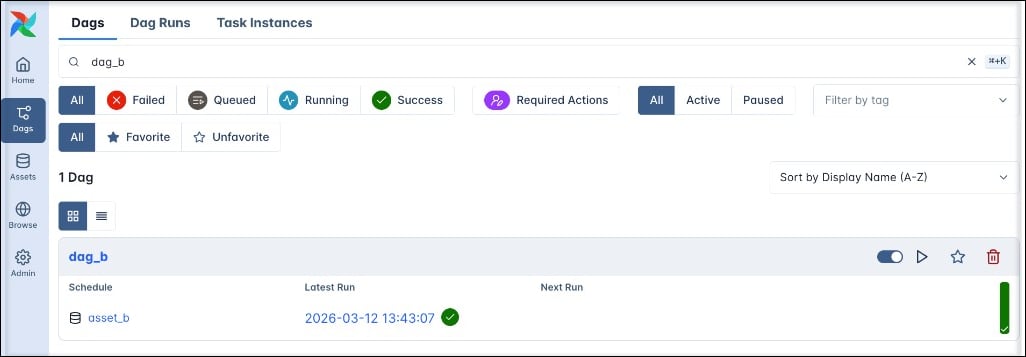
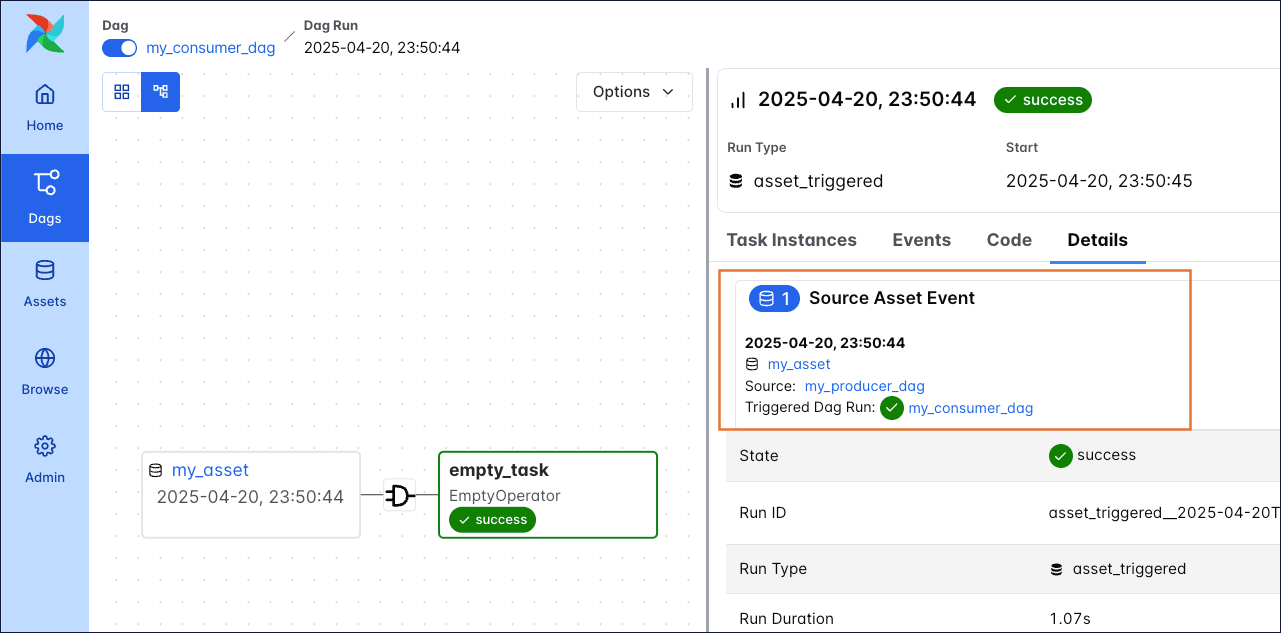
asset_triggered_, the Run Type Asset Triggered and a database icon on the Dag run duration bar.
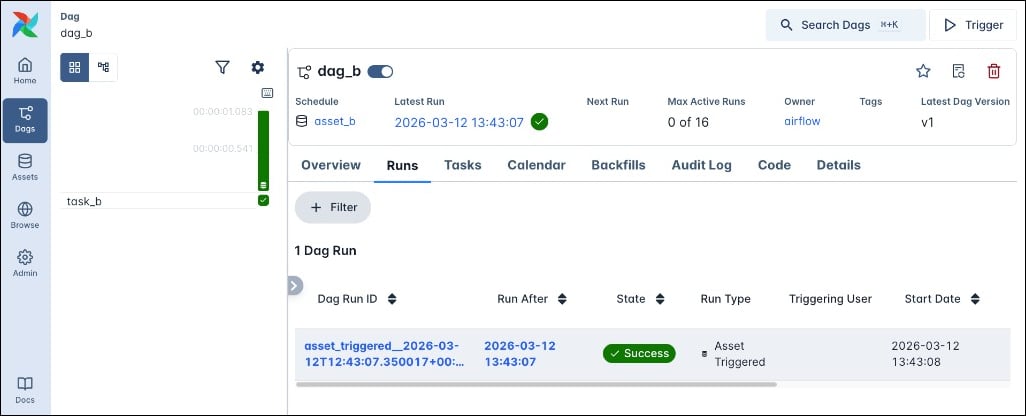
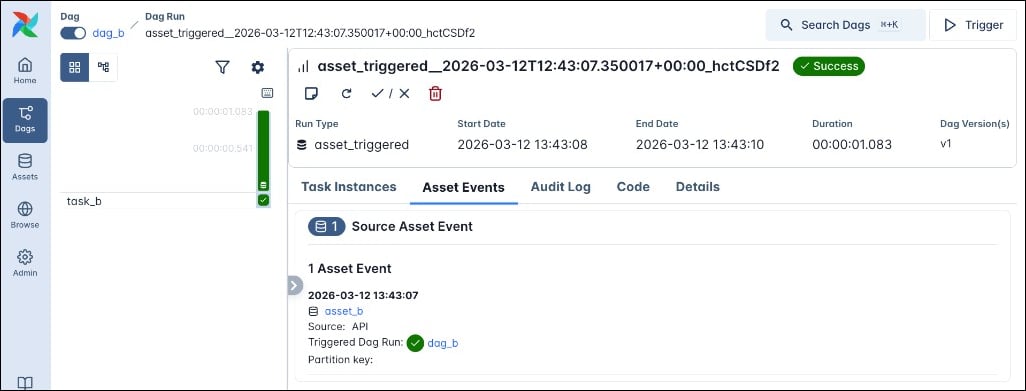
- Asset events only count towards the schedule of a Dag while the Dag is unpaused. If the Dag is paused it will ignore all updates to assets and start with a blank slate upon being unpaused.
- Dags that are scheduled on an asset are triggered every time a task that updates that asset completes successfully. For example, if
task1andtask2both produceasset_a, a consumer Dag ofasset_aruns twice - first whentask1completes, and again whentask2completes. - Dags scheduled on an asset are triggered as soon as the first task with that asset as an outlet finishes, even if there are downstream producer tasks that also operate on the asset.
- If you provide several assets in the
scheduleparameter of a Dag, the Dag will run as soon as an asset event is created for each of the assets it is scheduled on. After a Dag run the schedule is reset and the Dag will again wait for an asset event to be created for each of the assets it is scheduled on after the last Dag run. See Multiple Assets in the Airflow documentation for more information. For more complex multi-asset scheduling scenarios, see Options for advanced asset-based scheduling. - Dags that are triggered by assets don’t have the concept of a data interval. If you need to pass time-based information to a downstream Dag, use a partitioned asset schedule.
Asset graph
Clicking on any asset opens the asset graph for this asset. Each asset graph has 2 different views:- Scheduling: This view connects each Dag with all assets that any tasks in said Dag produce updates to, as well as any Dags scheduled on an asset.
asset_a shows the relationship between the dag_a Dag and the asset_a and asset_a_bash assets (even though asset_a and asset_a_bash aren’t directly connected to each other).
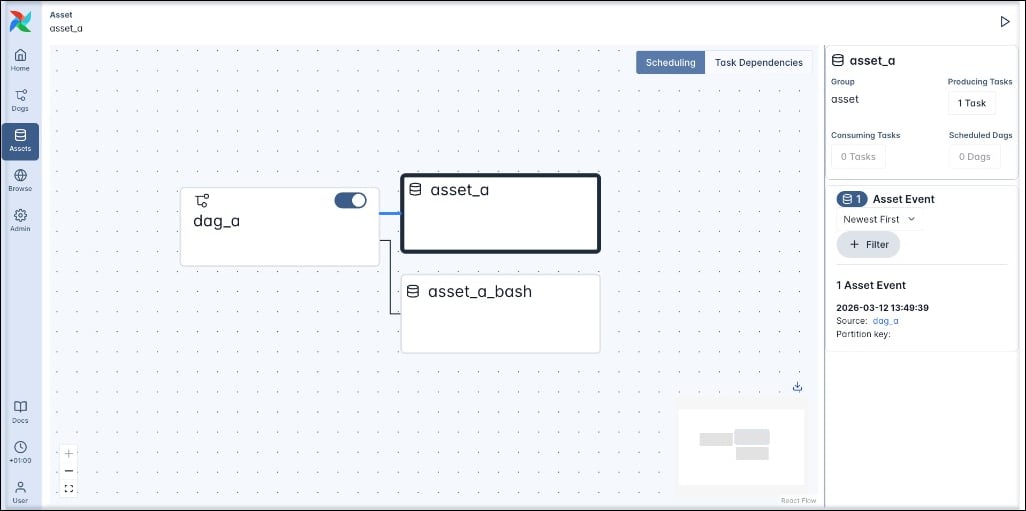
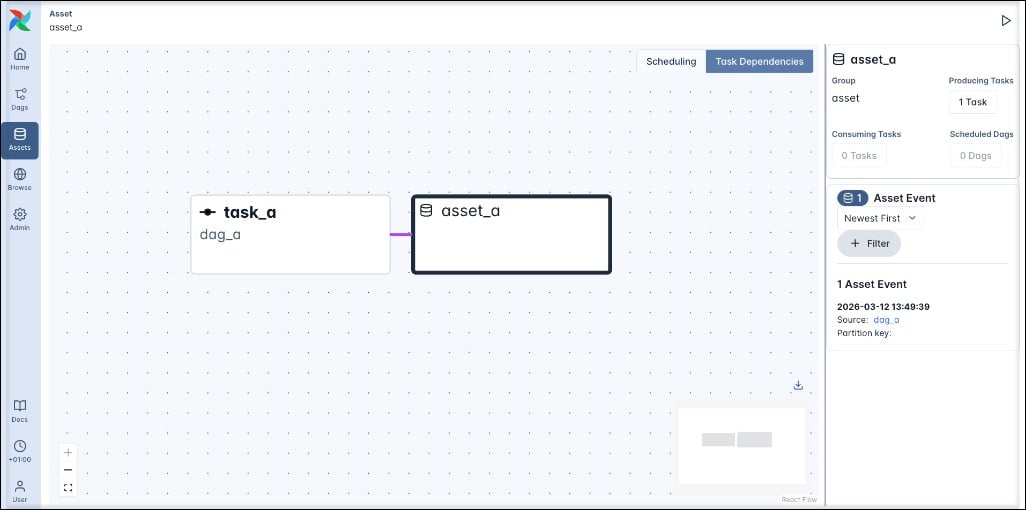
- Task Dependencies: This view connects each task with all asset that the task updates through its
outletsparameter, as well as any tasks that have the asset as one of theirinletsparameter.
asset_a shows the relationship between the asset_a and task_a which has asset_a defined in its outlets parameter.
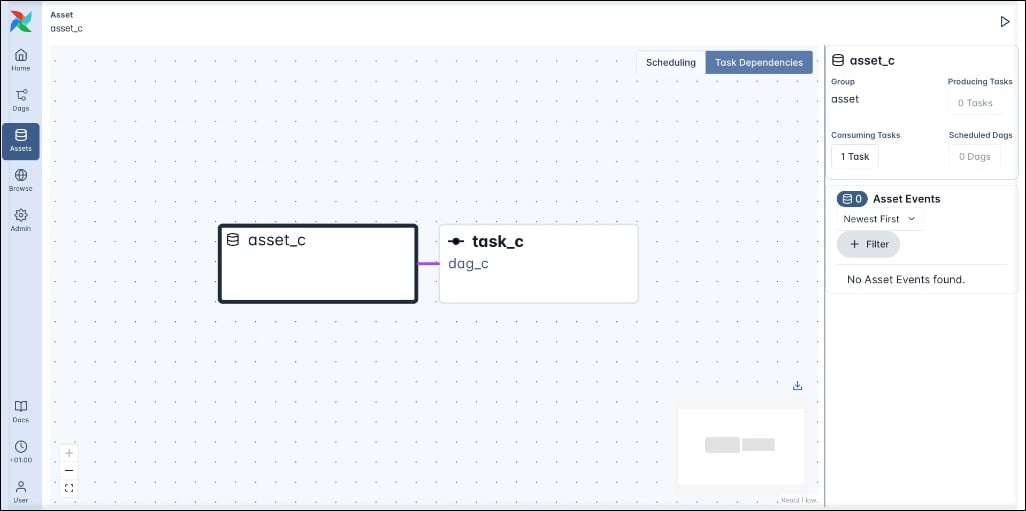
asset_c shows the relationship between the asset_c and task_c which has asset_c defined in its inlets parameter. Note that the Scheduling view for the asset graph of asset_c is empty because inlets don’t affect any Dag scheduling.
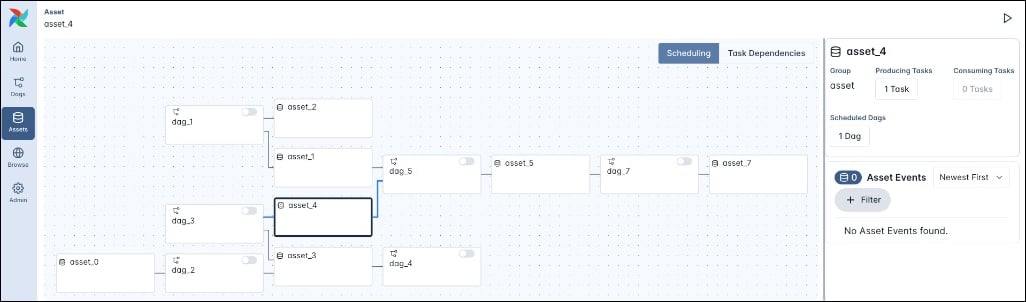
asset_4 which contains seven assets and six Dags.
Options for advanced asset-based scheduling
The advanced asset-based scheduling guide covers more complex asset-based scheduling scenarios, such as:- Conditional asset scheduling: Schedule a Dag based on an asset expression, which can include any combination of assets, and
|(OR) and&(AND) logical operators. - Combined asset and time-based scheduling: Schedule a Dag to run on both a time-based schedule (cron or any other Timetable) plus whenever an asset expression is fulfilled.
- Asset event extras: Attach extra information to an asset event and retrieve it in downstream tasks.
- Partitioned asset schedules: Attach partition keys to asset events to create partitioned Dag runs.
- Asset aliases: Create named aliases for assets to reference in your Dag code and attach asset events to the alias at runtime. This is especially useful when using assets in dynamic task mapping.
- Cross-deployment dependencies: You can use assets to trigger a Dag in one Airflow environment from within a Dag in another Airflow environment.
- Asset listeners: Use listeners to run code when certain asset events occur anywhere in your Airflow instance.
For information on the
@asset decorator, which is a more concise way to create one Dag containing one task that produces an asset, see asset decorator syntax.Example: Basic asset-based scheduling
The simplest asset schedule is one Dag scheduled based on updates to one asset which is produced to by one task. In this example, we define that themy_producer_task task in the my_producer_dag Dag produces updates to the my_asset asset, creating attached asset events, and schedule the my_consumer_dag Dag to run once for every asset event created.
First, provide the asset to the outlets parameter of the producer task.
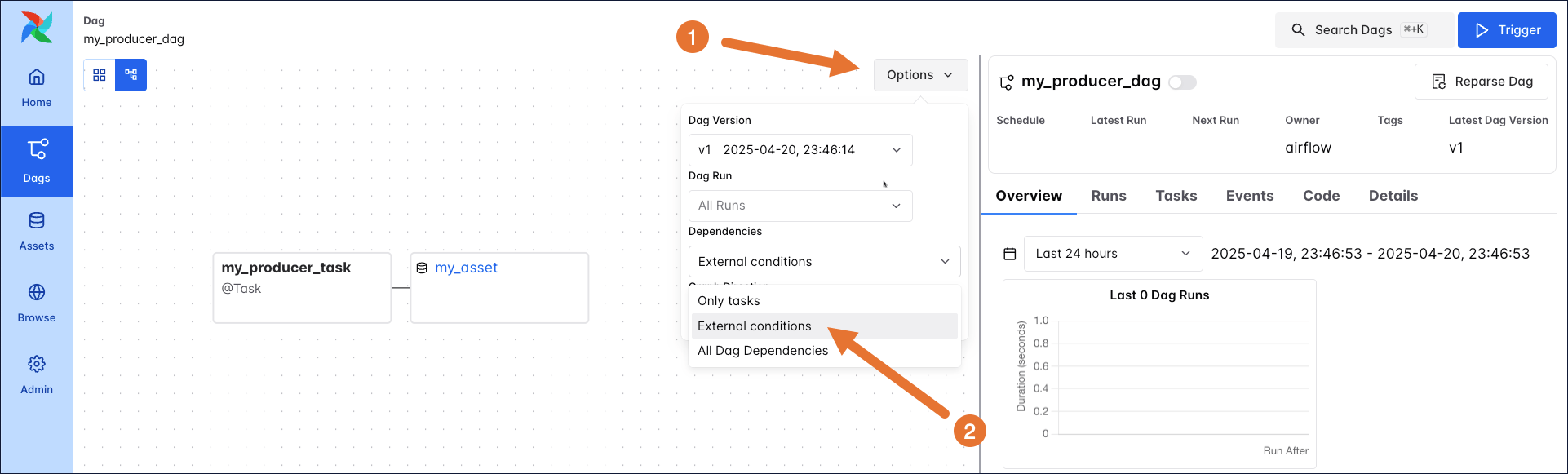
You can see the relationship between the Dag containing the producing task (my_producer_dag) and the asset in the Asset Graph located in the Assets tab of the Airflow UI.
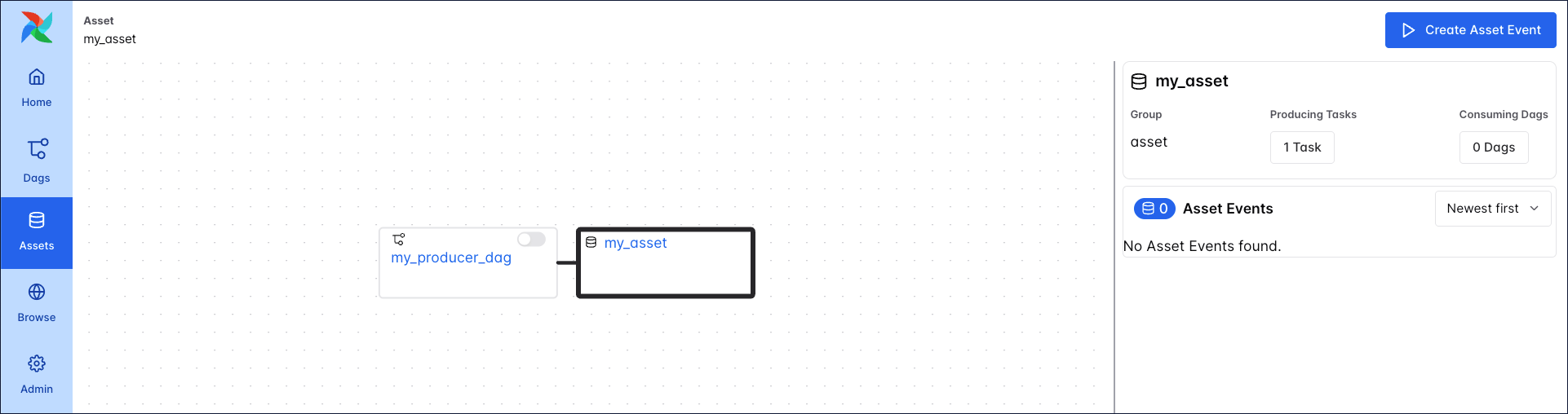
my_producer_dag shows the asset as well, if external conditions or all Dag dependencies are selected in the Options menu.
my_consumer_dag to run as soon as a new asset event is produced to the my_asset asset.
You can see the relationship between the Dag containing the producing task (my_producer_dag), the consuming Dag my_consumer_dag, and the asset in the asset graph located in the Assets tab of the Airflow UI.
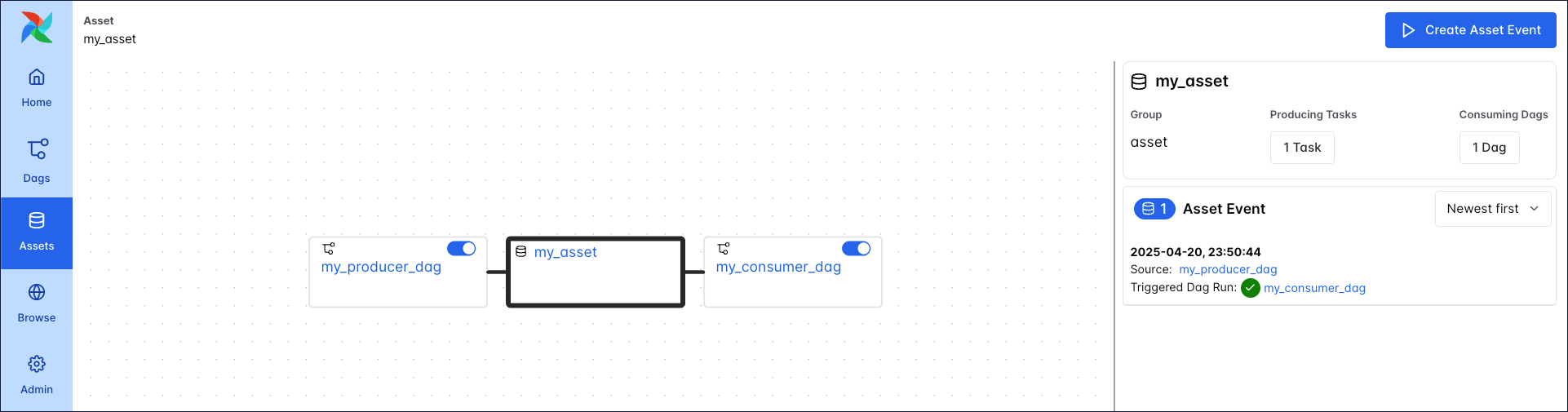
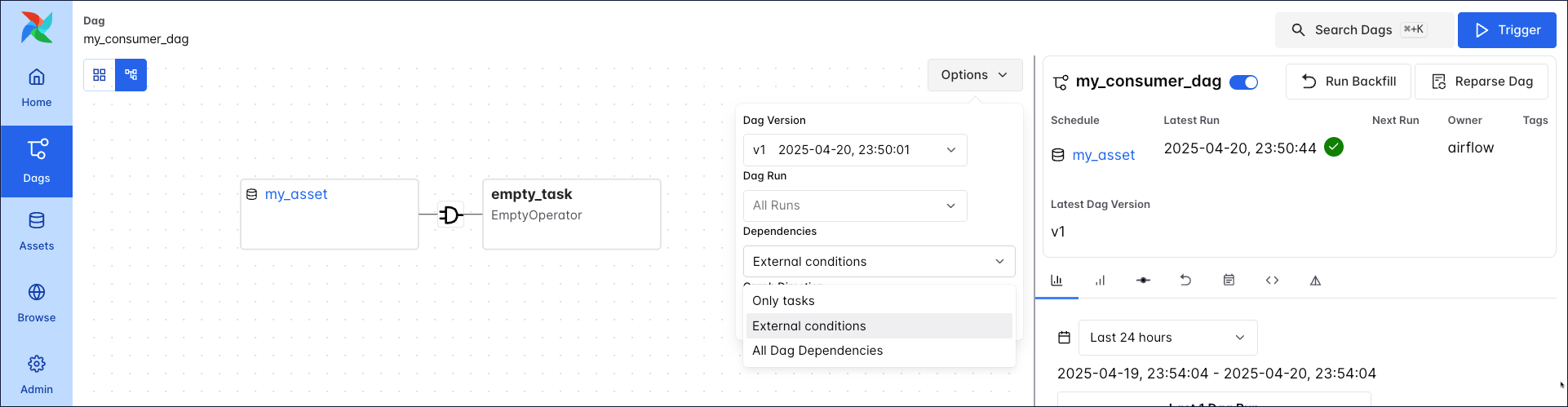
my_consumer_dag graph shows the asset as well.
my_consumer_dag, every successful completion of the my_producer_task task triggers a run of the my_consumer_dag.
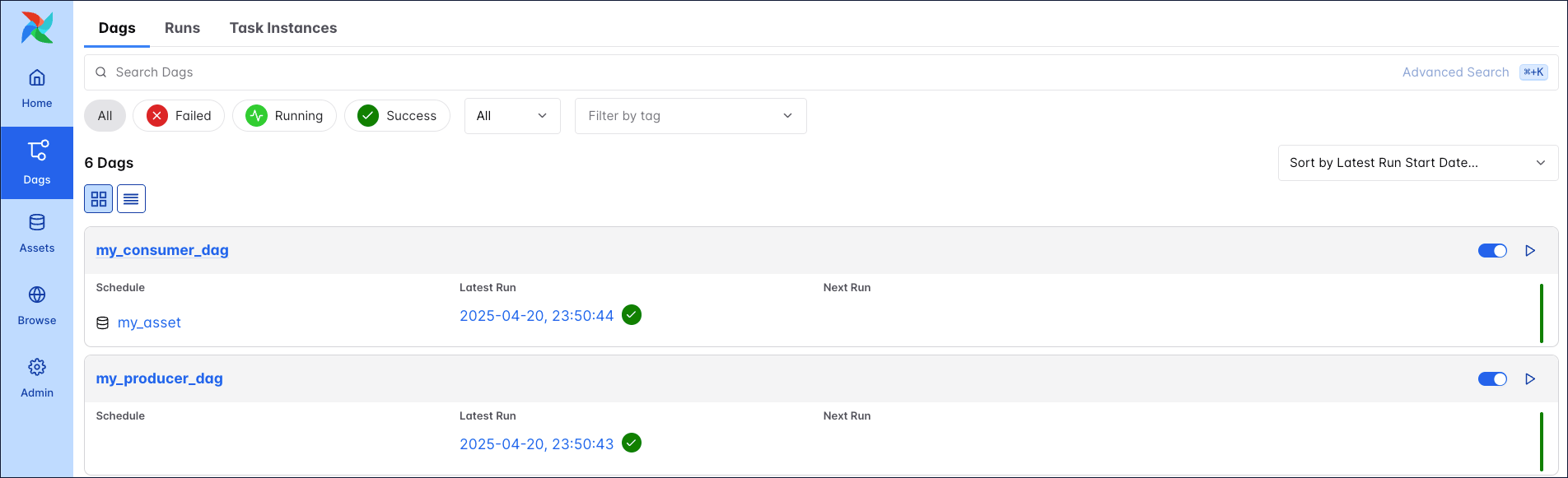
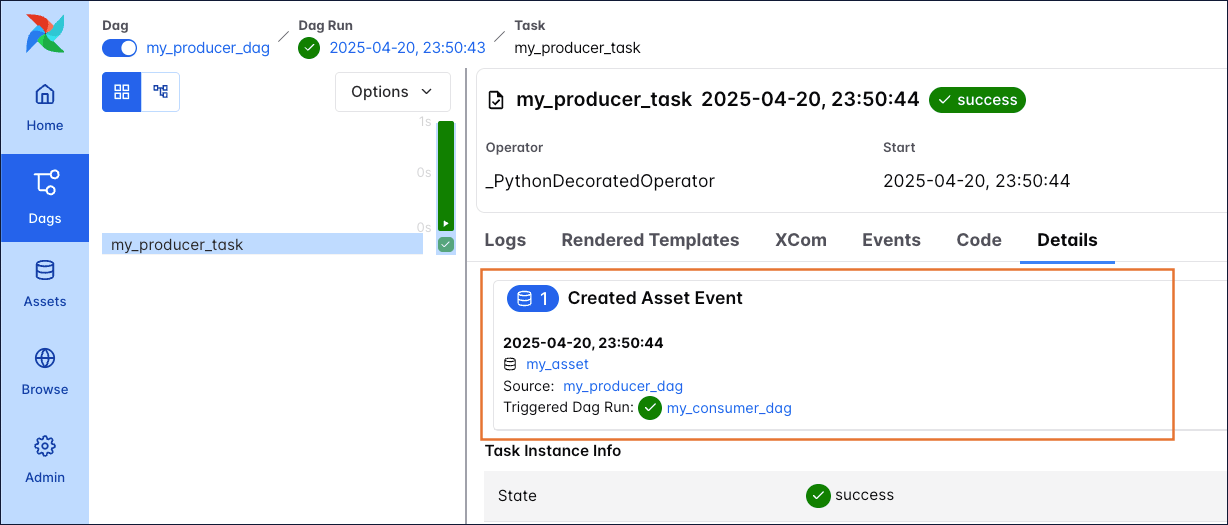
my_consumer_dag also lists the asset event, including a link to the source Dag from within which the asset event was created.