

Migration moves the Deployments you pick, within a region, from a healthy source. Cluster failover moves everything on a cluster, can run in forced mode against a dead source, and is sequenced with your database promotion. If your source cluster is down, migration is the wrong tool — use data plane failover.
Read the migration UI
Regions page
The Regions admin page lists every region with its Name, Cloud Provider, Status, and Created date, with Create Region, Edit, and Delete actions. For per-deployment migration, only Name and Cloud Provider matter. The Status badge and the Activate action belong to control plane high availability and have no effect on data plane migration — the migration gate never reads them. Deleting a region is blocked while any cluster still references it.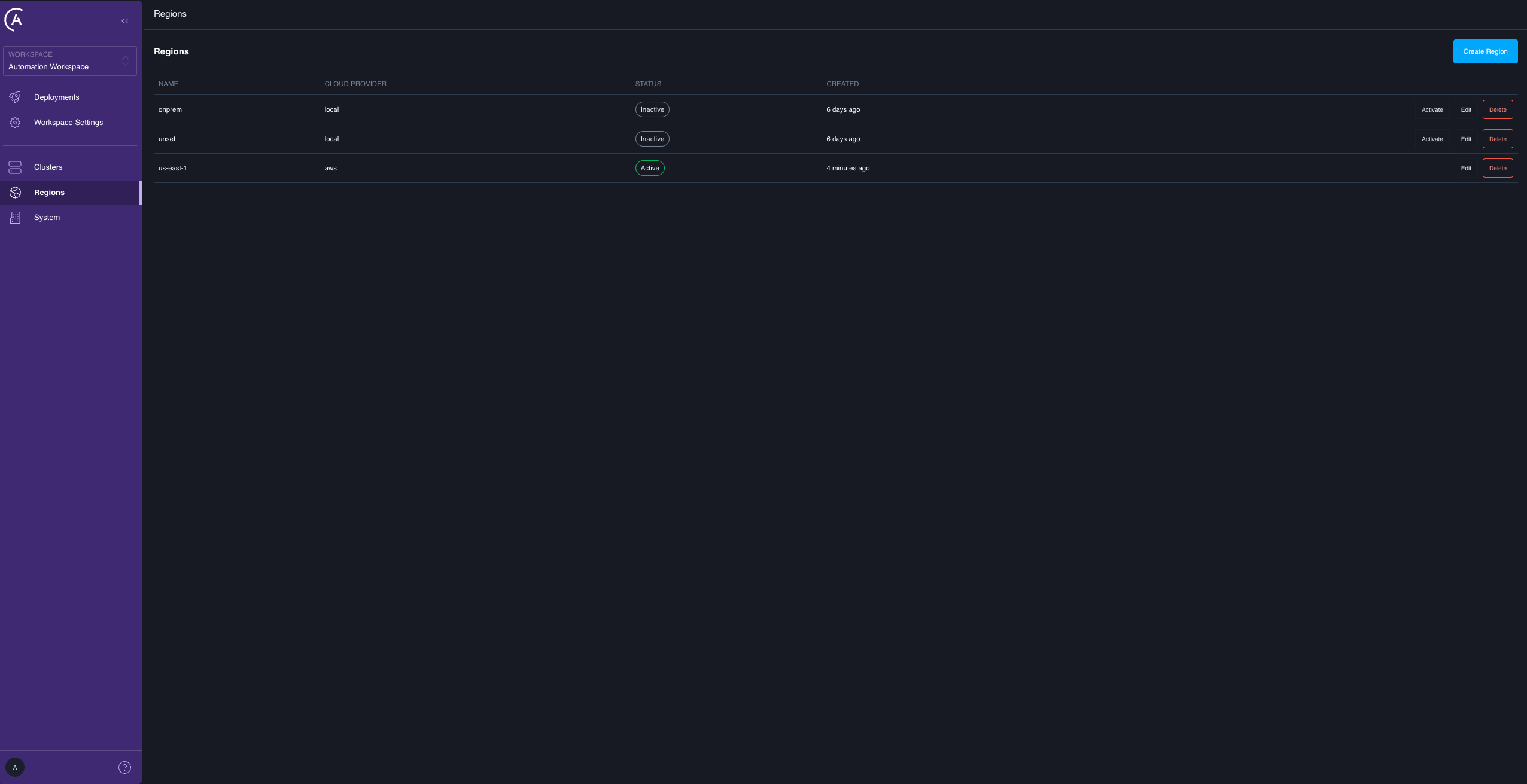
Clusters list
A Failover column shows a cluster-level failover-readiness shield that mirrors the cluster’s Failover status on its detail page, separate from the existing health dot:- Grey Pending upgrade: failover-capable but not yet upgraded.
- Amber Upgrading: a failover upgrade is in flight.
- Green Ready: the cluster is Enabled.
- Red Issues: failover-capable but not enabled, for example an External Secrets Operator (ESO) secret sync failing on one of its Deployments.
Cluster detail
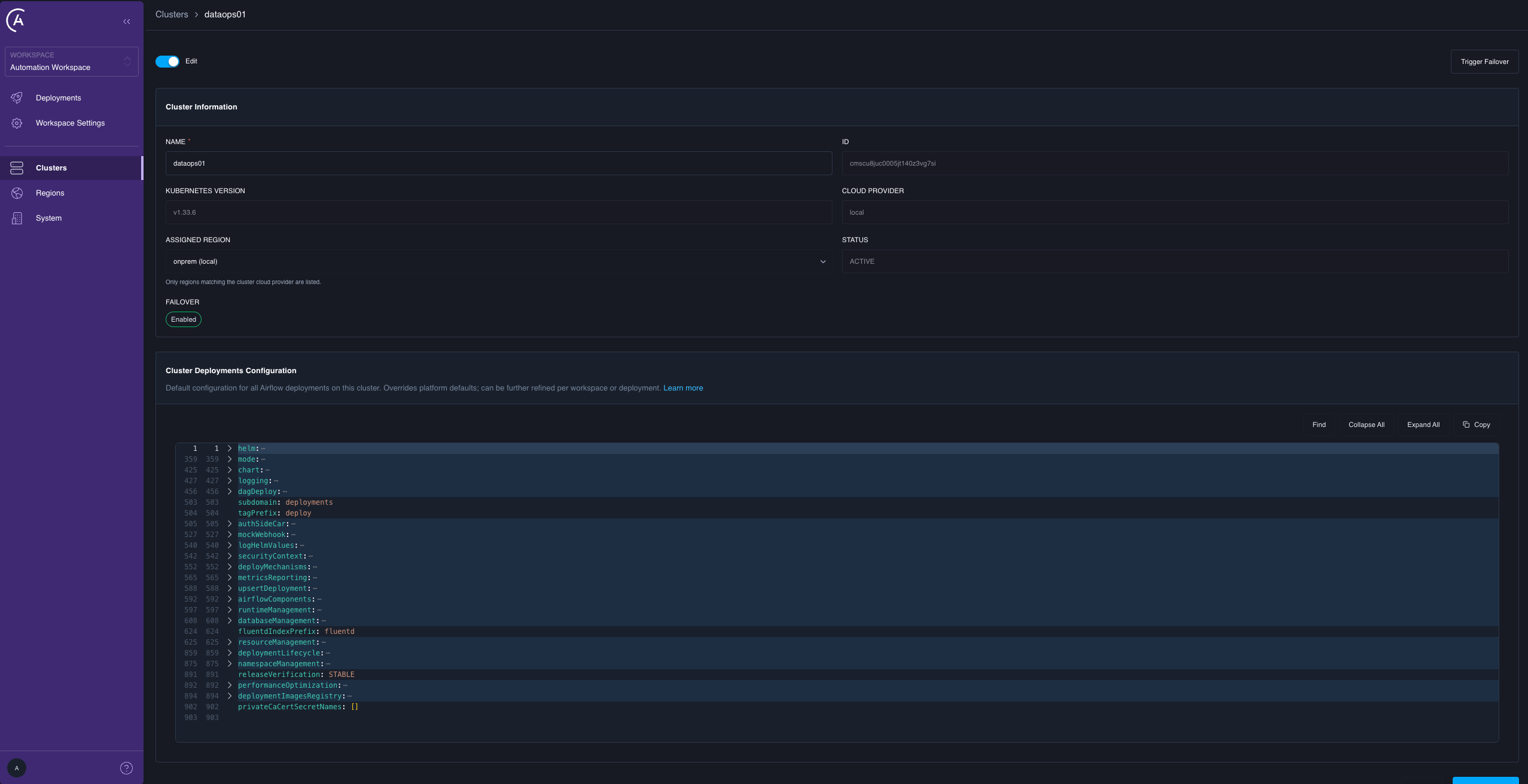
Two elements matter here:- Failover is a status field that replaces the old binary “Failover Enabled”: Not Capable, Pending Upgrade, Upgrading, Enabled, or Issues Detected. Only a cluster reading Enabled can be a migration destination. For the full table, see Cluster failover states.
- Trigger Failover is enabled only when the status is Enabled. In any other state it is disabled, with a message explaining why. This triggers a cluster-level failover, not a migration.
Deployments list
Four elements are new or changed: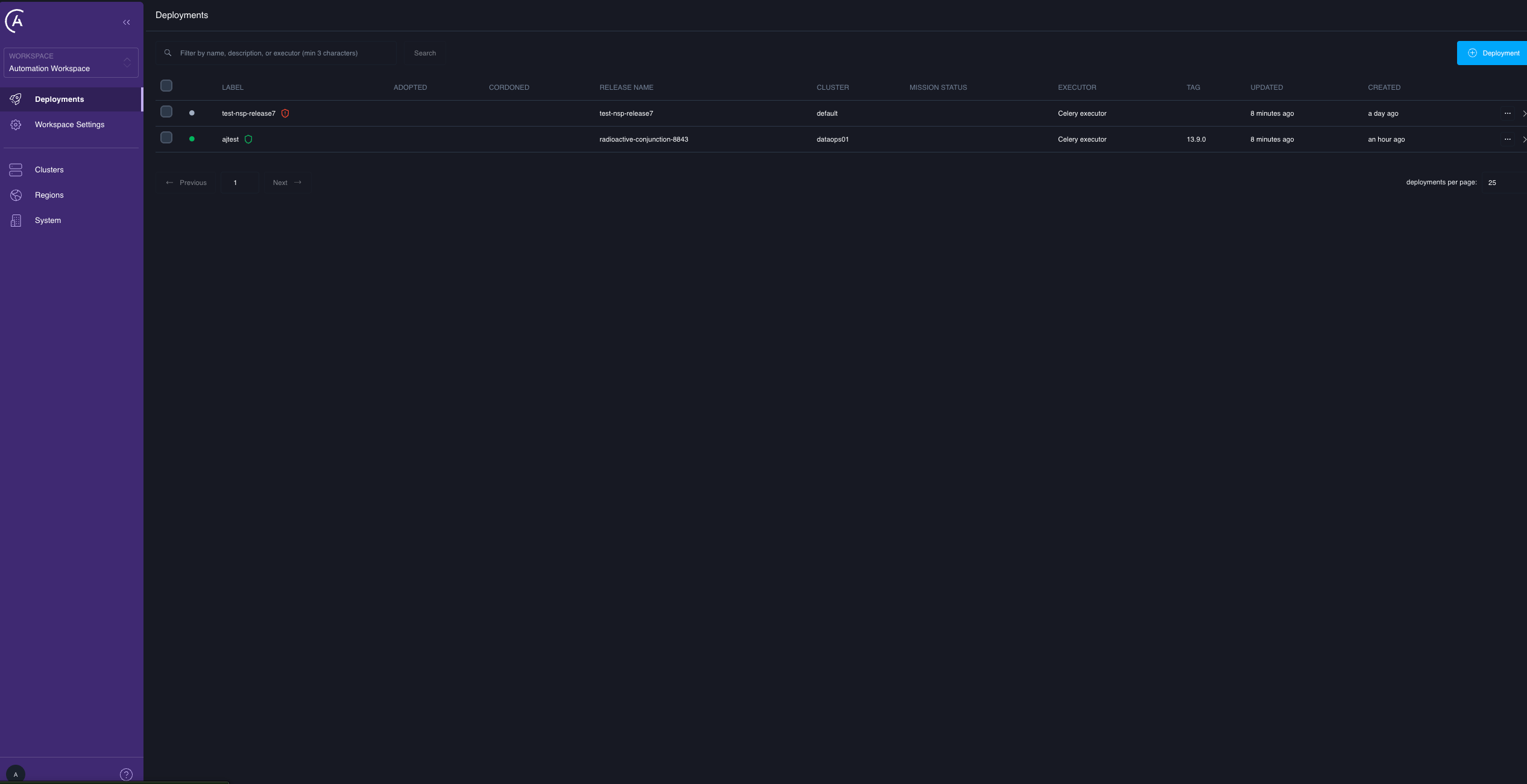
- No shield: failover-incapable cluster.
- Grey Pending upgrade: failover-capable but not yet upgraded for failover.
- Amber In progress: an upgrade mission is in flight.
- Green Ready: upgraded and currently failover-eligible.
- Red Attention: the upgrade failed, or the Deployment is upgraded but now ineligible.
Deployment.failoverReadiness. See Per-deployment migration reference.
Deployment detail
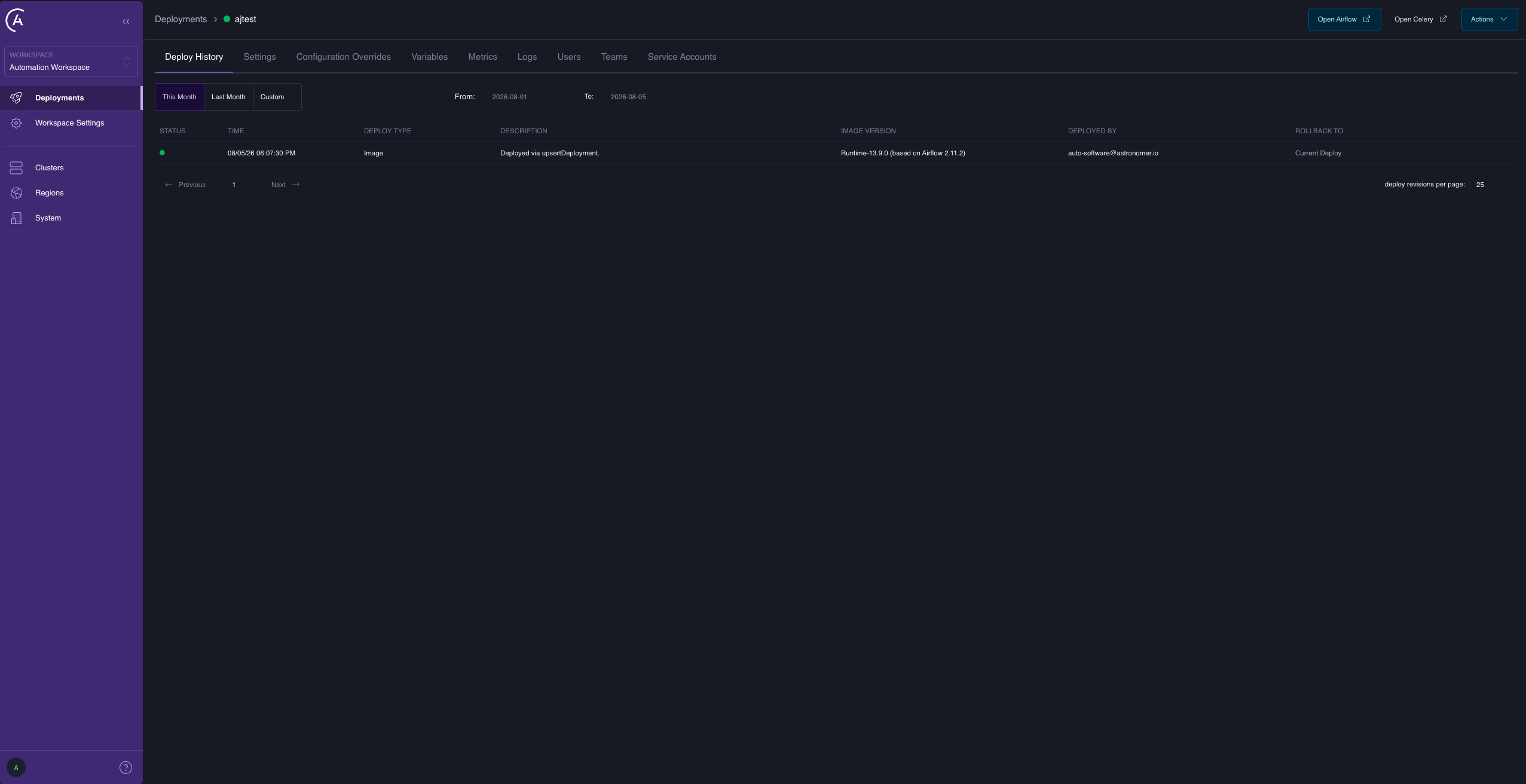
- Migrate to cluster is a per-Deployment action in the Deployment header’s Actions menu, alongside Upgrade for failover. It calls the same
migrateDeploymentsmutation with a single ID. Use it for canary moves, retries, and one-offs. - There is no dedicated mission or flight view in the APC UI in 2.1. The durable, per-mission detail is available through the
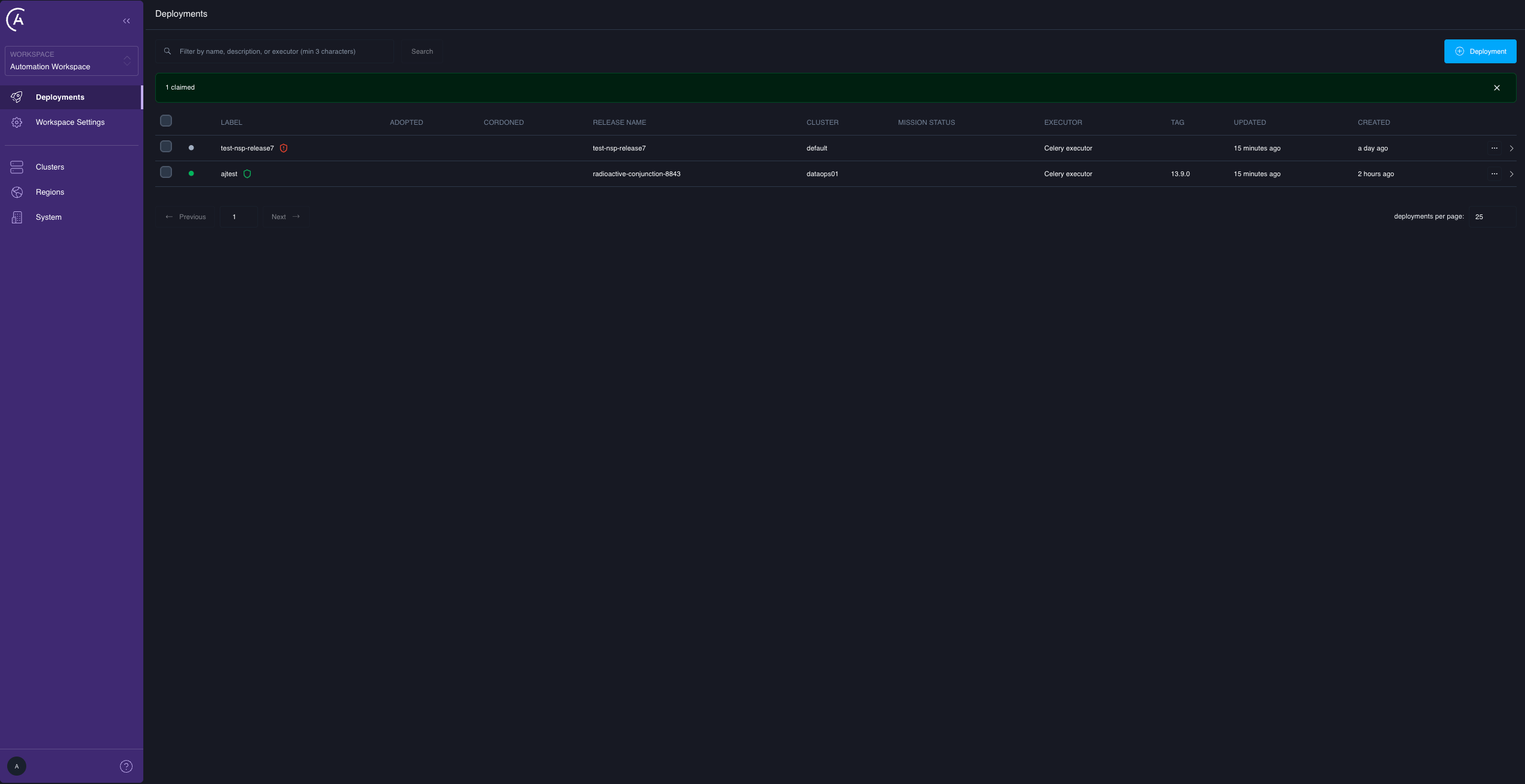
missionProgressGraphQL query. The Mission Status column on the Deployments list is the at-a-glance UI surface.
There is deliberately no batch progress page. If you reload after starting a 20-Deployment migration, you haven’t lost anything: you can query each Deployment’s status individually through its Mission Status column or
missionProgress.Trigger a migration
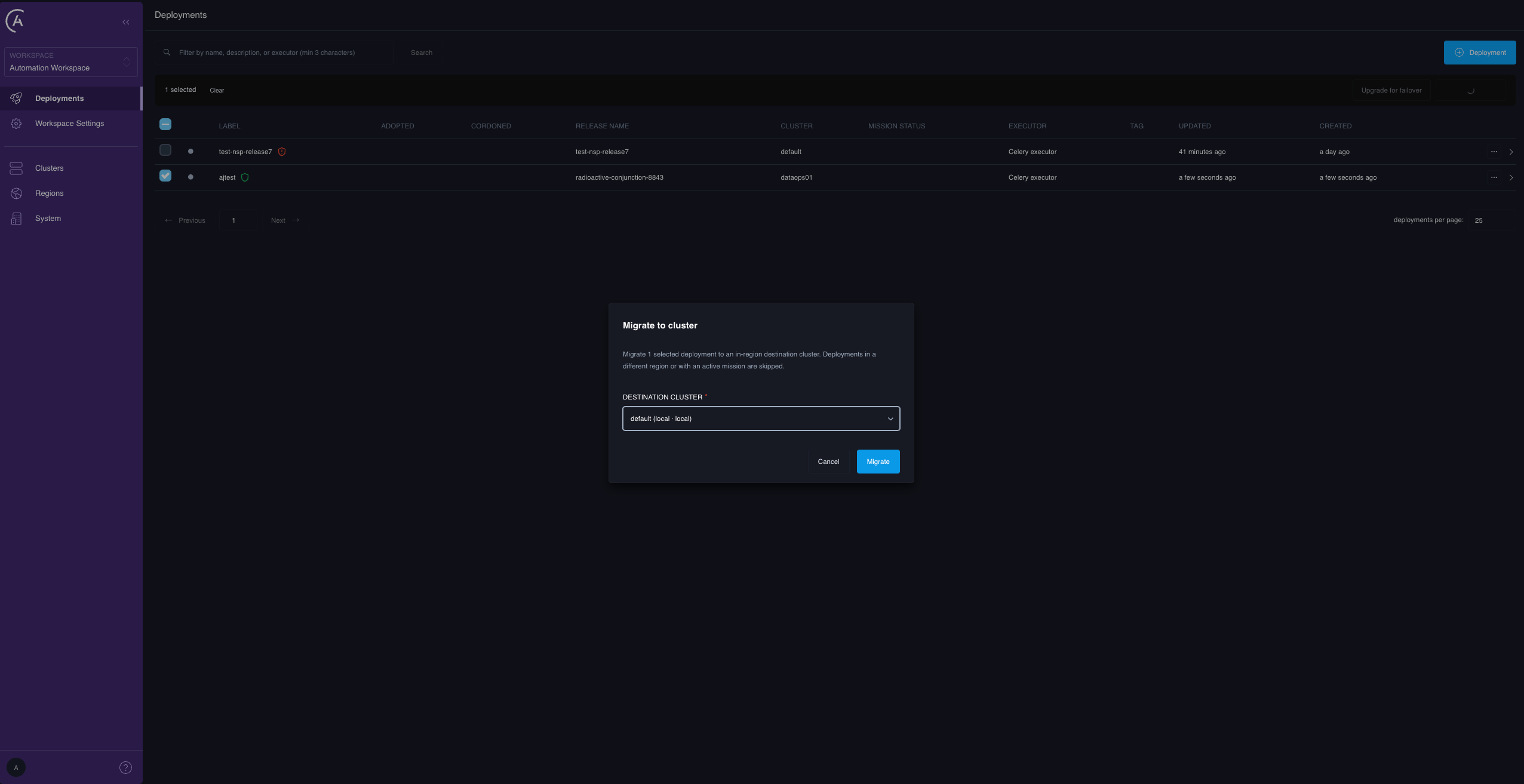
From the Deployments list
- Select the Deployments with the checkbox column. Deployments with an active mission aren’t selectable.
- Open the bulk-actions menu and select Migrate to cluster.
- Select the destination cluster from the picker.
- Confirm.
From the Deployment detail page
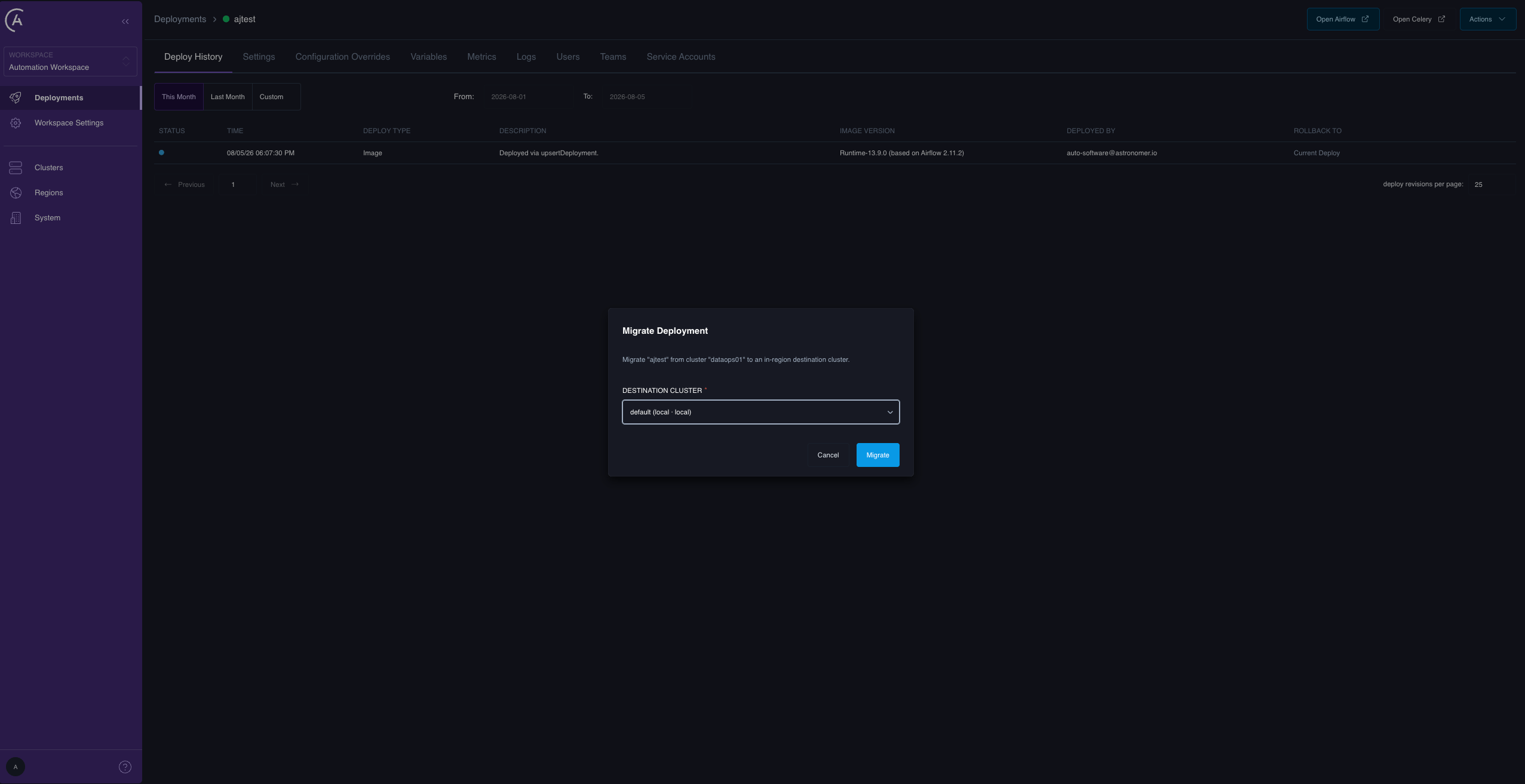
Open the Deployment and select Migrate to cluster from the header Actions menu, then select a destination. It’s the same mutation, the same rules, and one ID. Unlike the list, the result here is a toast: a “Migration started” toast on success, or a “Migration not started” error toast whose text is the raw skip reason when the Deployment is skipped.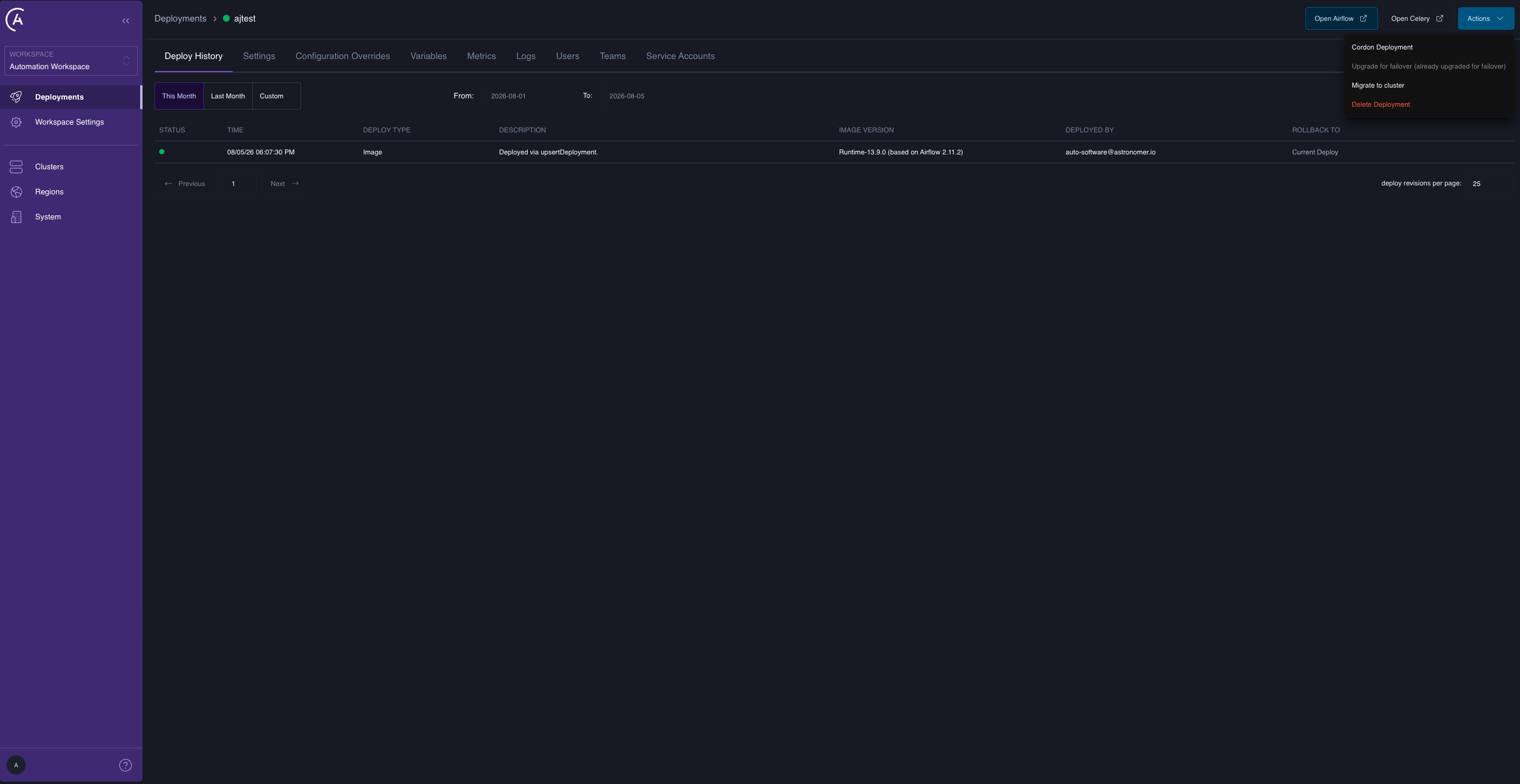
With the API
deploymentIdstakes one or more IDs. Duplicates are de-duplicated. A single-element list is the trivial case; there is no separate single-Deployment mutation.destinationClusterIdis the one cluster all listed Deployments move to. They may come from different source clusters, as long as each source is in the same region as the destination.- Mode is always
CONTROLLED. It isn’t a parameter. Migration drains a healthy source before bringing the Deployment up elsewhere; if the source is unavailable, you need a cluster failover, not a migration.
missionId values — they are the handle for missionProgress.
The response is synchronous in acceptance, asynchronous in execution. A returned
missionId means the mission was durably created, not that the Deployment has moved. Watch progress in the APC UI or with missionProgress.What migration isn’t for
- Draining a whole cluster. Use full-cluster failover to decommission a cluster.
- Cross-region or cross-provider moves. The region gate blocks them.
- Moving a Deployment off a dead cluster. Migration requires a healthy source. Use cluster failover.
- Automatic destination selection. You always specify the destination.
What happens during a migration
Each mission runs the controlled-move sequence:DRAIN, DELETE, NAMESPACE, SECRETS, FENCE, DEPLOYMENT, and WAIT — are the literal values recorded against each flight and emitted in the data plane logs, which is useful when correlating a stuck migration with data plane output.
Controlled mode drains and deletes the source first, so that no Airflow instance is writing to the metadata database while another is starting. That is what makes a controlled move zero-data-loss — and also what makes it non-reversible, because by the time the Hyperjump flight runs, the source release is gone.
The migration doesn’t touch the Airflow metadata database, your secrets backend, Dag storage, or the Deployment’s record in the control plane. Only the Kubernetes-side installation moves.
- On success, the mission reaches
COMPLETED, the Deployment’sclusterIdflips from source to destination, and its active-mission reference clears. - On failure, the mission reaches
FAILED,clusterIdstays on the source, and the active-mission reference clears. See Recover a failed migration.
Observe a migration
In the APC UI
The Mission Status column on the Deployments list gives a one-glance phase per Deployment, for example “Migration - In progress.” There is no mission or flight detail view in the APC UI in 2.1; for the full per-mission detail, use themissionProgress API, which is the durable source of truth.
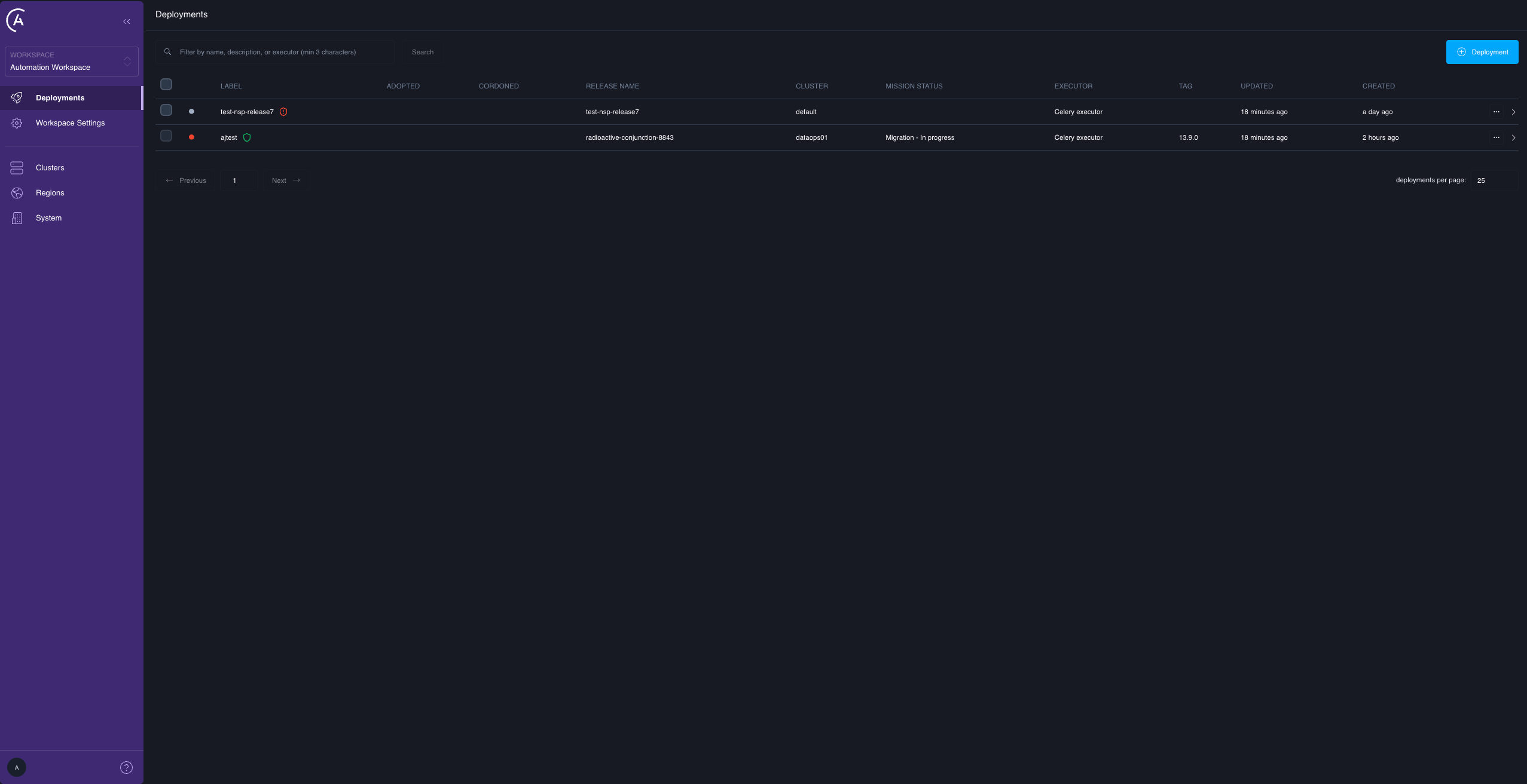
With the API
Query the mission IDs the mutation returned:activeMission and isBeingFailedOver clear to null and false as soon as the Hyperjump flight succeeds — for a per-deployment migration the mission is then COMPLETED — and on any terminal state. An in-progress cutover has a non-null activeMission; a completed one is null plus a flipped clusterId.
For the mission-state and flight-state enumerations, see Per-deployment migration reference.
missionProgress requires cluster-admin access — system.clusters.get or a cluster-admin role — the same authority needed to run a migration, so the operator who triggers migrations can observe them. A workspace member can’t call it. The deployment query is available to anyone who can view the Deployment.What is blocked during a migration
While a Deployment has an active mission, mutations that would reach the data plane for that Deployment are rejected, because they would tear down or alter resources the Hyperjump flight is provisioning. The blocked mutations areupsertDeployment updates, deleteDeployment, updateDeploymentConfig, deleteDeploymentConfig, updateDeploymentVariables, updateDeploymentImage, updateDeploymentKedaConfig, createDeployRevision, and deployRollback. Creating a new Deployment isn’t blocked by an active mission, though it is still blocked by an active cluster failover or a cordoned target cluster.
updateDeploymentsResources is gated too, but it silently skips the affected Deployments instead of returning an error — check its response rather than assuming it applied to everything you selected.
The error is explicit:
Recover a failed migration
A mission inFAILED needs your attention. What to do depends on where it failed. Query missionProgress, or open the Deployment detail page, and look at the flights:
If the Hyperjump flight failed, the Deployment is installed nowhere and needs the following recovery:
- Diagnose the destination. The usual causes are node capacity, resource quota, and image-pull failure. The destination cluster’s events and the control plane logs for that mission ID will say which.
- Fix the underlying cause on the destination cluster.
- Retry forward. Re-run
migrateDeploymentsfor the same Deployment and the same destination. The active-mission reference cleared when the mission reached its terminal state, so the Deployment is claimable again. - If the destination can’t be fixed quickly, retry forward to a different in-region destination rather than trying to restore the source.
- Confirm destination headroom — nodes and quota — before migrating.
- Confirm the Deployment’s image is present in a registry the destination can pull from. Replication lag between regional registries is a real cause of Hyperjump failure.
- Canary one Deployment before moving a batch.
- Migrate outside the owning team’s deploy window.