

- Rebalancing: move a single busy or unhealthy Deployment onto a neighboring cluster without disturbing anything else on either cluster.
- Per-team failover drills: when different teams own different Deployments on the same cluster, cluster-level failover forces every team into one coordinated window. Per-deployment migration lets each team validate failover on their own Deployments, on their own schedule.
Prerequisites
Per-deployment migration inherits every prerequisite of data plane failover. None of them are new in 2.1: if you already run data plane failover, you already have them. Confirm the following before you configure regions.Step 1: Confirm data plane failover is enabled
Per-deployment migration ships with data plane failover, so there is no additional switch. On each participating data plane cluster, your APC Helm values must contain:global.plane.mode: control) and data plane (global.plane.mode: data). It isn’t supported in unified mode (global.plane.mode: unified). global.dataPlaneFailover.enabled is the primary switch, and what it turns on depends on the plane’s mode:
- On a data plane, it enables the data plane execution components (Pilot and Flightdeck) and the data plane internal API’s
StartFlightremote procedure call. - On a control plane, it enables Navigator and the APC API dispatcher.
Step 2: Create your regions
A region is a control plane record — a name and a cloud provider — that clusters are assigned to. Regions are what the migration gate compares. You manage them on the Regions admin page in the APC UI, or through the GraphQL API. Regions are new in 2.1.Seeded regions
The 2.1 schema migration creates two region rows automatically:
You do not need to take any action for the upgrade to succeed — existing clusters are backfilled automatically and nothing breaks. But until you replace
unset with a real region, every migration attempt involving that cluster is skipped with CLUSTER_REGION_NOT_SET.
Create a region in the APC UI
In the APC UI, go to Regions in the admin sidebar and select Create Region. A region needs two values:- Name must be unique across the installation. Use whatever names match how you reason about your topology, for example
us-east-1,eu-west, ordc-chicago. The control plane doesn’t interpret the name — the gate compares region identity, not name strings. - Cloud Provider, for example
aws,gcp,azure, orlocal. This isn’t cosmetic: a cluster can only be assigned to a region whose cloud provider matches the cluster’s own. See Step 3.
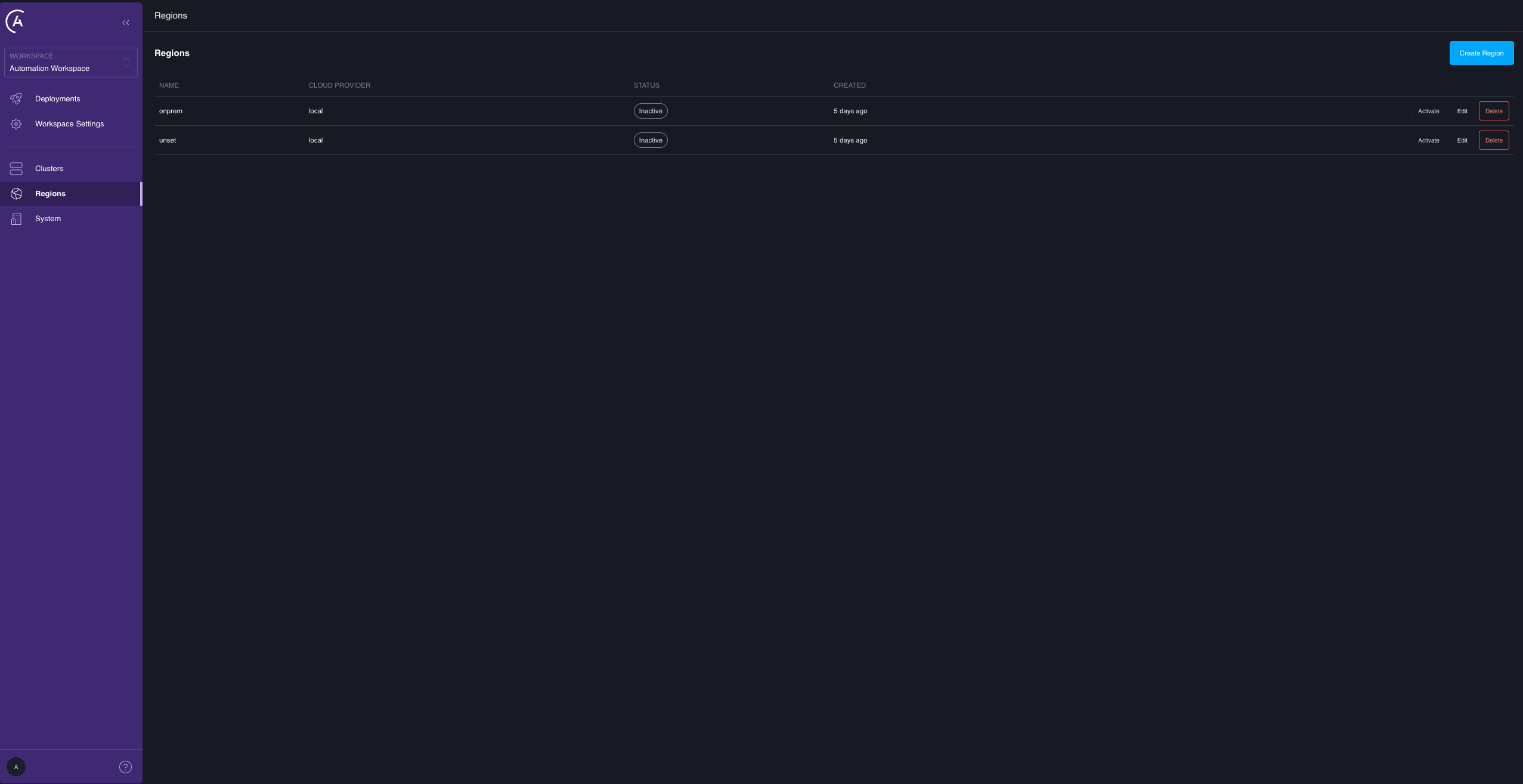
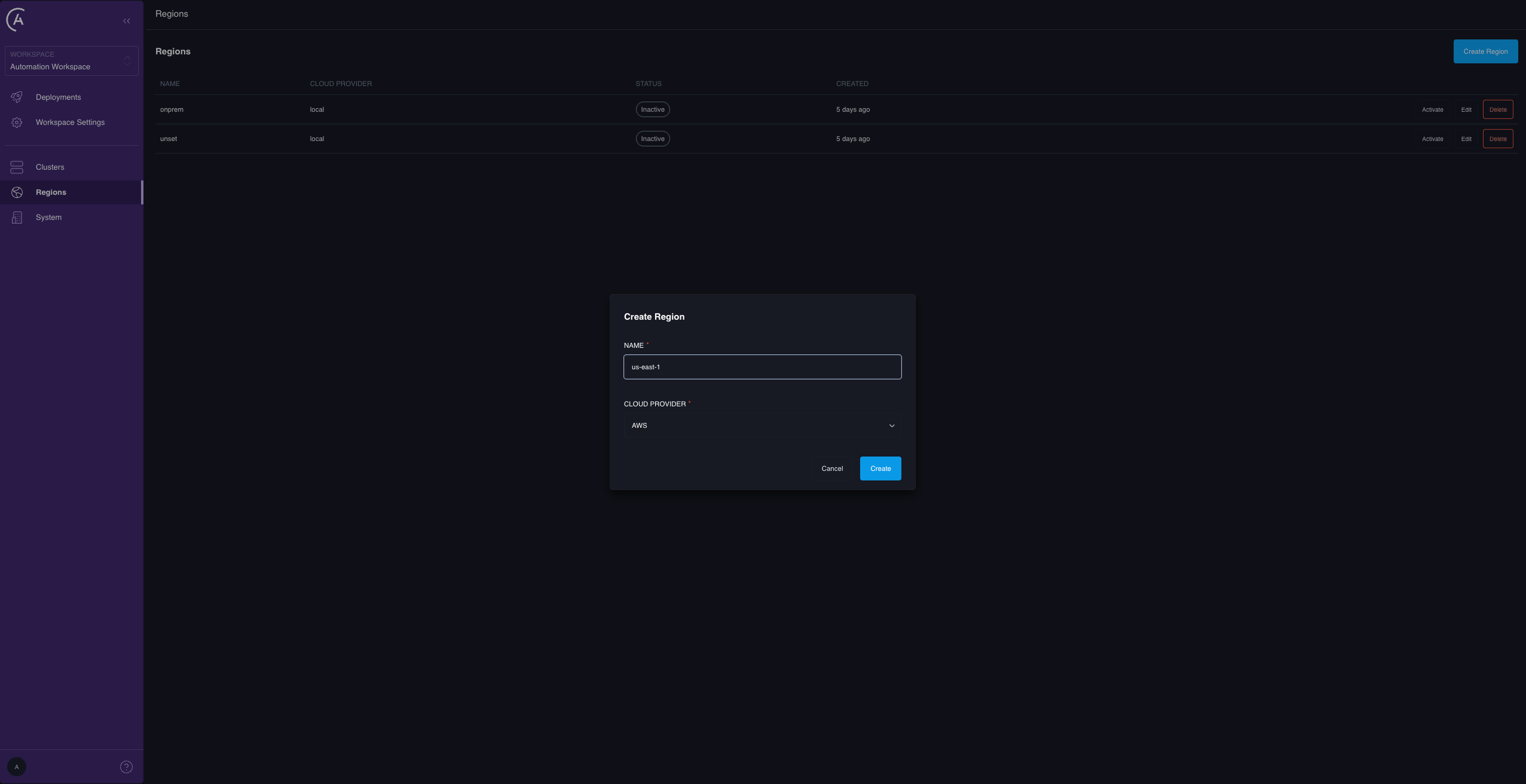
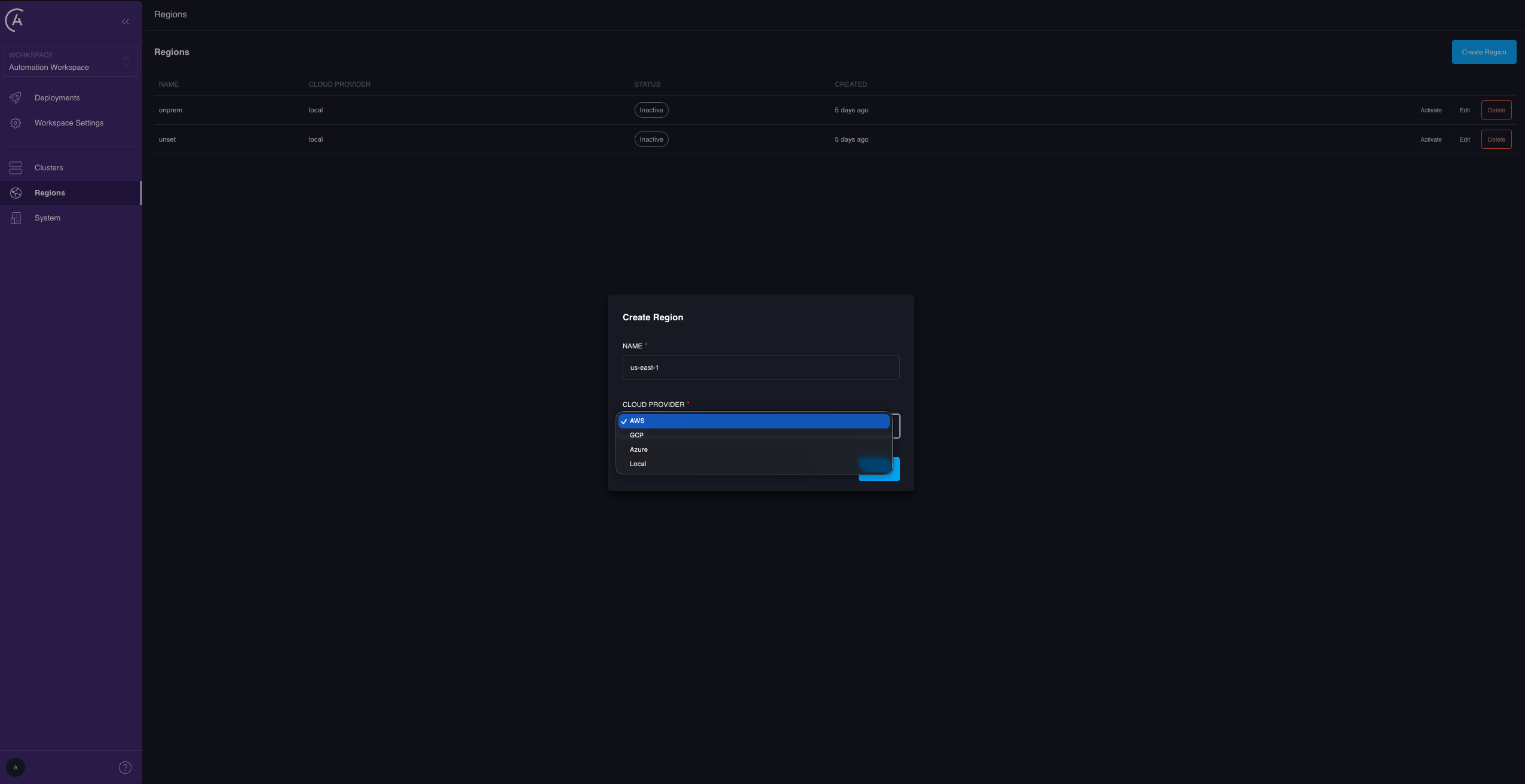
The Regions page is shared with control plane high availability, where exactly one region is active at a time and activating a region switches control plane traffic. That has no bearing on data plane migration. The migration gate compares region assignment only — it never reads a region’s active state. The two seeded regions ship inactive, which is correct: an inactive region is a valid home for data plane clusters. If you aren’t running control plane high availability, ignore the Active column.
Create a region with the API
region.id — you need it to assign clusters in Step 3. For the full region query and mutation surface, see Per-deployment migration reference.
Step 3: Assign a region to every failover-enabled cluster
This is the step that unlocks migration. Every cluster you want to migrate a Deployment from, and every cluster you want to migrate one to, needs a real, non-unset region.
Assign a region to an existing cluster
-
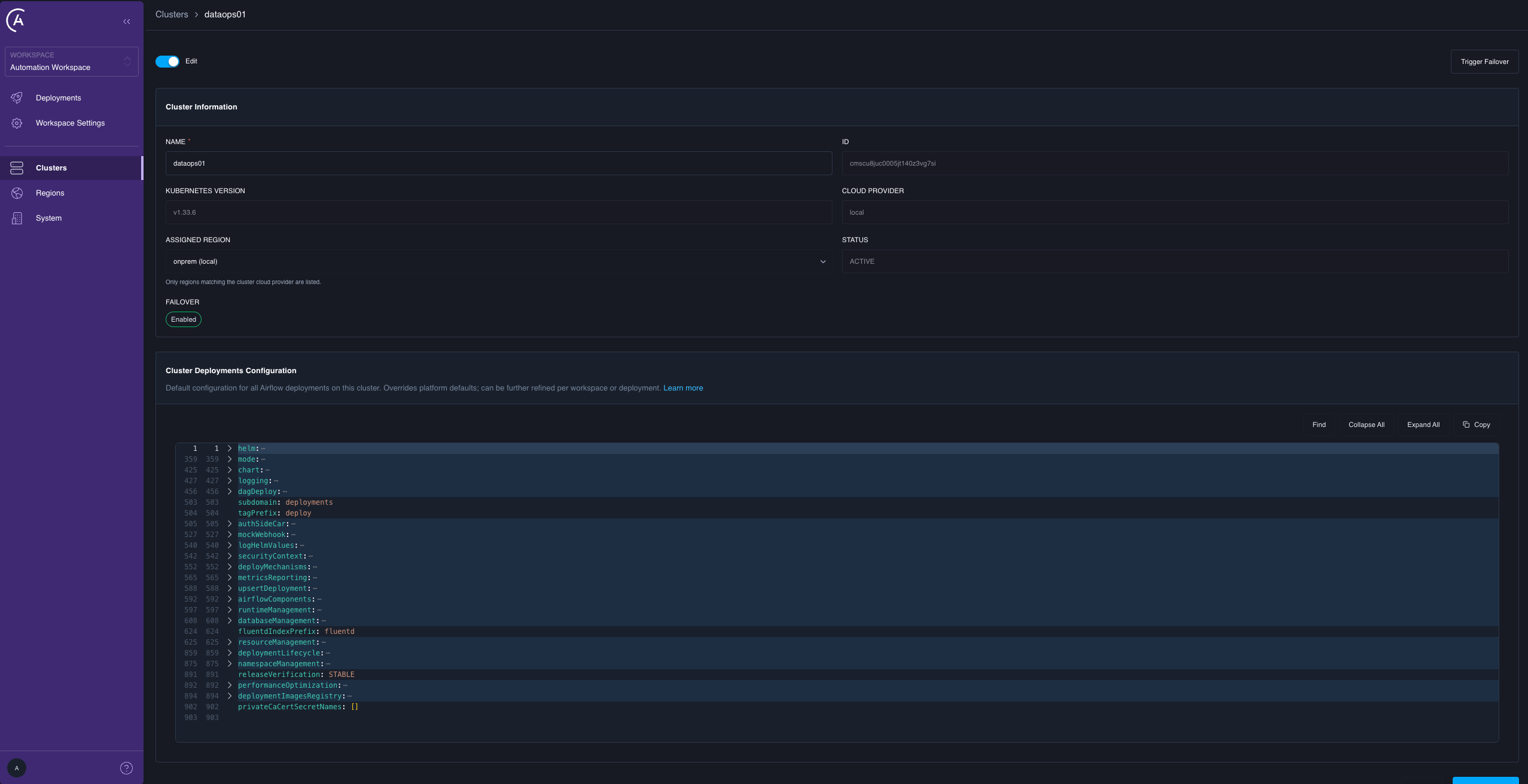
In the APC UI, go to Clusters in the admin sidebar and open the cluster you want to assign.
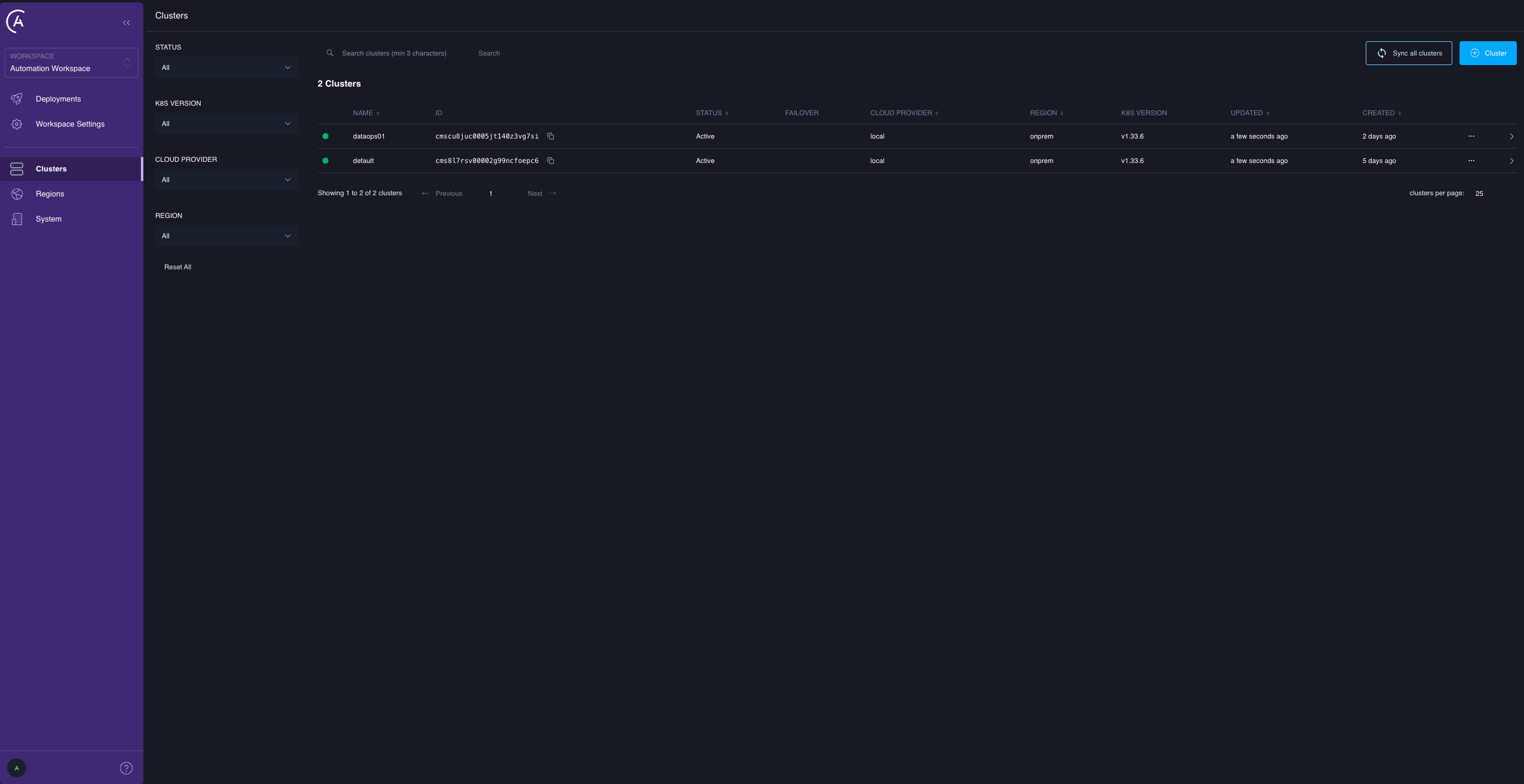
-
Turn on Edit. The cluster form includes an Assigned Region dropdown next to Cloud Provider, and a read-only Failover field.
-
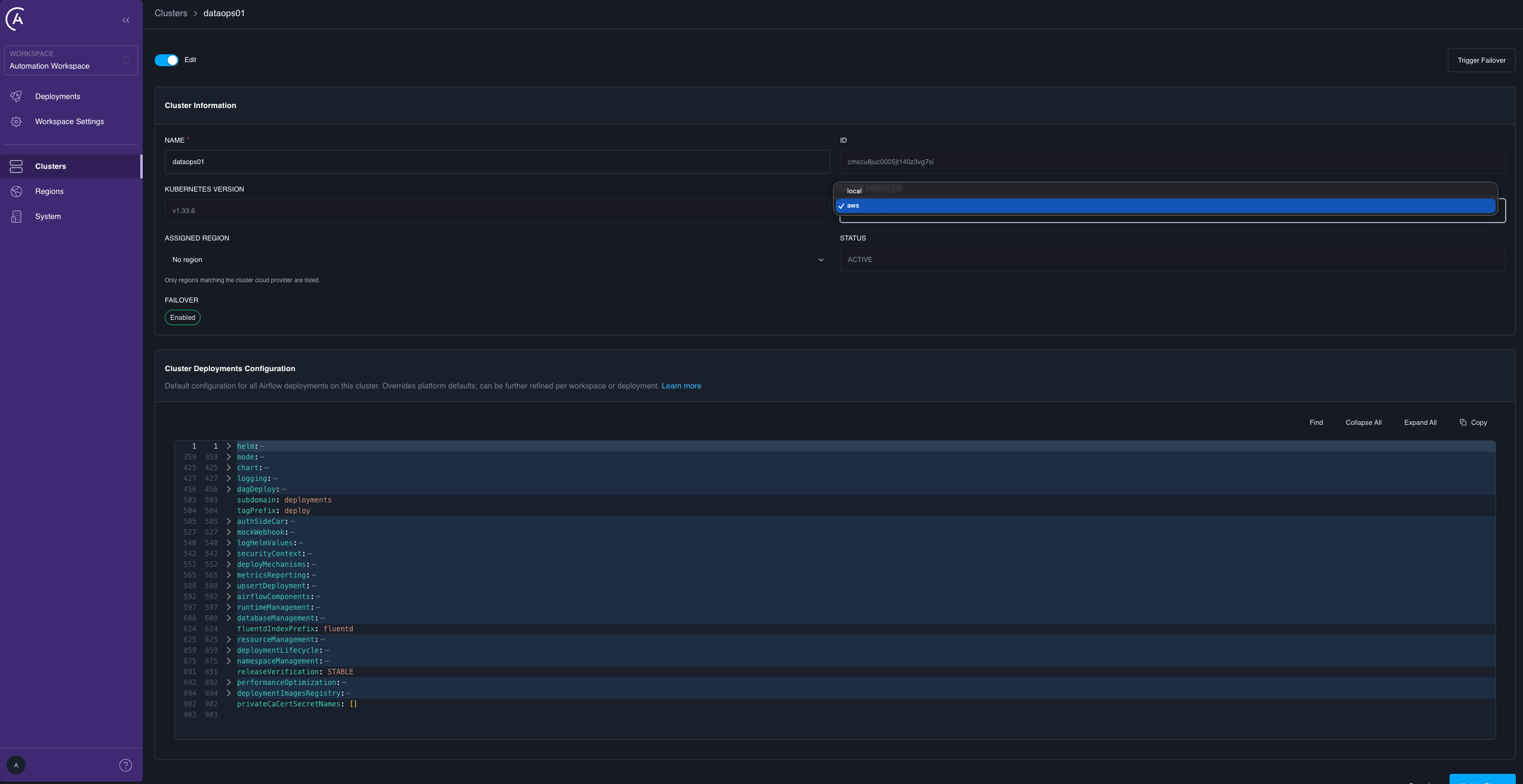
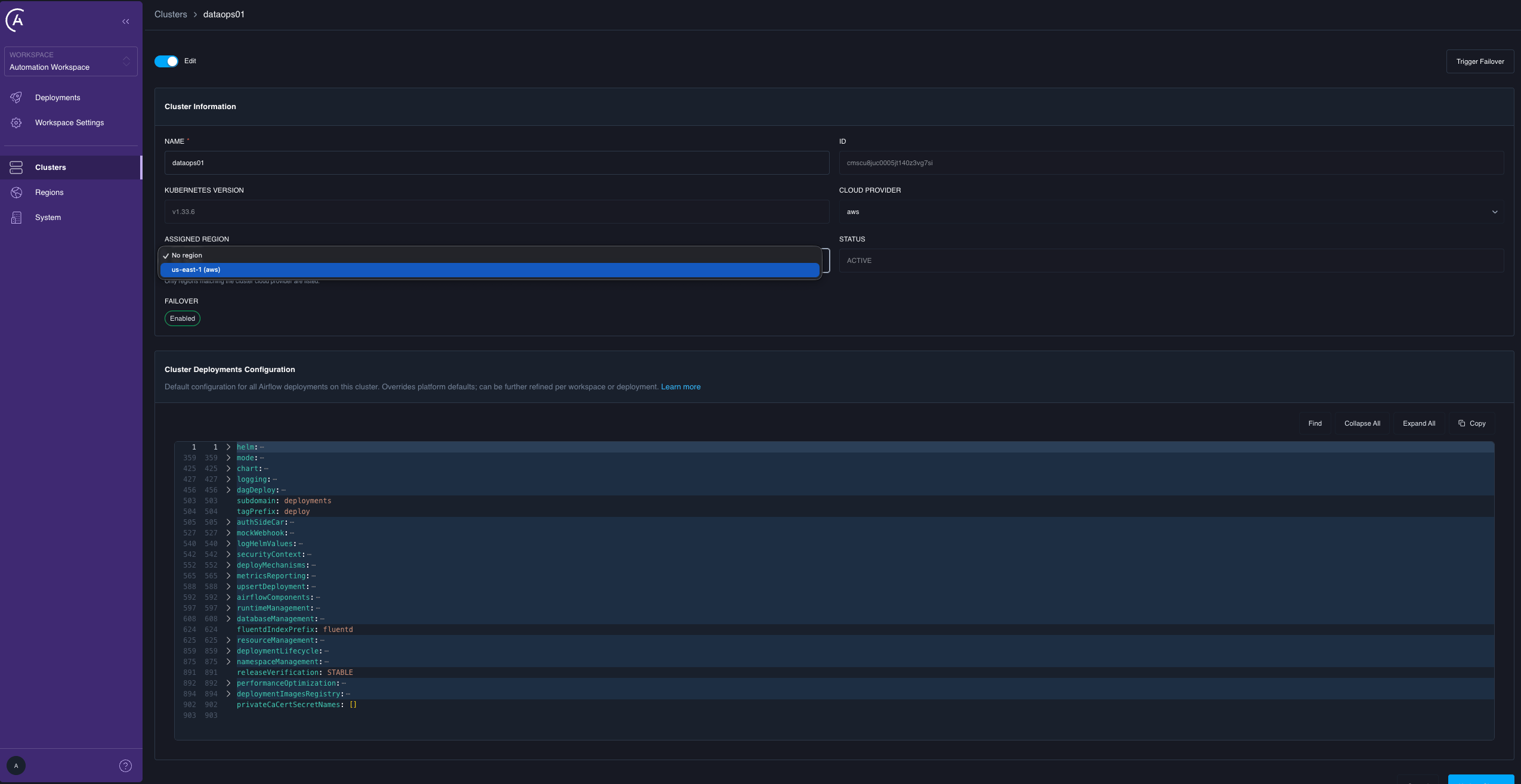
(Optional) If the cluster’s Cloud Provider is incorrect, correct it first. Assigned Region lists only the regions whose cloud provider matches the cluster’s.
-
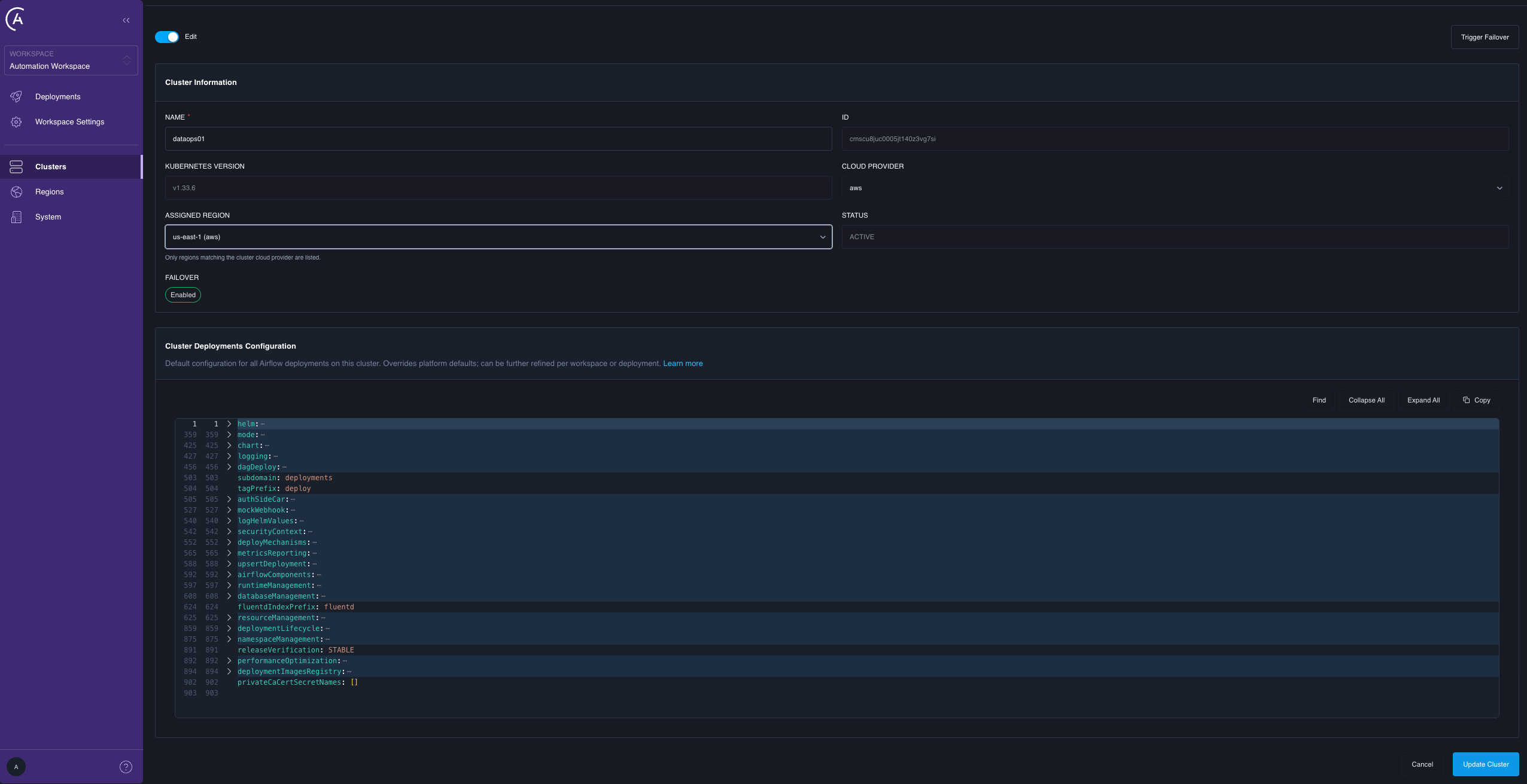
In Assigned Region, select the region the cluster physically lives in.
-
Select Update Cluster. Review the old and new values in the Confirm cluster configuration update dialog, then select Confirm update.
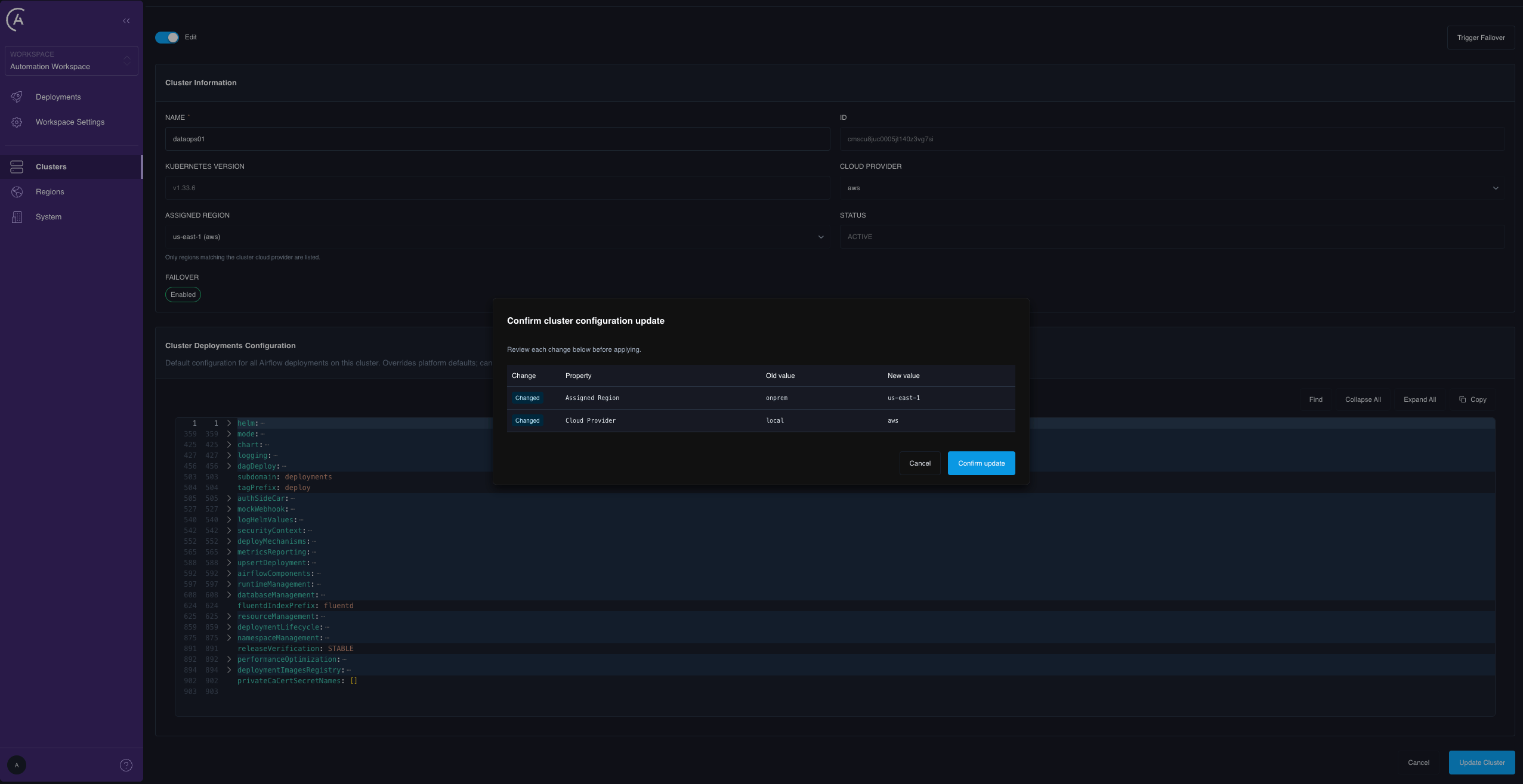
regionId: null clears the assignment.
Assign a region to a new cluster
Cluster registration acceptsregionId directly, and the registration form includes the same region selector. At registration, the cluster inherits the assigned region’s cloudProvider, so there is no separate provider to set and no mismatch to resolve. With no region assigned, the provider comes from the data plane metadata, defaulting to local.
Cloud-provider consistency
When you edit an existing cluster’s assigned region, the region must share the cluster’s owncloudProvider. The cluster edit form’s Cloud Provider field is editable and filters the Assigned Region dropdown to matching regions; to switch provider, set the provider and a matching region together. The comparison is case-insensitive, so aws and AWS match.
If the providers don’t match, the save is rejected:
cluster.cloudProvider and region.cloudProvider in agreement is what makes that inference sound.
If a cluster’s own
cloudProvider is empty, the consistency check is skipped and any region is accepted. This is intentional, so that on-premises and older clusters aren’t blocked, but it means the check is a guardrail rather than a guarantee.Step 4: Verify the configuration
Run these checks before you declare the setup done.-
Confirm every failover-enabled cluster has a real region. In the APC UI, check the region on each cluster, or list regions with the API and confirm no participating cluster is assigned to
unset: -
Confirm the destination cluster is failover-enabled and healthy. On the cluster detail page, the Failover field should read Enabled and the health dot should be green. With the API,
Cluster.failoverEnabledshould betrue. -
Ask the control plane which destinations it considers valid:
- Do a canary migration. Migrate one low-stakes Deployment to the destination, and back, before you move anything that matters. See Manage and observe per-deployment migration.
Why migration is in-region only
A cluster-level failover and a per-deployment migration look similar but move different things:
Because migration doesn’t touch the database, a cross-region migration would leave the Deployment’s scheduler, workers, and triggerer in one region while its metadata database stays in another. The Airflow scheduler queries its metadata database on every scheduling loop, so this adds cross-region round-trip latency to the hottest path in the system. Throughput drops, and nothing in the platform reports an error, because from Airflow’s point of view everything is working.
To move across regions, use full-cluster data plane failover, sequenced after your database promotion. Cross-provider moves at the Deployment level are out of scope.
Backward compatibility and rollout
The move from “region is optional and ignored” to “region is required for migration” is phased so that upgrading to 2.1 breaks nothing. The 2.1 upgrade does the following automatically:- Adds
cloudProviderto the region record. - Seeds the
onpremandunsetregions. - Backfills every cluster with no region to
unset. - Ships the Regions admin page and the cluster region selector.
- Makes
migrateDeploymentsavailable, skipping any Deployment whose source or destination cluster is still onunset, withCLUSTER_REGION_NOT_SET.
- Create regions that reflect your real topology.
- Reassign every failover-enabled cluster off
unset. - Canary-migrate one Deployment per region pair to validate.