When to cordon
- During maintenance on the Deployment, when you are changing something out of band and don’t want APC applying changes at the same time.
- During a change freeze, to guarantee that nobody’s configuration edit reaches a production Deployment.
- Before a platform upgrade, for any Deployment you don’t want the platform to act on while it upgrades.
- While the operator is being replaced, so that nothing is applied during the window when no operator is reconciling. See Move the operator under APC.
What a cordon blocks
While a Deployment is cordoned, APC refuses these operations on it:- Deployment configuration updates, including resources and configuration overrides
- Environment variable changes
- KEDA autoscaling configuration changes
- Code deploys and image updates
- Deploy rollbacks
- Migrating the Deployment to another cluster
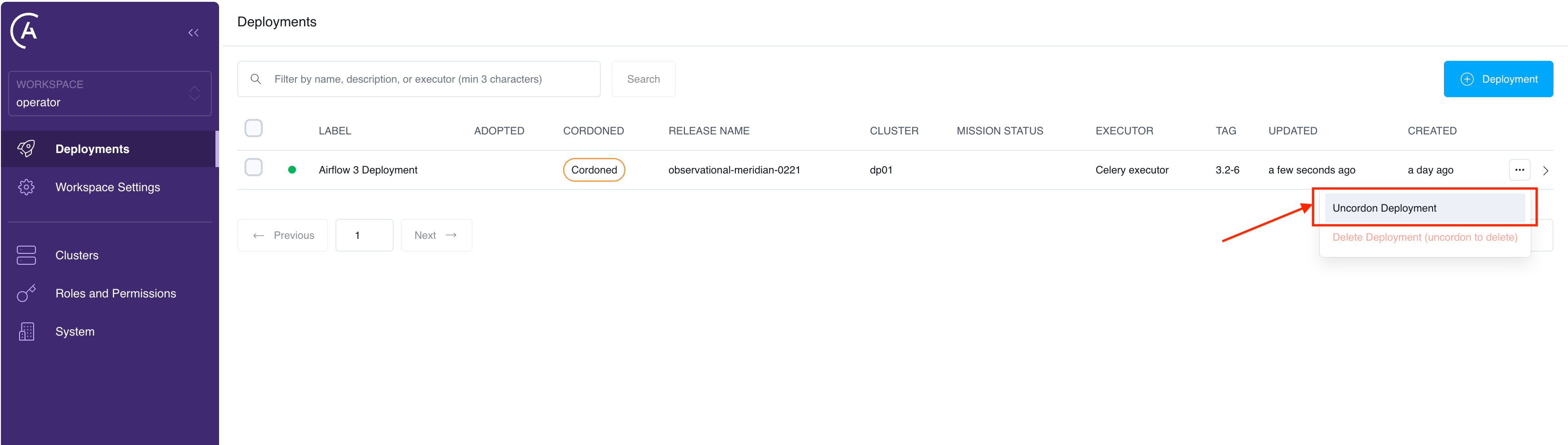
- Deleting the Deployment. In the Astro UI the delete action is disabled and labeled uncordon to delete
A whole cluster can also be cordoned, which blocks every Deployment on it regardless of each Deployment’s own cordon state. If a Deployment refuses changes and its own cordon is off, check whether its cluster is cordoned.
Cordon a Deployment
- Astro UI
- APC API
In the Deployments list, open the Deployment’s actions menu and select Cordon Deployment. You can optionally give a reason.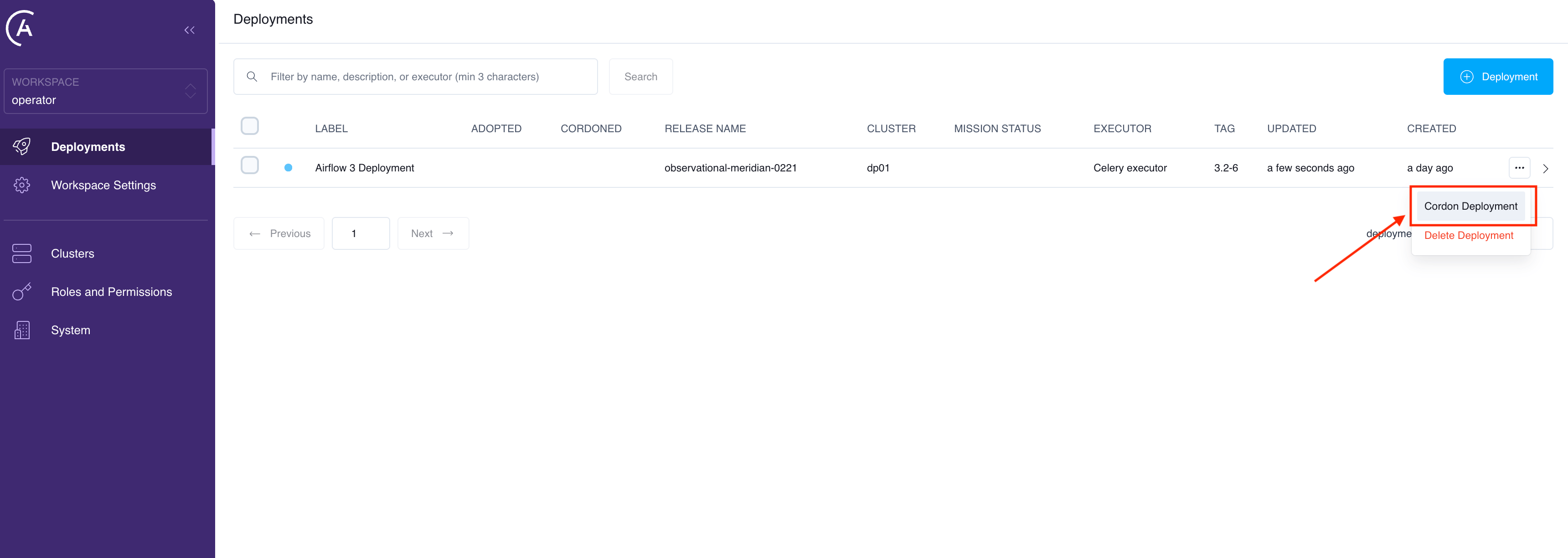
Uncordon a Deployment
- Astro UI
- APC API
In the Deployments list, open the Deployment’s actions menu and select Uncordon Deployment.