

<global-domain-name>, the per-control-plane (per-CP) admin hostname <cpNN-domain>, /controlplane/status, and the shared JSON Web Token (JWT) keypair), see Control plane reliability.
Cross-region failover in this guide means moving the active region for the control planes. It’s unrelated to data plane failover, which moves Apache Airflow Deployments between data plane clusters and has its own components and runbook.
The admin UI
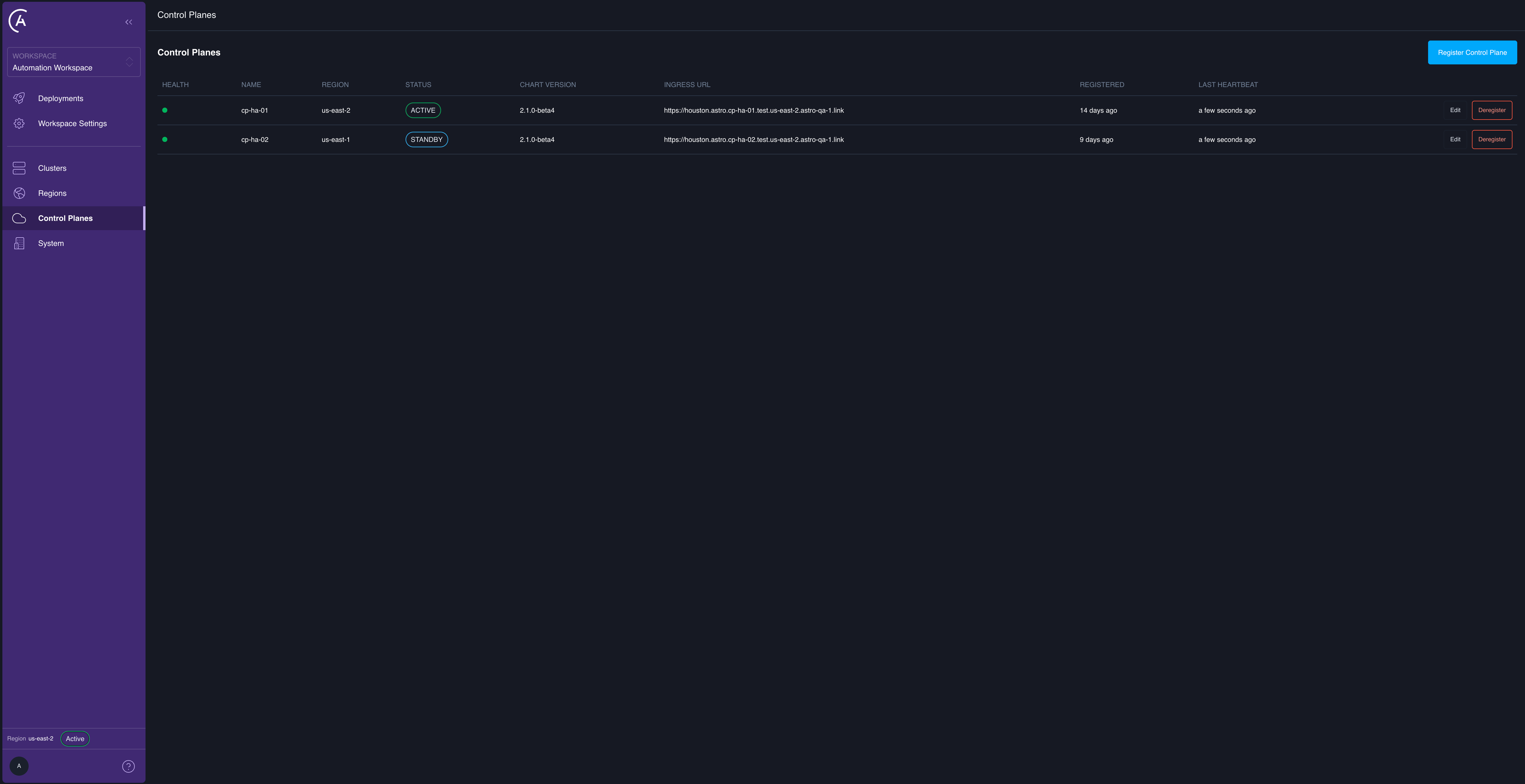
When you enable control plane reliability, two admin tabs appear in the left sidebar, along with a small indicator showing which control plane you’re connected to. All three are hidden on single-control-plane installations.- Control Planes tab: visible to system admins only. Lists every registered control plane. This is where you cordon, decommission, register, and deregister.
- Regions tab: visible to any viewer, but its actions are admin-only. Lists regions. This is where you activate a region.
- Connected-control-plane indicator: a sidebar chip, admin-only, that shows the region and status of the control plane your browser session is currently connected to.
Control plane list
Each row on the Control Planes tab shows the following columns:
The available actions are Register Control Plane, and per row Edit (a dialog with Name, Region, and a Status dropdown) and Deregister (which removes the control plane from the registry after a typed confirmation).
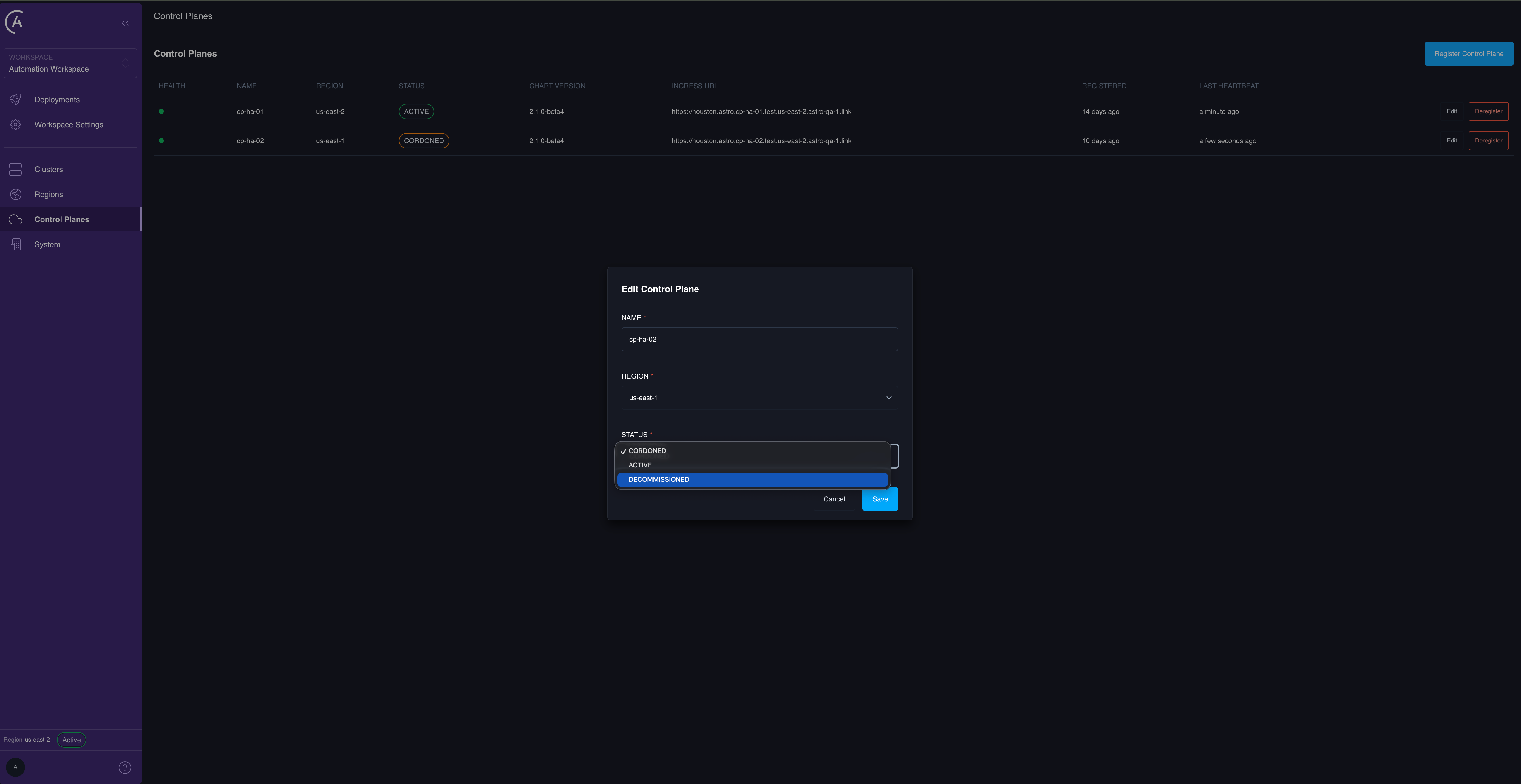
There is no dedicated cordon or decommission action. You change a control plane’s state through Edit > Status. The dropdown offers only legal transitions. See Manage control plane status.
The health dot
The health dot is a three-state readiness indicator, separate from the Status badge. It’s computed in the browser from the control plane’s last heartbeat and its chart version relative to the group-wide maximum. It isn’t the/controlplane/status routing signal.
Staleness is checked first, because a control plane that isn’t running has a meaningless version. Hover the dot for the exact reason.
Heartbeat
Every APC API replica writes a periodic liveness tick. The default cadence is 30 seconds, and a heartbeat is considered stale after about 90 seconds (three missed ticks). This threshold is server-authoritative. The Control Planes list refetches on navigation and after any control plane or region change. It doesn’t poll on a fixed timer, so the health dot’s freshness advances as the page re-renders rather than ticking live.Region list
The Regions tab lists Name, Cloud Provider, Status (an Active or Inactive badge), and Created. The available actions are Create Region, and per row Edit, Delete, and Activate. Activate appears only on regions that aren’t currently active.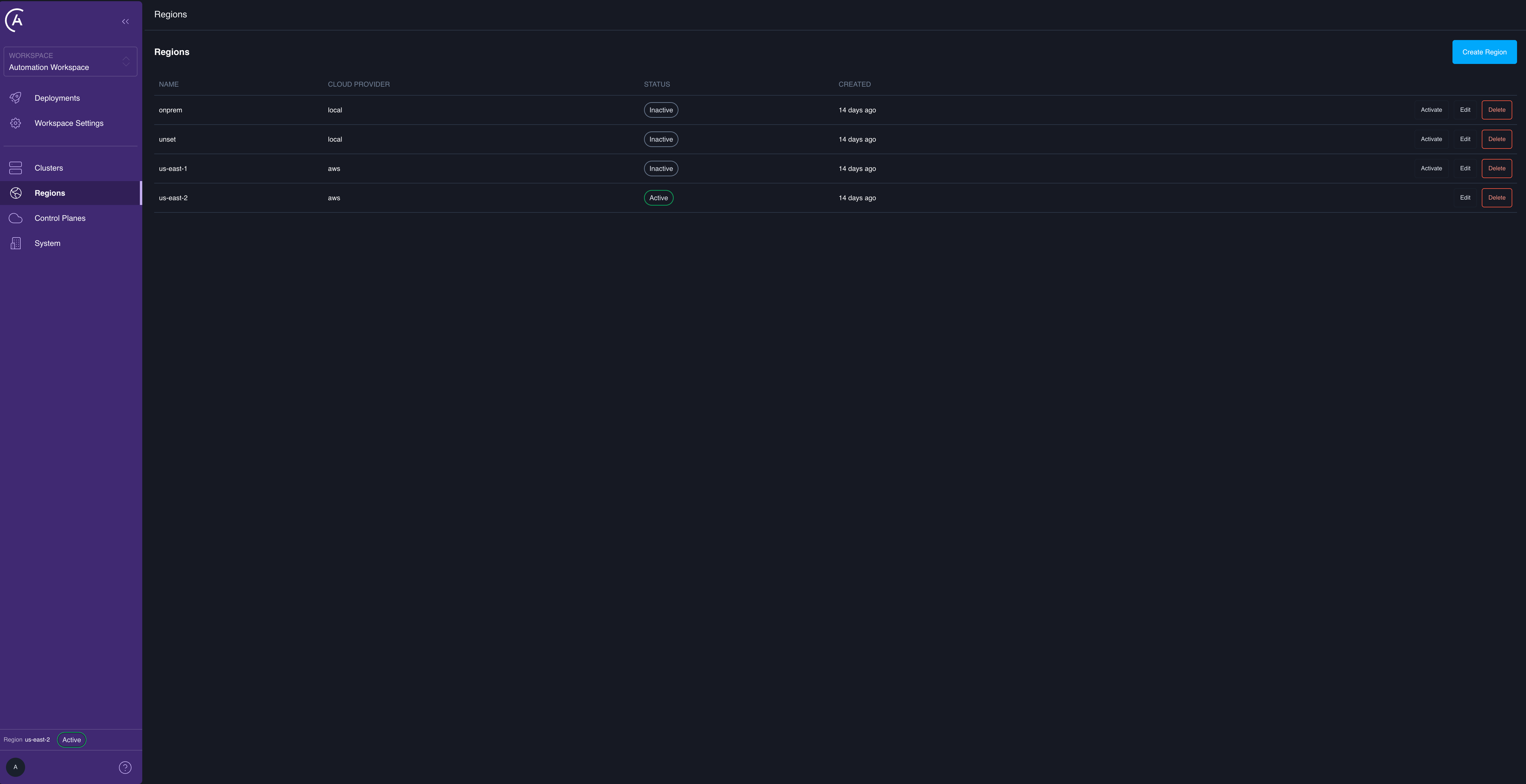
There is deliberately no deactivate action. Activating one region atomically deactivates all others, so switching the active region is a single action. See Cross-region failover.
Manage control plane status
A control plane has one of three stored statuses, plus a derived fourth status that you only ever see and never set:Change a control plane’s status
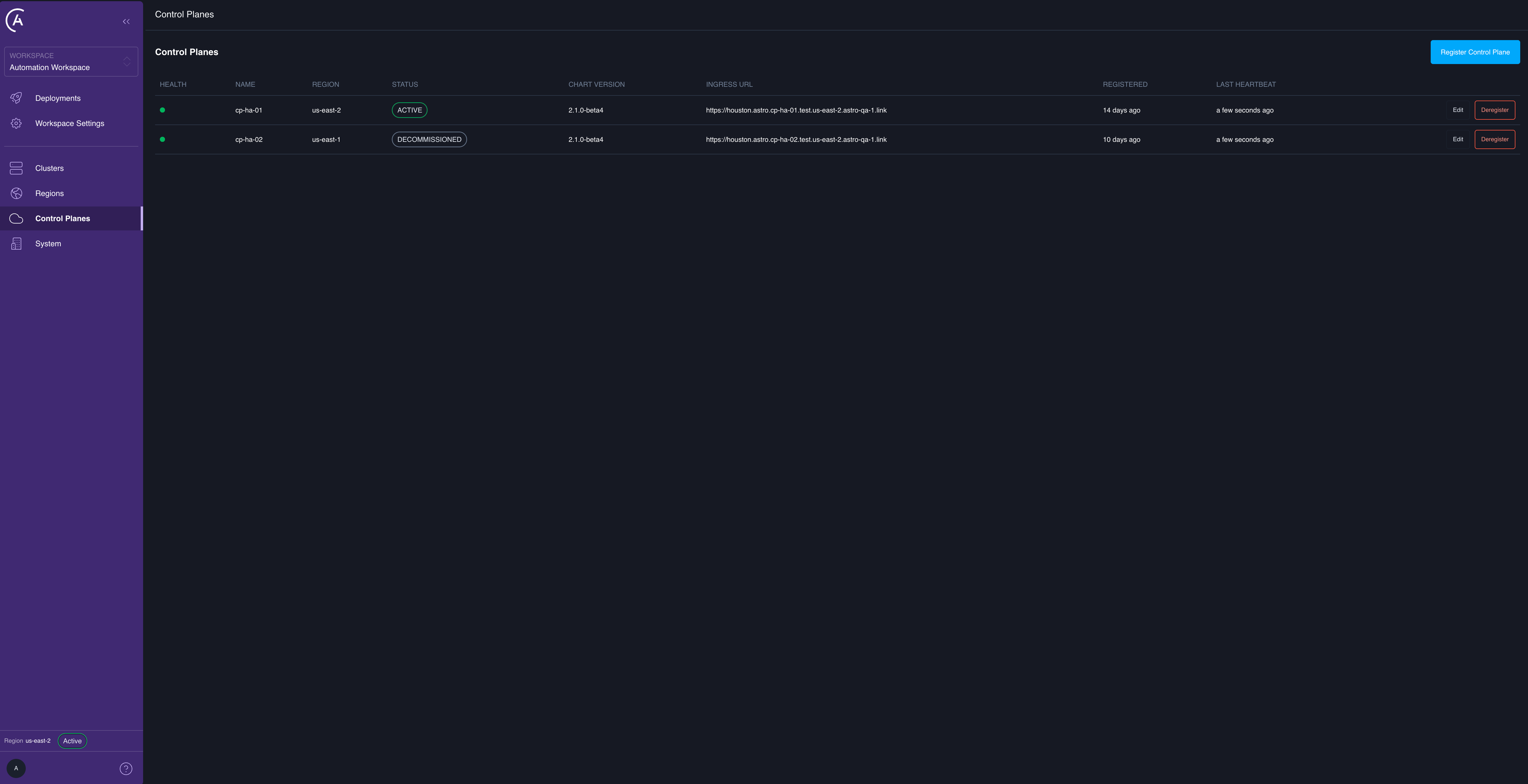
From the APC UI, open the Control Planes tab, select Edit on the control plane, pick the new value from the Status dropdown, and save.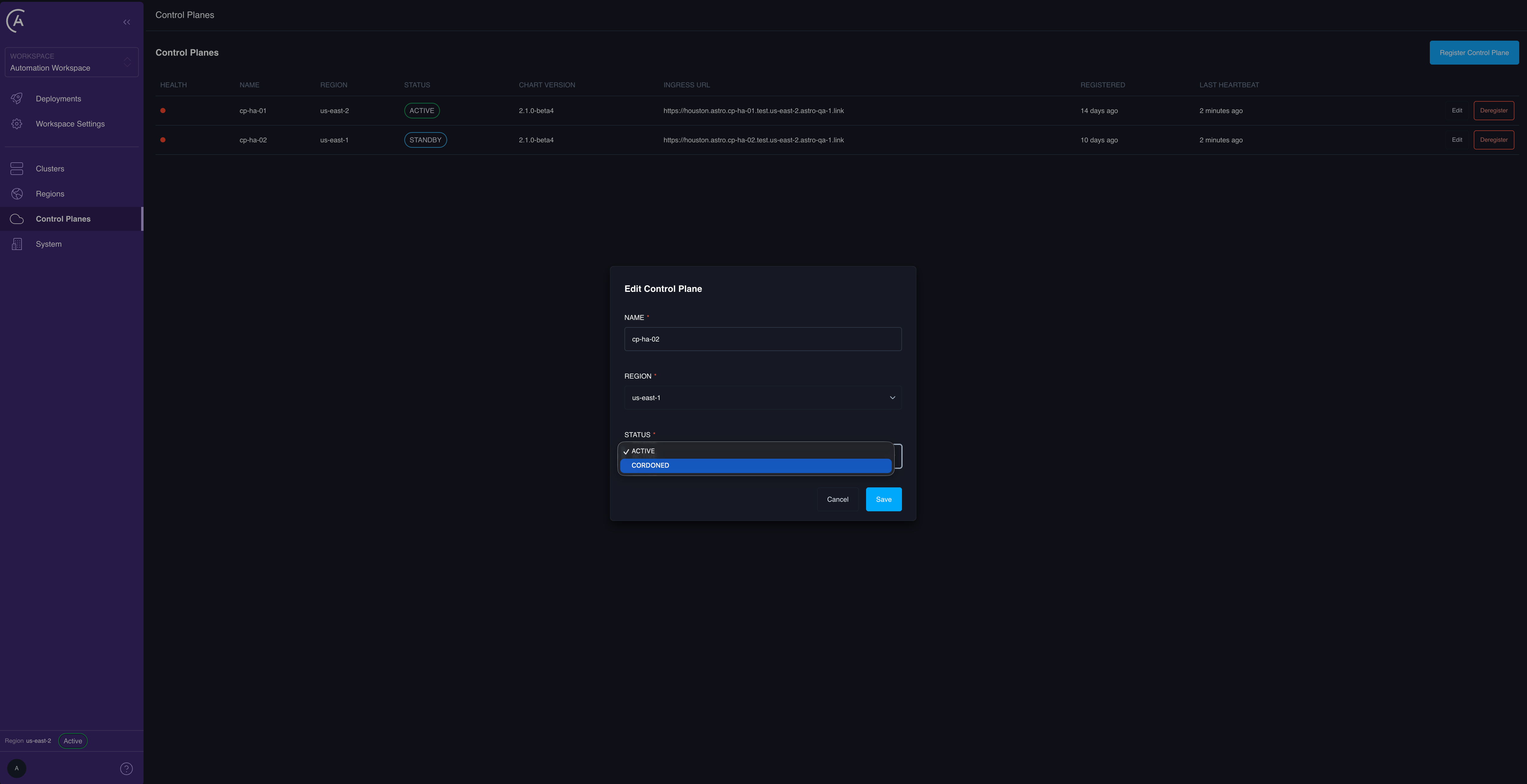
updateControlPlane mutation, which requires system-admin access. Cordon and decommission aren’t separate mutations — they’re status values on this one call:
ACTIVE → CORDONED → DECOMMISSIONED, and both non-active states are reversible to ACTIVE. You can’t jump straight from ACTIVE to DECOMMISSIONED; you must cordon first. An illegal transition is rejected with INVALID_CP_STATUS_TRANSITION.
What happens when you cordon
SettingCORDONED writes one database field, and two independent consumers act on it:
- The health endpoint fails.
/controlplane/statuson that control plane starts returning503. Your global DNS load balancer, which health-checks that path, drains the control plane from rotation and sends customers to the remaining healthy control planes. Control plane reliability doesn’t touch DNS itself; it only flips the health signal. - Mutations are rejected. The cordoned control plane still serves read queries, but every state-changing mutation is rejected with
CP_CORDONED, except the exempt admin mutations, so you can always un-cordon it. A cordoned control plane is also excluded from the chart-version-maximum computation, which is what makes it safe to use as a maintenance state during a rolling upgrade.
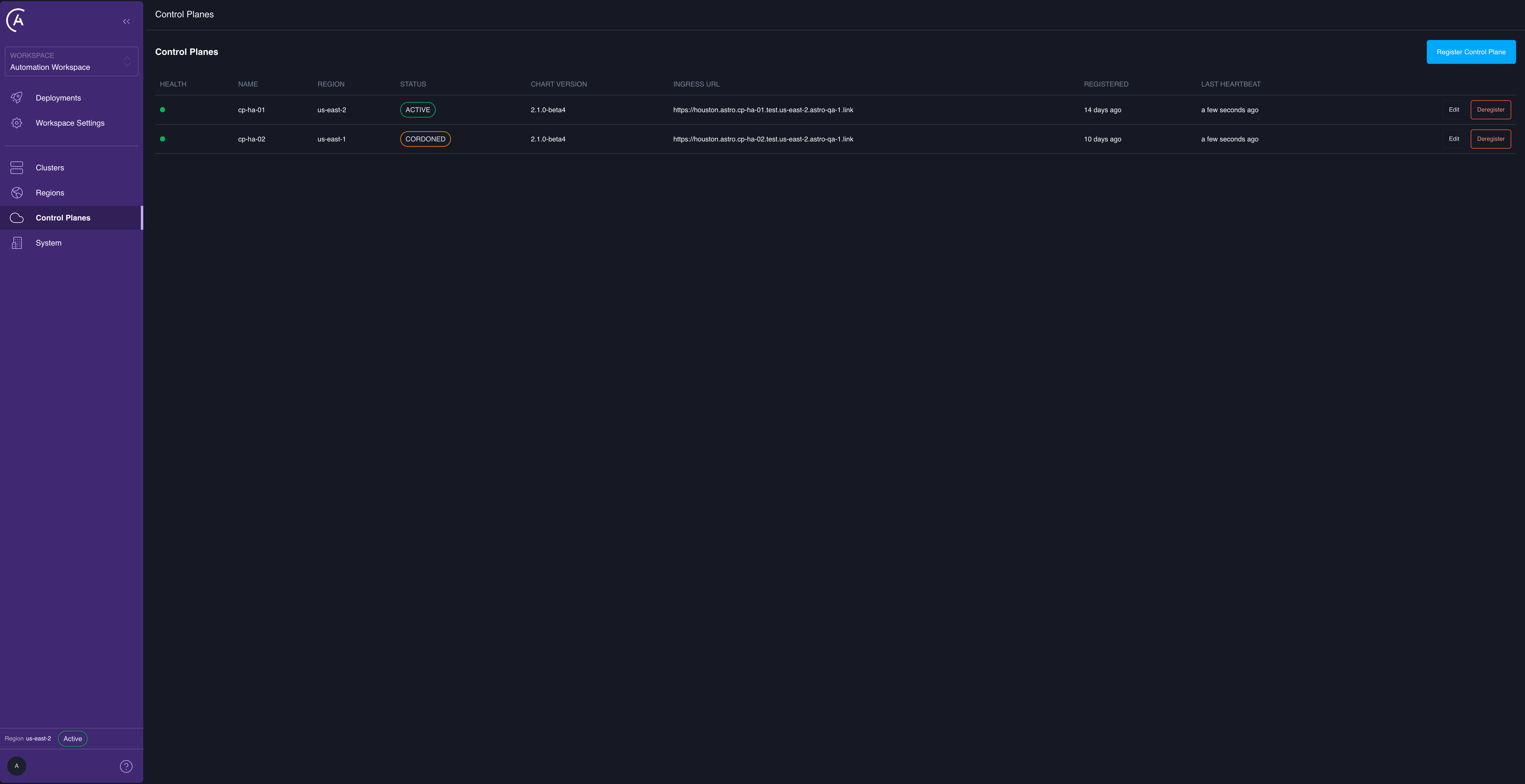
CP_DECOMMISSIONED, but it’s the terminal state: the control plane stops heartbeating and is excluded from all version and activation math, so a stale or dead control plane can never hold back the rest of the fleet.
Recover or remove a control plane
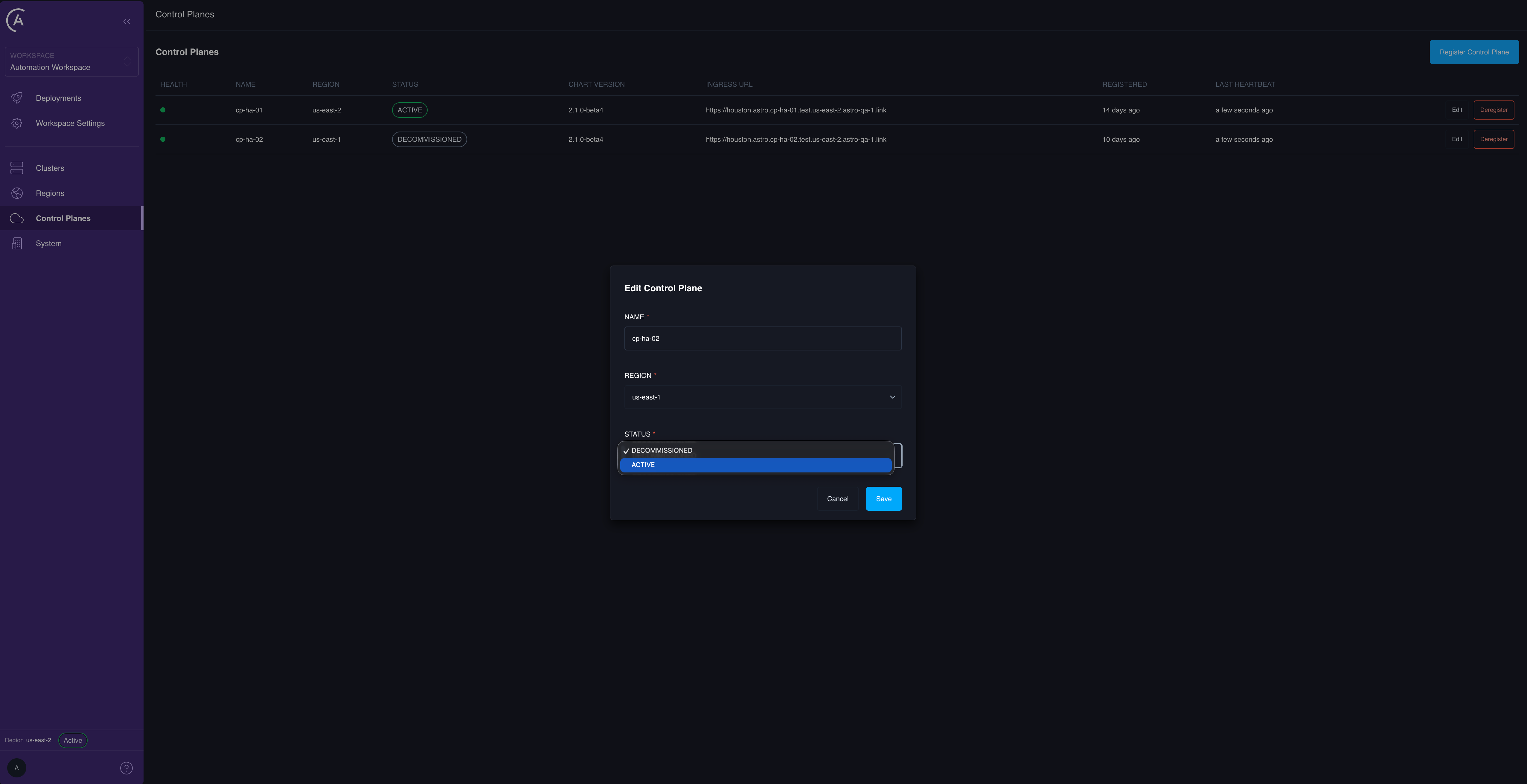
- Un-cordon or recover: Edit > Status >
ACTIVE. This works from bothCORDONEDandDECOMMISSIONEDas long as the control plane’s Pods are still running. These are exempt mutations that bypass the status gate.
- Deregister: the Deregister action, or
deregisterControlPlane(cpId), removes the control plane’s registry row entirely. Use this once a control plane is truly gone. After you deregister, that control plane’s/controlplane/statusreportsNOT_REGISTERED(503) until it’s registered again.
Upgrade the chart version
Only control planes running the highest registered chart version within their own region are eligible to serve traffic. The APC API computes the maximum chart version across the active control planes in a region and marks any control plane below it as outdated (503, and mutations rejected with CP_VERSION_OUTDATED). There is no separately stored expected version — it’s computed dynamically as the peer maximum, using semantic-version comparison. Cordoned and decommissioned control planes are excluded from this maximum, so they can’t drag the bar up or down.
A control plane’s reported version refreshes automatically right after helm upgrade and again on each heartbeat tick.
Upgrade procedure
Upgrade one control plane at a time, or several in parallel:- Run
helm upgradeon the first control plane. Its chart version becomes the new maximum in its region. - Every not-yet-upgraded control plane in that region immediately becomes ineligible: its
/controlplane/statusreturns503and it stops accepting mutations until it catches up. - During this window, customer traffic flows only to the already-upgraded control planes.
- Upgrade the next control plane. It rejoins the eligible set. Repeat until every control plane in the region is upgraded.
- Verify that each control plane’s health dot is green and
/controlplane/statusreturns200.
Availability during an upgrade
Within an active region, moving one control plane ahead makes the lagging control planes temporarily unhealthy, so the region runs at reduced capacity — potentially a single serving control plane — until the others catch up. To minimize that window, run thehelm upgrade commands in parallel across the region’s control planes rather than strictly one after another.
The version-maximum check is scoped to each control plane’s own region, so upgrading control planes in a standby (inactive) region has no effect on the active region’s serving. A common pattern is to fully upgrade the standby region first with zero customer impact, activate it, then upgrade the now-standby former-active region.
Cross-region failover
Cross-region failover moves the active region from one set of control planes to another. It’s always admin-driven; there is no automatic region failover. Control plane reliability needs only two outcomes from your database failover, and your database tooling is responsible for delivering both:- The database is failed over, so the destination region’s database is the writable primary.
- APC always sees a single, stable endpoint — the hostname the APC API connects through (in
astronomer-bootstrap) resolves to that primary at all times.
activateRegion.
Planned region cutover
Use this graceful procedure for an intentional move — maintenance, migration, or cost — rather than an outage. Run every admin action against the per-CP admin hostnames (cpNN.<parent-domain>), not the global URL. During the cutover window the global URL is intentionally unavailable.
1
Cordon every control plane in the source region
Set Status to
CORDONED on each source control plane, from the UI or with updateControlPlane(status: CORDONED). This blocks subsequent mutations on the source control planes, which quiesces writes so that database replication can catch up before the promotion in the next step.Within about 30 seconds — the health-check TTL — the global load balancer stops serving every cordoned control plane, so APC becomes unavailable through the global DNS name and is reachable only through the per-CP admin URLs, which is what admins should use to orchestrate the failover. This has no effect on the data plane or running Airflow Deployments; it only takes the APC UI and API offline on the global URL for the cutover window.There is currently no in-flight-work drain. Any messages still queued in the source region’s NATS at deactivation stop being consumed.
2
Fail over the database to the destination region
Control plane reliability doesn’t do this; your managed-database tooling handles it, and the mechanism is your choice. Before you activate the region, both required outcomes must hold: the destination database is the writable primary, and APC sees a single, stable endpoint resolving to it. The following are suggestions from Astronomer’s internal testing, not a required procedure:
- With the source control planes cordoned, writes are quiesced, so for a planned failover you can wait for replication lag to reach zero before promoting, to avoid data loss.
- If you promote a read replica, wait until promotion is fully complete — for example, the instance reports
availableand is no longer attached to a replication source. Some engines briefly reportavailablewhile still attached. - If you keep APC’s endpoint stable through a DNS or CNAME record, a low TTL (for example, 60 seconds) makes the switch propagate quickly, and the
astronomer-bootstrapsecret stays unchanged because only the record moves. If you use a single auto-switching endpoint, there’s nothing to repoint. - You may need to recycle the APC API’s database connections on the destination control planes (roll the APC API Kubernetes Deployment) if their Pods were pinned to the old endpoint, so that they reconnect to the new primary.
- Plan failback as its own cutover. After a promotion, cross-region database replication is typically broken, and re-establishing it in the reverse direction is a separate rebuild.
3
Activate the destination region
Call
activateRegion against a control plane in the destination region, using that control plane’s per-CP admin hostname. The global load balancer won’t route to a control plane whose region is still inactive. Within about 30 seconds every control plane’s /controlplane/status reflects the new region-active state, and the global load balancer begins serving the destination control planes. See Activate a region.4
Restart the ingress controller on the source control planes
Scale the nginx ingress controller Deployment on the source (now-inactive) control planes to
0 and back up. New browser connections already route to the newly active region through the global load balancer, but existing keep-alive connections may still be held open against a source control plane and keep hitting the now-inactive region. Bouncing the ingress controller breaks those connections and forces browsers to reconnect, re-resolve the global DNS name, and land on the correct active control plane.Outage cutover
If the source region’s control planes are down or unreachable, you can’t cordon them and there’s nothing to quiesce, so skip the cordon step. Fail over the database, accepting data loss up to the last replicated transaction (skip the zero-lag wait), then activate the destination region. Because the source control planes are already unreachable, existing browser connections to them are already broken, so the ingress-controller restart is unnecessary. Expect that some in-flight customer operations may need to be retried once traffic lands in the destination region.Activate a region
From the APC UI, open the Regions tab, select Activate on the destination region, and type the region name to confirm. The confirmation dialog warns that activation shifts customer traffic to this region, deactivates the currently active one, and can’t be undone automatically.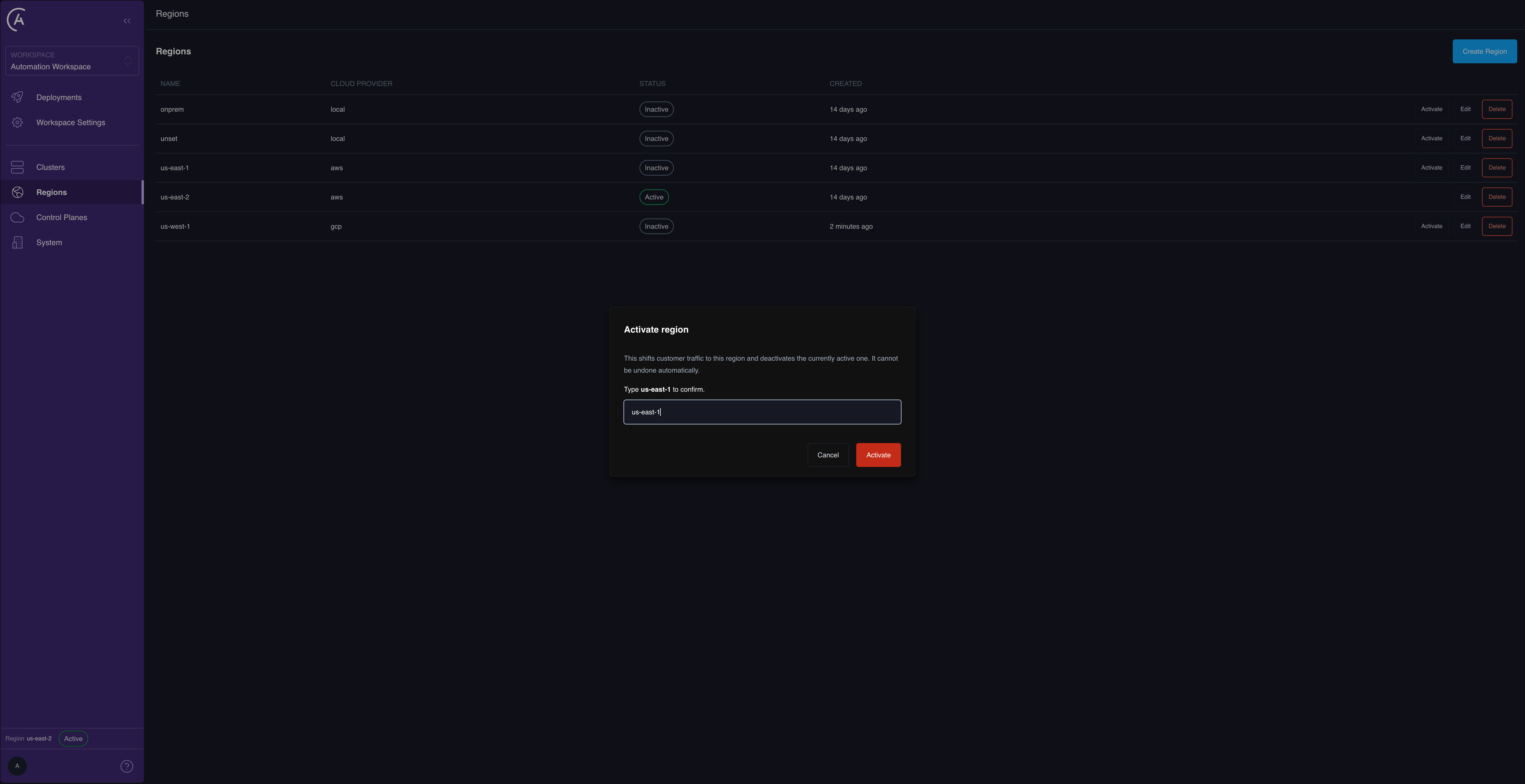
ACTIVE, and the control plane in the now-inactive region shows STANDBY.
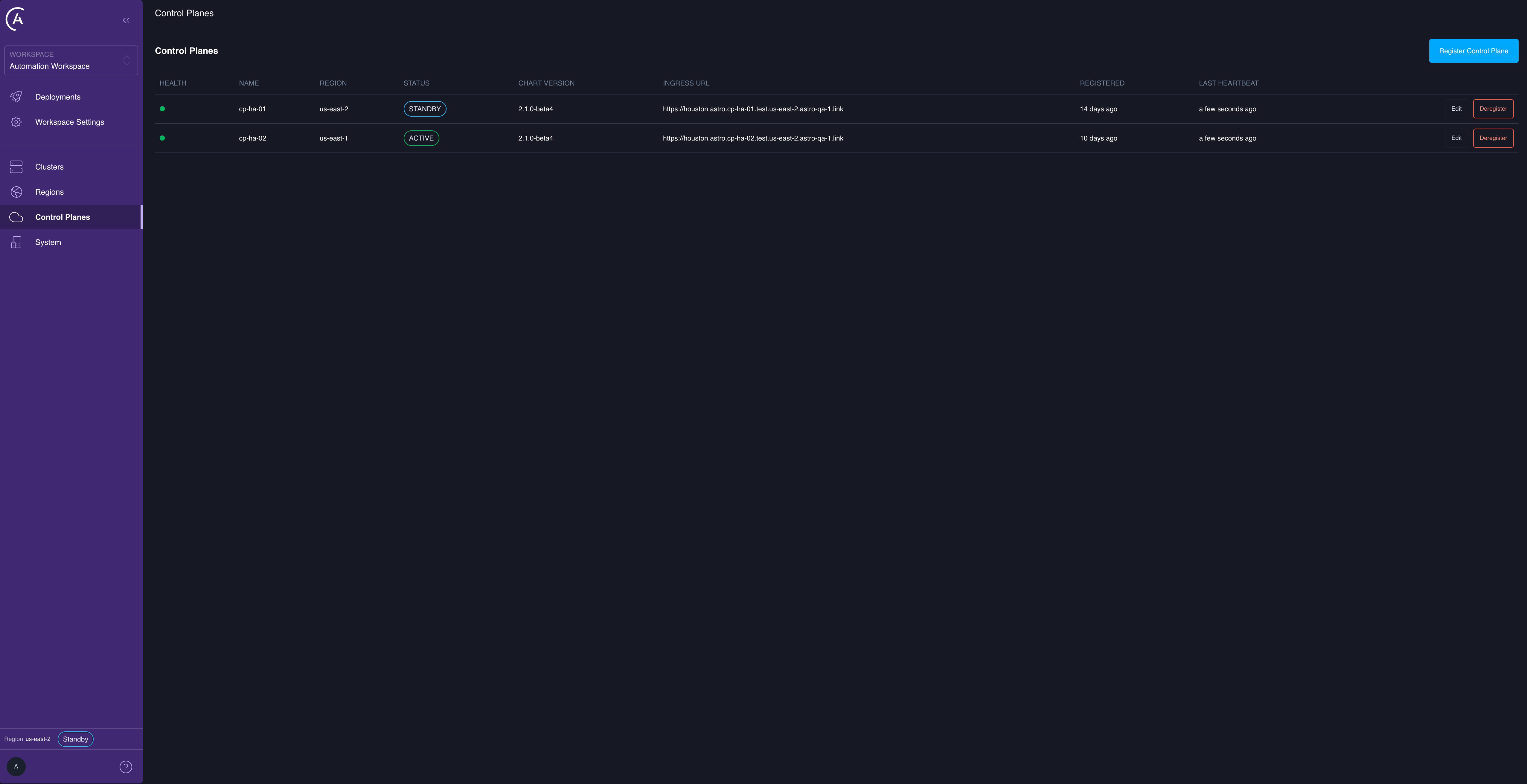
activateRegion mutation:
- It runs in a single transaction that deactivates every currently active region and activates the target, so the “exactly one region active” invariant holds with no window of zero or two active regions.
- It’s an exempt mutation, so you can run it from a control plane whose region is currently inactive — otherwise failover would be impossible. Run it through the destination control plane’s per-CP admin hostname.
- An inactive region’s control planes report
REGION_INACTIVE(503, and mutations rejected), but they stay alive, heartbeating and upgradeable, serving no customer traffic until their region is activated. This is theSTANDBYstate.
The activation version gate
To prevent a silent downgrade,activateRegion refuses to activate a region unless at least one control plane in it is at the group-wide maximum chart version (the maximum across all active control planes in every region, with cordoned and decommissioned control planes excluded). Otherwise it fails with TARGET_REGION_NOT_UPGRADED, whose payload lists each target control plane’s version against the group-wide maximum, so you can see exactly what to upgrade. In the UI this surfaces as a Cannot activate region dialog listing the lagging control planes.
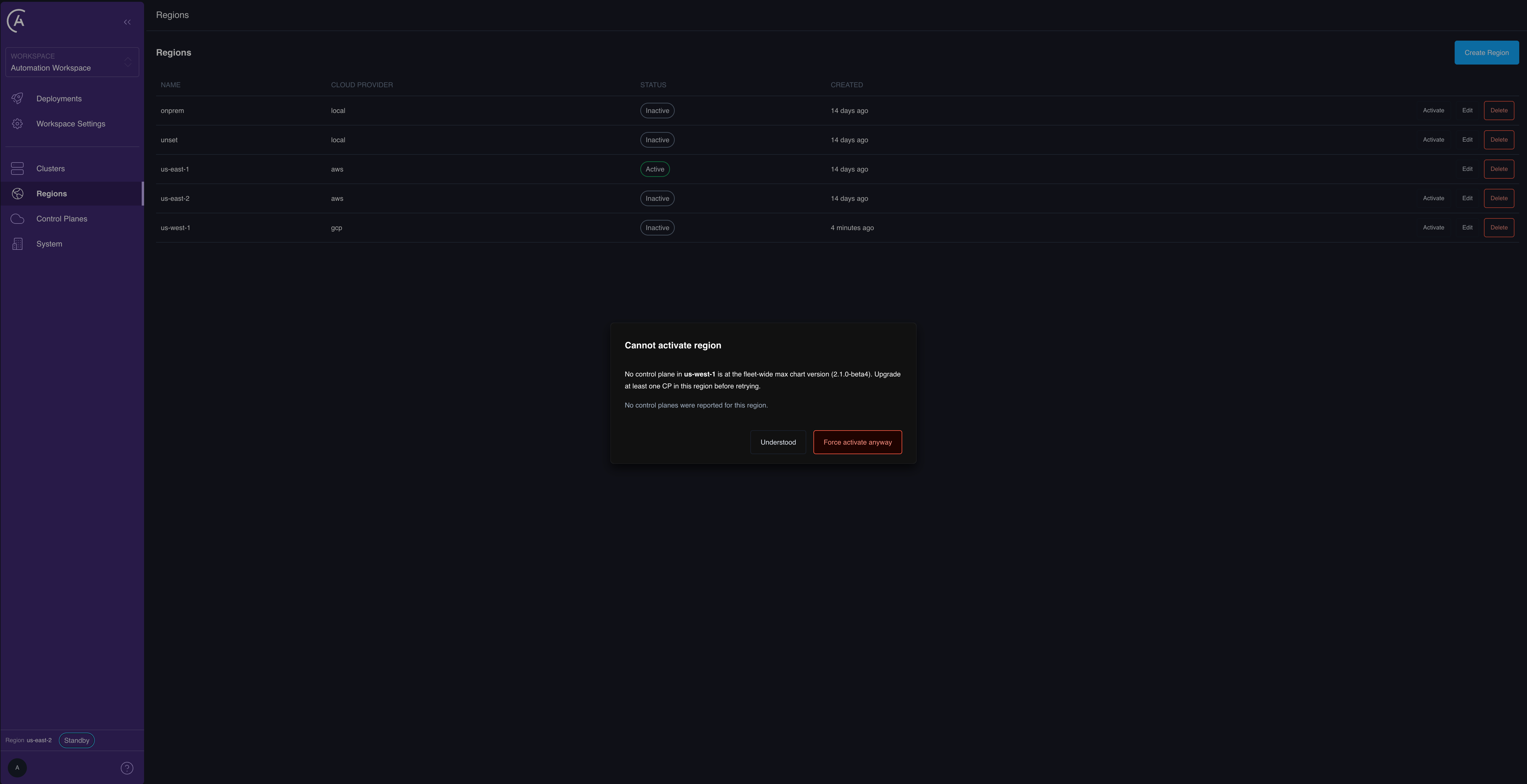
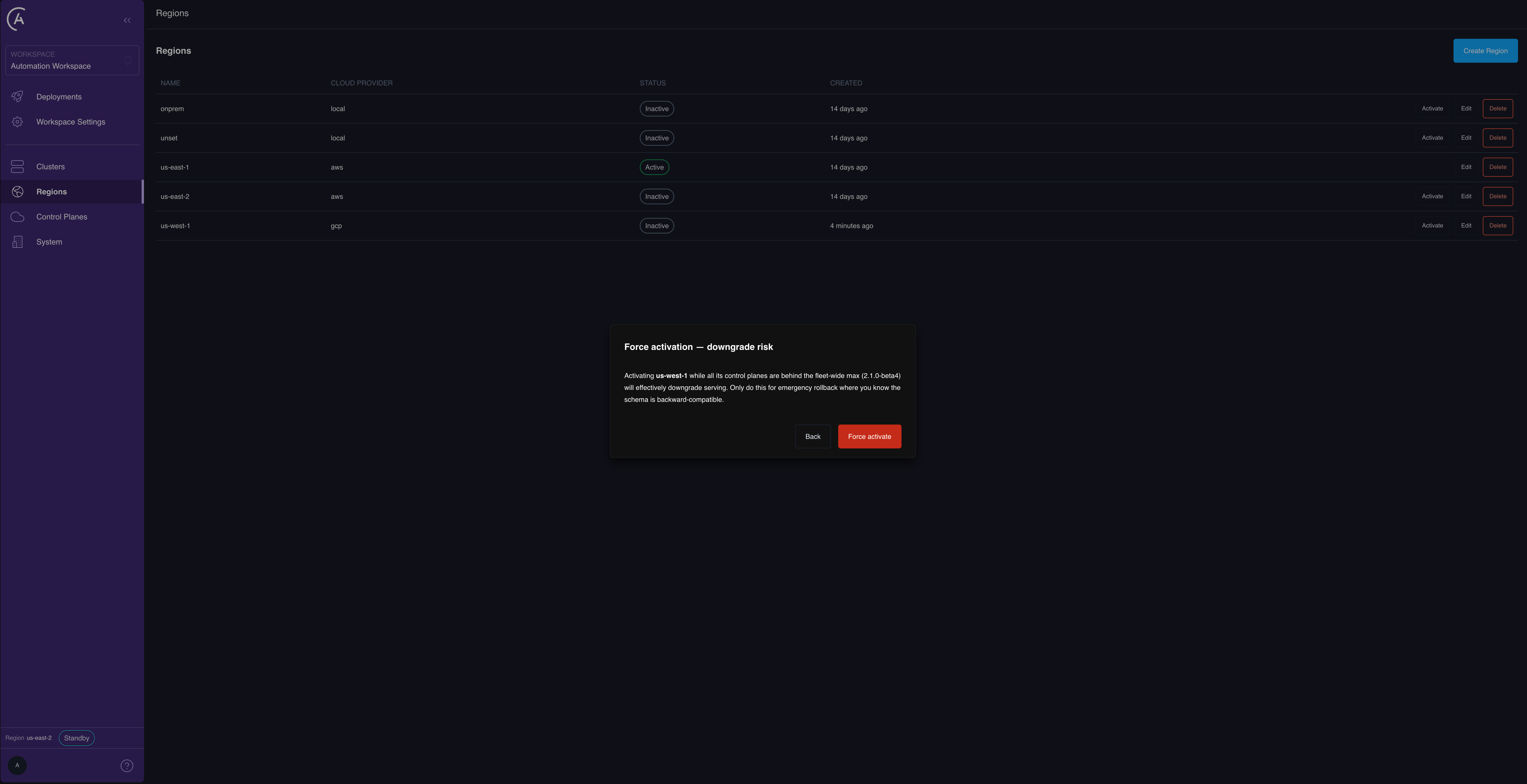
STANDBY and no control plane serves customer traffic until a control plane in the active region is available.
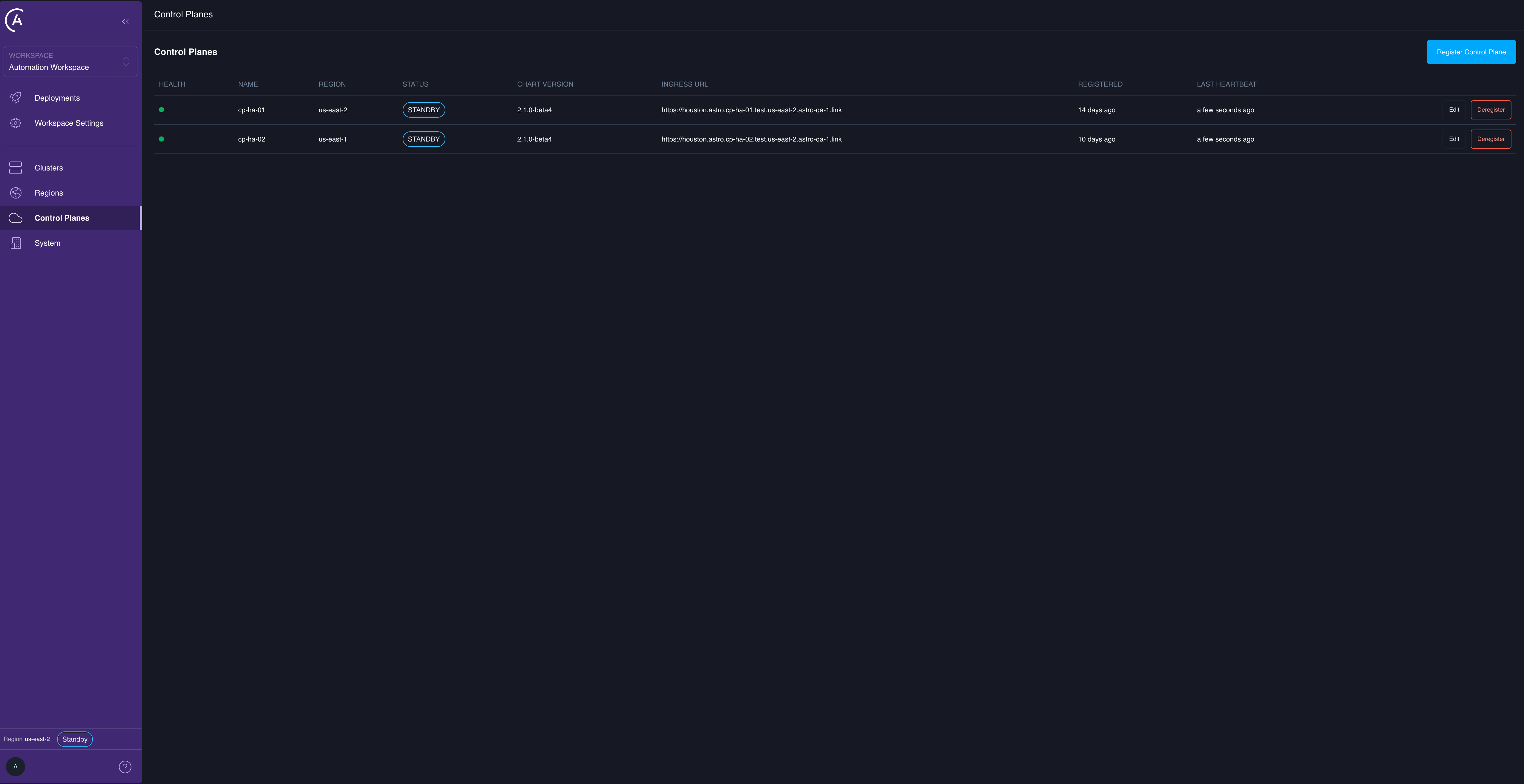
Why the customer session survives a cutover
Mid-session users aren’t signed out across a cutover because the session cookie is scoped to.<global-domain-name>, the JWT signing key is shared across all control planes (so a token minted on the old region is trusted on the new one), and the database is the same instance, already failed over by your database tooling before the cutover.