

Astro Private Cloud 2.2This feature was introduced in Astro Private Cloud 2.2. To access this feature, upgrade your Astro Private Cloud installation to 2.2 or later.
Hibernation doesn’t delete, migrate, or modify any Airflow data.
Prerequisites
Hibernation is available only when all of the following are true for a Deployment:- The Deployment runs in operator mode, not Helm mode.
- Laminar is enabled on the Deployment’s data plane with
global.laminar.enabled: true. See Configure the data plane. - KEDA 2.20.0 or later is installed on the Deployment’s data plane, and
global.keda.enabledistruein that data plane’svalues.yaml. KEDA lets worker pods scale to zero. You install KEDA yourself. See Configure worker autoscaling.
deployment.config.upsert permission. The Workspace Operator, Workspace Owner, Organization Owner, and Deployment Admin roles include it. If you use a custom Deployment role, make sure it grants deployment.config.upsert.
Enable hibernation
Hibernation is off by default. A platform administrator enables it through config governance with the governed settinghibernation.enabled, which resolves across three levels, from least to most specific: Cluster, Workspace, and Deployment. The most specific level that sets the value wins, and an unset level inherits from the level above it. For example, a platform administrator can enable hibernation for a cluster and disable it for a production Workspace, or leave it off and enable it for specific Workspaces or Deployments. See Config governance for setting each level.
Turning hibernation off doesn’t wake or update any Deployment, and existing configuration is preserved. A Deployment that already has hibernation configured can no longer have its schedules set or changed or a hibernating override added, but you can still remove its schedules or override so it can wake.
Hibernate and wake a Deployment on demand
Use an on-demand override to hibernate or wake a Deployment immediately, outside any schedule. An override takes precedence over any configured schedule while it’s in effect. When a timed override lapses, control returns to the schedule automatically.- Astro UI
- APC API
- Astro CLI
- Click Deployments, select a Deployment, then open the Settings tab.
-
Expand the Hibernation section.
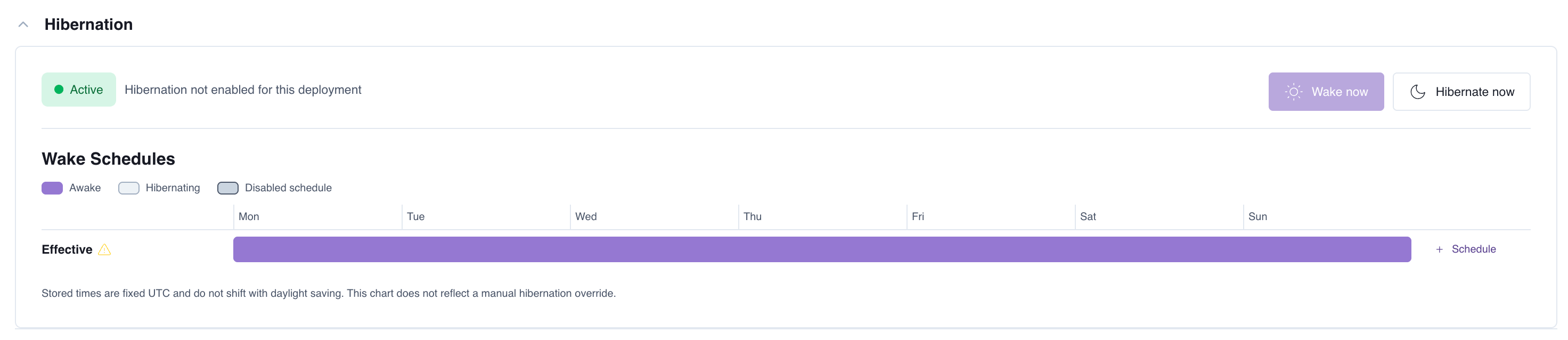
- Select Hibernate now or Wake now.
-
In the dialog, set how long the override lasts:
- No expiry: The override holds until you resume the schedule or remove it.
- For a fixed duration: 1 hour, 8 hours, 24 hours, or 1 week.
- Custom date and time: The override lasts until the date and time you set, interpreted in UTC.
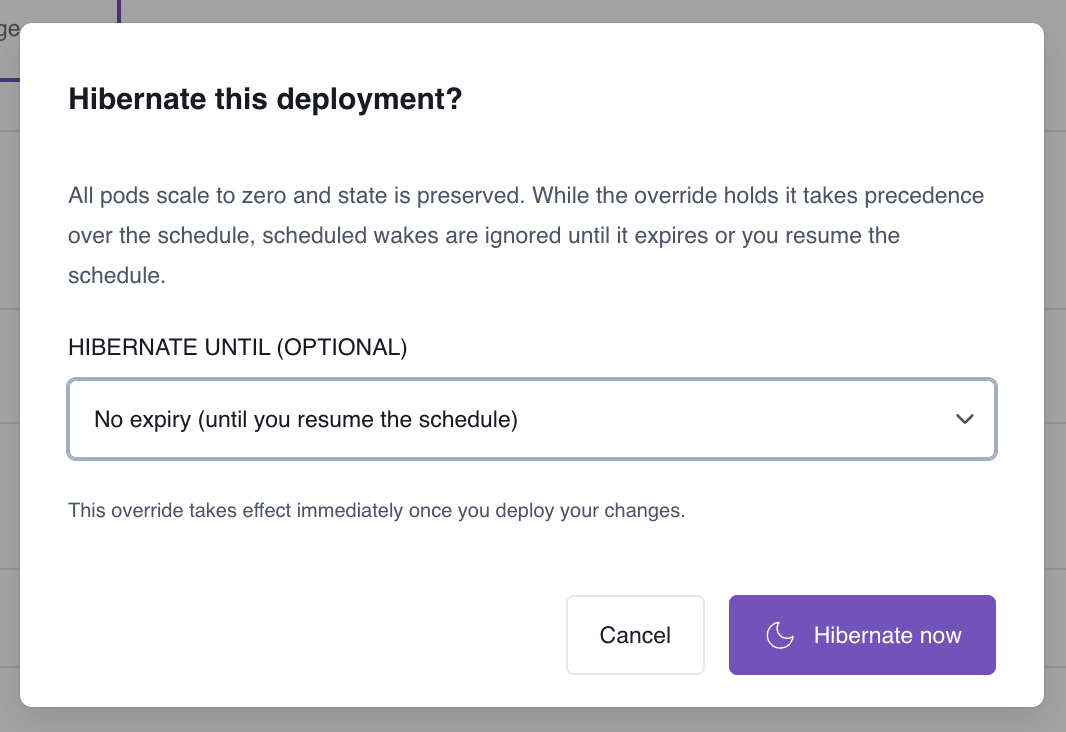
- Confirm the dialog, then deploy your changes to apply the override.
Governance never blocks waking, even if hibernation was turned off at a governing level while a Deployment was asleep. The Hibernation section stays visible for any Deployment with hibernation configured, so you can remove its schedules or override and wake it.
Hibernate a Deployment on a schedule
A schedule is a pair of cron expressions: one that hibernates the Deployment and one that wakes it. Use schedules to hibernate overnight and weekend idle time.- Astro UI
- APC API
- Click Deployments, select a Deployment, then open the Settings tab.
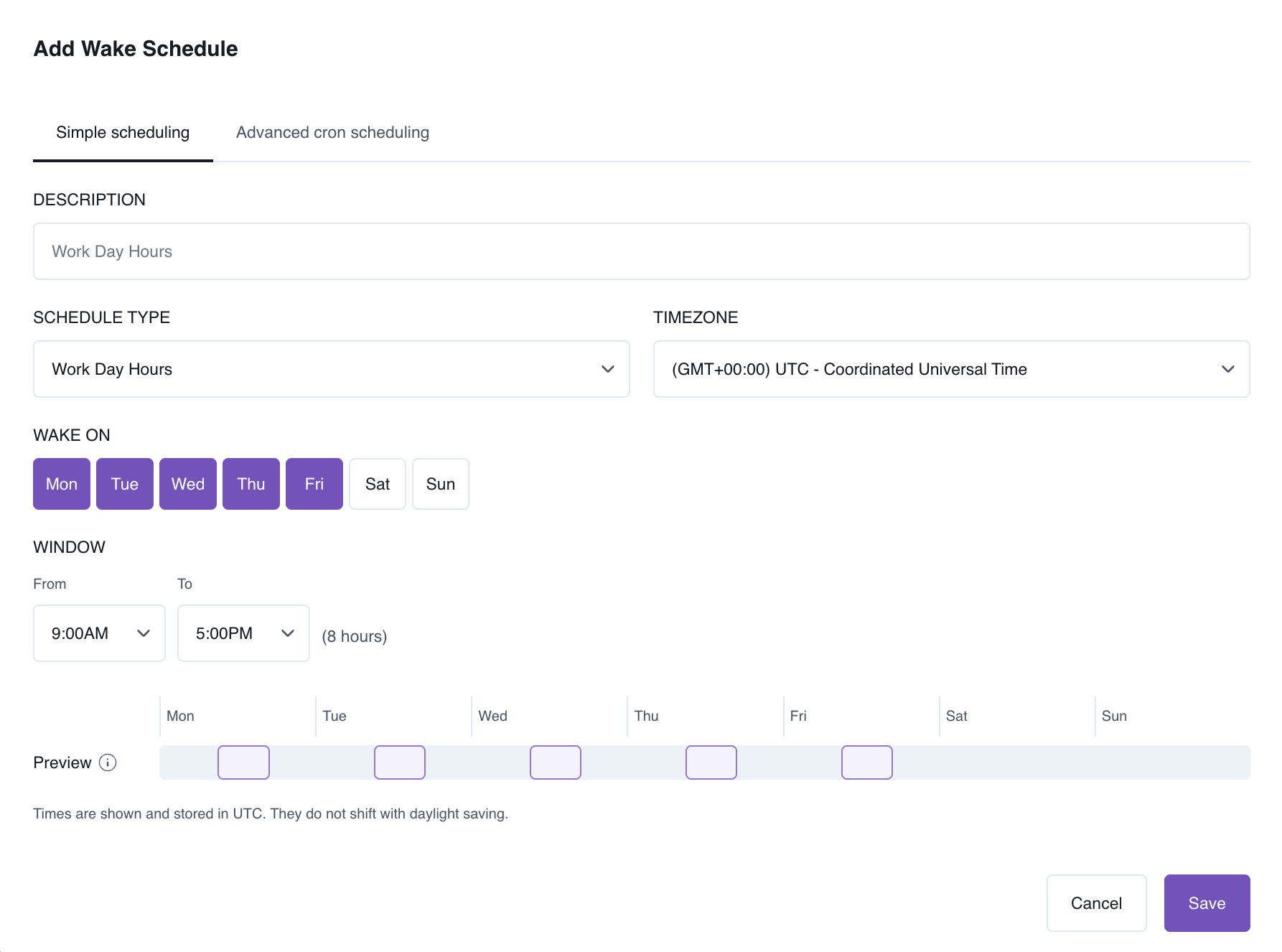
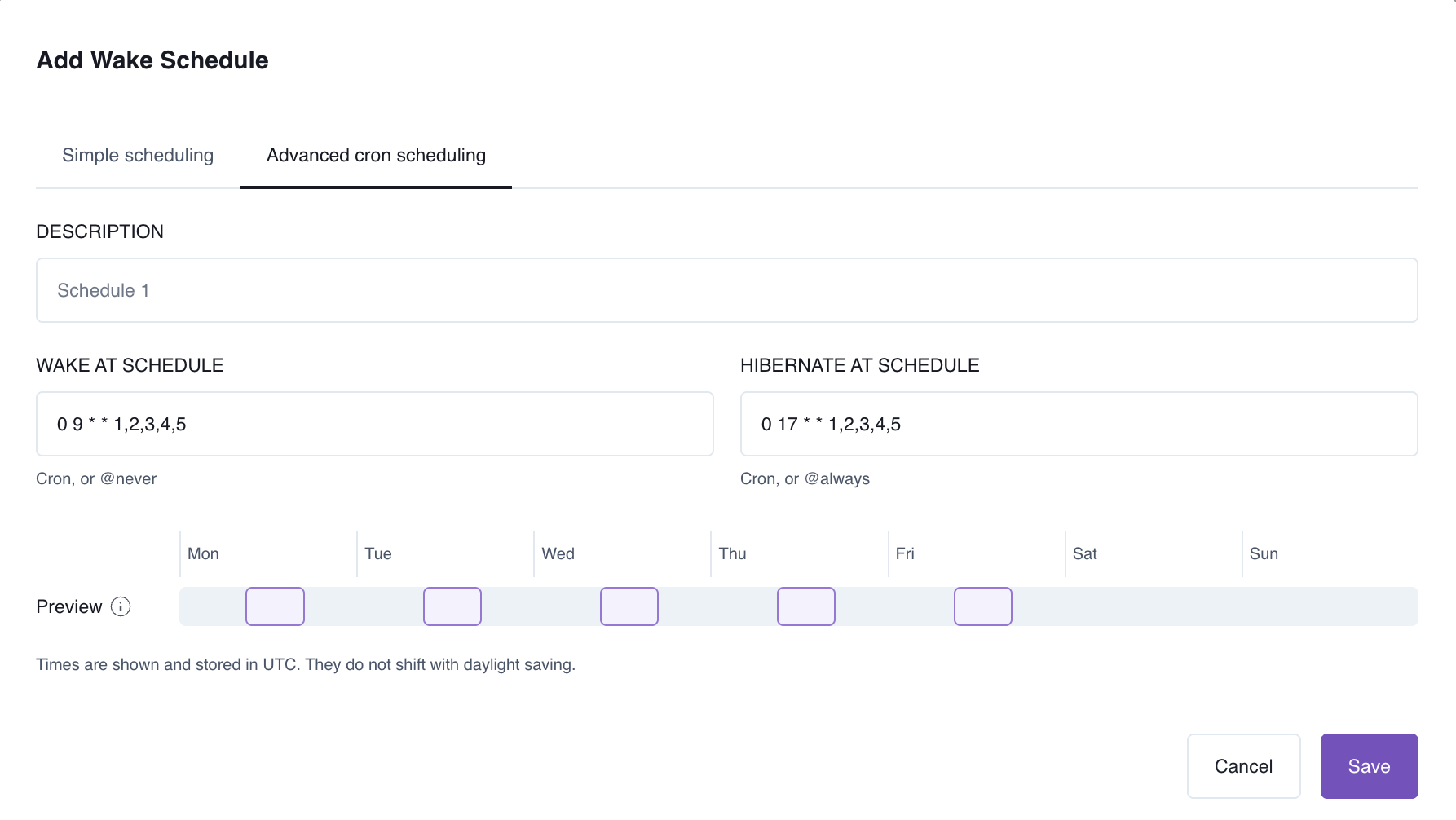
- Expand the Hibernation section and add a schedule in Wake Schedules. This opens the Add Wake Schedule dialog.
-
Give the schedule an optional Description (up to 200 characters), then define it in one of two ways:
-
Simple scheduling: Pick a Schedule Type and a Timezone, select the days to Wake On, and set the awake Window.
-
Advanced cron scheduling: Enter a Wake at schedule cron expression and a Hibernate at schedule cron expression.
-
Simple scheduling: Pick a Schedule Type and a Timezone, select the days to Wake On, and set the awake Window.
- Save the schedule, then deploy your changes to apply it.
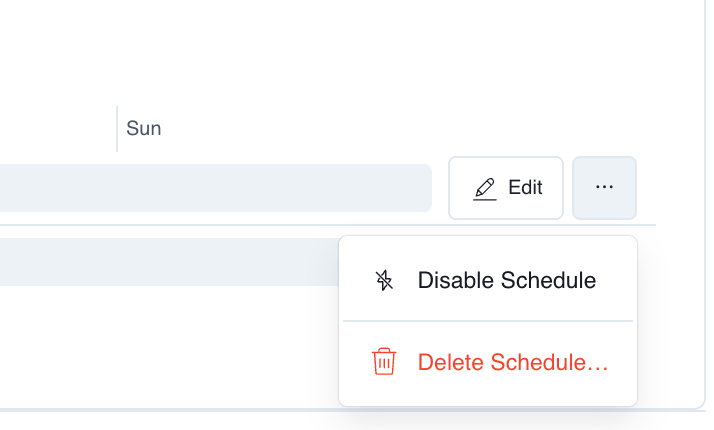
- Edit: Change the schedule’s description, days, window, or cron expressions.
- Disable Schedule: Keep the schedule but stop it from taking effect. A disabled schedule shows in the timeline but doesn’t hibernate or wake the Deployment. Re-enable it from the same menu.
- Delete Schedule: Remove the schedule permanently.
Hibernate indefinitely
To hibernate a Deployment and keep it asleep until you wake it, create a schedule with@always as the hibernate expression and @never as the wake expression. You can wake the Deployment at any time with Wake now.
Schedule validation
Apart from the@always/@never pair described in Hibernate indefinitely, APC rejects a schedule if:
- The hibernate and wake cron expressions are identical.
- The wake expression is
* * * * *, which would keep the Deployment permanently awake. - A cron expression contains the
?character. Use*instead. - A cron expression has six fields (seconds). APC uses standard five-field cron expressions.
@alwaysor@neveris used without the other.- A cron expression can’t be parsed or never produces a next occurrence.
Status and behavior while hibernated
The APC UI shows a status badge for the Deployment’s hibernation state, along with the next scheduled event and its type, labeled in UTC. The badge reads Hibernated while the Deployment is asleep and Active while it’s awake.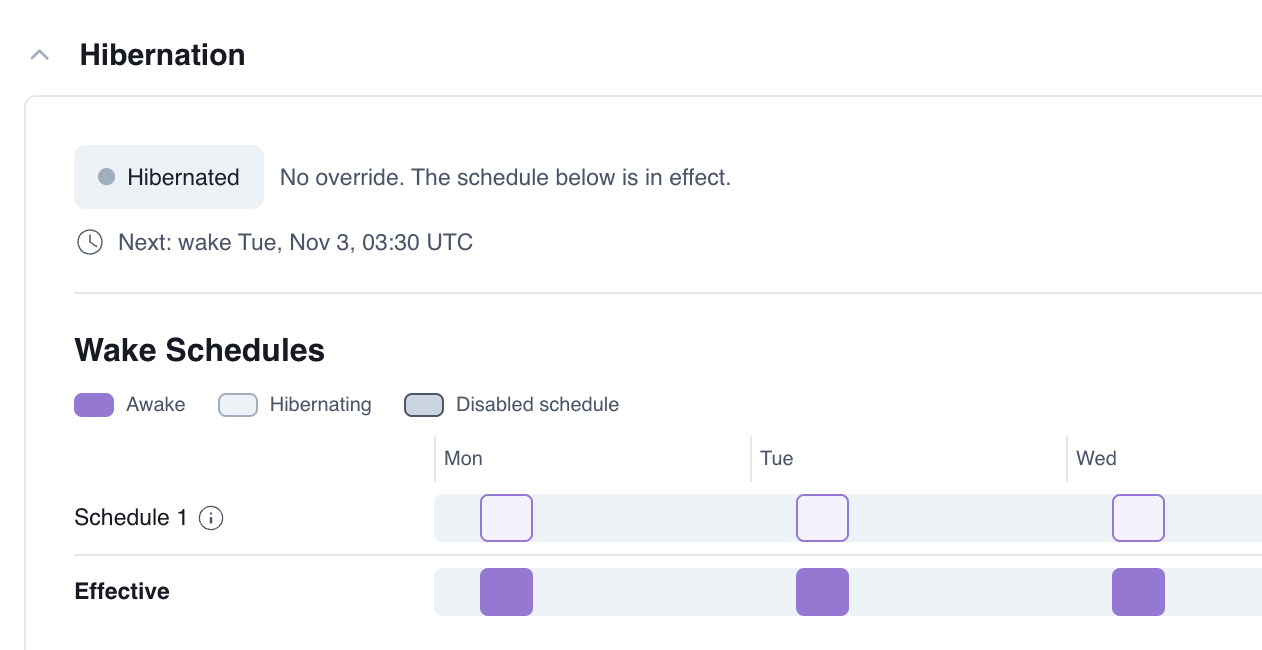
- All Deployment resources are scaled to zero, including the scheduler, webserver or API server, triggerer, and all workers.
- Open Airflow is disabled, and the Airflow UI isn’t reachable.
- Tasks and Dags don’t run.
Operations blocked while hibernated
Operations that act on running components fail on a hibernated Deployment, with a message telling you to wake it first:- Deploying code or a new image.
- Changing the Deployment’s configuration.
- Upgrading runtime versions.
State preservation
Across a full hibernate-and-wake cycle, the following are preserved:- Dags, connections, variables, and pools.
- Task instance history and Dag run history.
- Task logs.
- Every Deployment configuration, including each worker queue’s worker count or autoscaling range, scheduler size, and environment variables.