

queue argument.
Without worker queues, every task runs on one pool of identically sized workers, sized for the heaviest task. With queues, you can keep a small default pool and add a larger queue for memory-hungry work, a GPU-backed queue, or a queue pinned to a node group.
Each queue becomes its own Kubernetes Deployment that consumes one named Celery queue. Queues survive code deploys, environment variable changes, and platform upgrades.
A queue runs a fixed number of workers. With worker autoscaling, a queue can instead run between a minimum and a maximum number of workers, based on how many of its tasks are running and queued.
Astro Private Cloud 2.2This feature was introduced in Astro Private Cloud 2.2. To access this feature, upgrade your Astro Private Cloud installation to 2.2 or later.
Prerequisites
A Deployment can use worker queues only when all of the following are true:- Astro Private Cloud is on version 2.2.0 or later. Worker queues aren’t available on earlier versions. See Upgrade to a minor version.
- The Deployment runs in Airflow operator mode.
- The Deployment uses the Celery executor.
deployments.workerQueues.enabled to true for the Deployment. See Enable worker queues.
The Astro CLI has no commands for managing worker queues or node pools. Use the Astro UI or the APC API.
If the Deployment isn’t in operator mode or doesn’t use the Celery executor, the Worker Queues section doesn’t appear in Deployment settings, and the workerQueues argument on upsertDeployment returns a typed error.
Enable worker queues
Worker queues ship turned off, so upgrading changes nothing until a platform administrator turns them on. Setdeployments.workerQueues.enabled to true at the platform, cluster, Workspace, or Deployment level. Setting it on a single Deployment is the safest way to pilot the feature.
To set it for a cluster, go to your Clusters page, select your cluster, click Edit in the Deployment Configuration section, and add the following override to the Configuration Override field:
Turn worker queues off
The flag gates creating queues, not keeping them. Turning it off on a Deployment that already has queues leaves every queue running, visible, and editable. You can still resize and delete queues, but you can’t add a queue or rename one, because a rename creates a queue under a new name. Adding a queue while the flag is off returnsWorkerQueueCreationDisabledError, naming the queues it refused.
The default queue
An operator-mode Celery Deployment that uses worker queues has exactly one queue nameddefault. Tasks that don’t name a queue run on it.
The default queue:
- Can’t be deleted or renamed.
- Can be resized, given a different concurrency, and assigned to a node pool like any other queue.
- Is created for you. A Deployment you create with the flag on gets one sized from its resolved worker configuration.
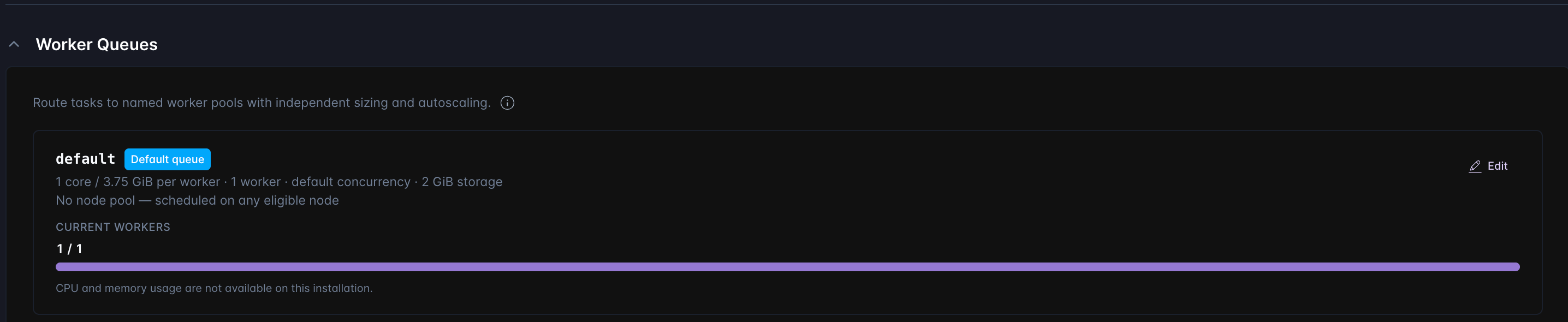
--dry-run to log which deployments it would touch without writing anything, or scope it with --clusterId=<cluster-id> or --deploymentUuid=<deployment-uuid>. The backfill writes a default queue that reproduces the Deployment’s existing worker configuration, so worker sizing doesn’t change.
If you skip the backfill, the first update that sends workers or workerQueues creates the missing default queue from the same resolved configuration. Until then, the Worker Queues section can appear empty.
Add a worker queue
- Astro UI
- APC API
- In the Astro Private Cloud UI, open your Deployment and click Settings.
- Expand Worker Queues.
- Click Add worker queue.
- In Queue name, enter a name. Names must start with a lowercase letter and contain only lowercase letters, numbers, and hyphens, and they can’t end in a hyphen. The name is the value your Dag code passes to
queue. - (Optional) In Node pool, select the node group these workers should run on. Leave it as No pool (schedule anywhere) to let Kubernetes place the workers on any eligible node. See Configure node pools.
- (Optional) In Worker concurrency, enter the number of tasks each worker runs at once. Leave it empty to inherit the Deployment default.
- In Num workers, enter how many workers this queue runs. When worker autoscaling is available, the form shows Min workers and Max workers instead. See Set a worker range on a queue.
- Set CPU per worker, Memory per worker, and Ephemeral storage per worker.
- Click Save.
- Click Deploy Changes to apply the change.
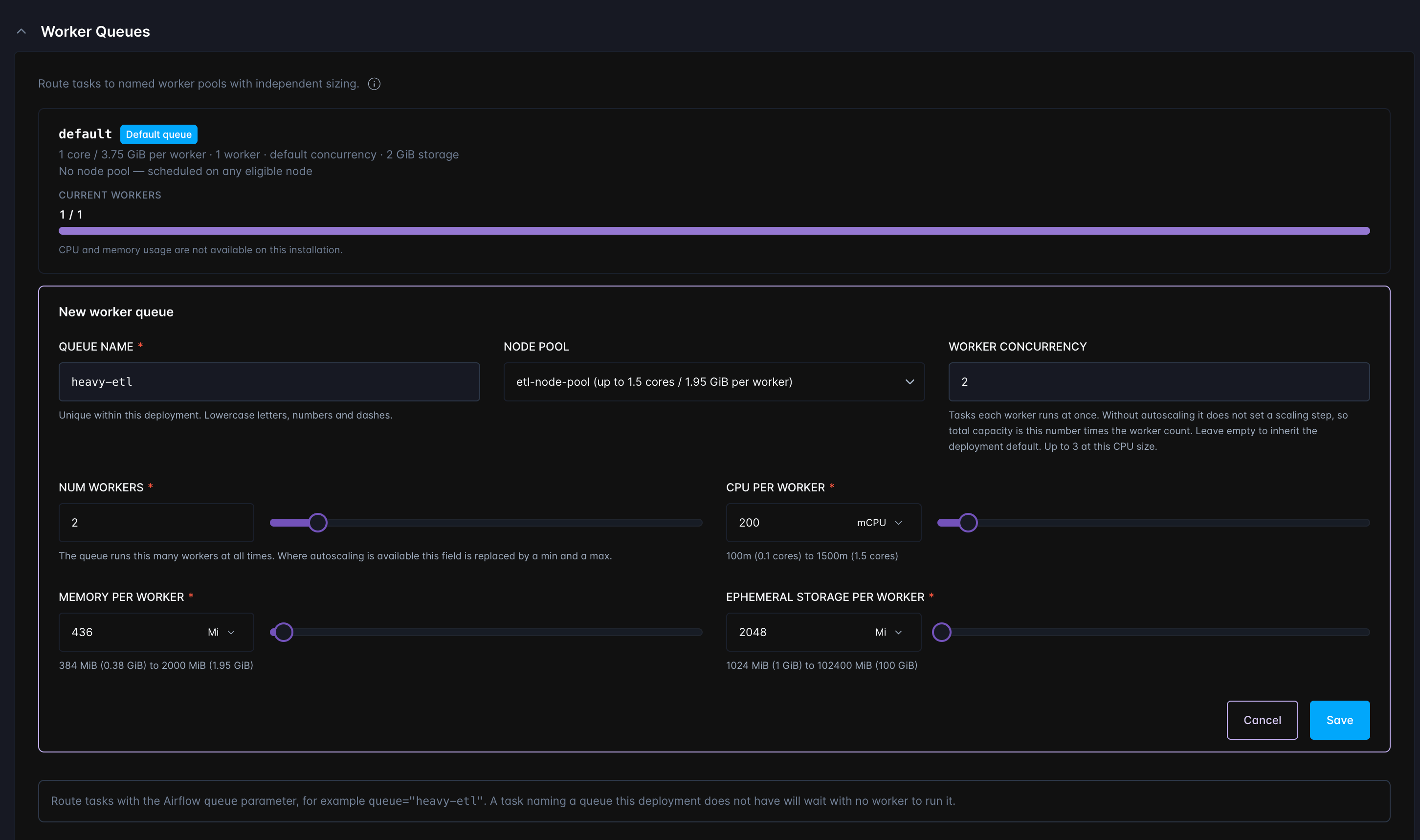
<release-name>-worker-<queue-name> runs the new queue’s workers. Queue names aren’t length-limited, but Kubernetes object names are, so a combined name longer than 63 characters is truncated and given a hash suffix. The queue still works, but is harder to identify.
Units
CPU is stored in millicores, and memory and ephemeral storage in mebibytes (MiB). Each field opens in its base unit, so you enter1000 for one CPU and 3840 for 3.75 GiB. Use the unit selector next to each field to switch mCPU to CPU or Mi to Gi; values are stored in the base unit either way.
Worker requests and limits are always set to the same value, so a worker gets exactly the resources you configure.
Queue settings reference
The ranges come from
deployments.resourceManagement.components[workers] and are overridable per cluster, Workspace, and Deployment, so your limits might differ from the platform defaults. deployments.resourceManagement.maxPodCapacity also caps the CPU and memory maximums, but binds only if you raise the component limit above it. The form shows the effective range under each field.
minWorkerCount and maxWorkerCount take effect only when worker autoscaling is available. Otherwise, replicas sets a fixed worker count, and the platform default floor is 1. A minimum of zero needs KEDA and Laminar on the data plane. See Scale a queue to zero.
A platform administrator can also change the number of queues a Deployment can have with deployments.workerQueues.maxPerDeployment, which defaults to 10.
Route tasks to a queue
Set the Airflowqueue argument on a task or on a Dag’s default arguments:
queue argument run on the default queue.
Monitor worker queues
Each queue card in the Worker Queues section shows a metrics strip:- Current workers shows how many workers are running, with terminating workers marked separately.
- CPU and Memory show average usage across running workers as a share of each worker’s configured size.
1 to 8 workers, and, while the data plane can autoscale, a Scaling history link. See Monitor autoscaling.
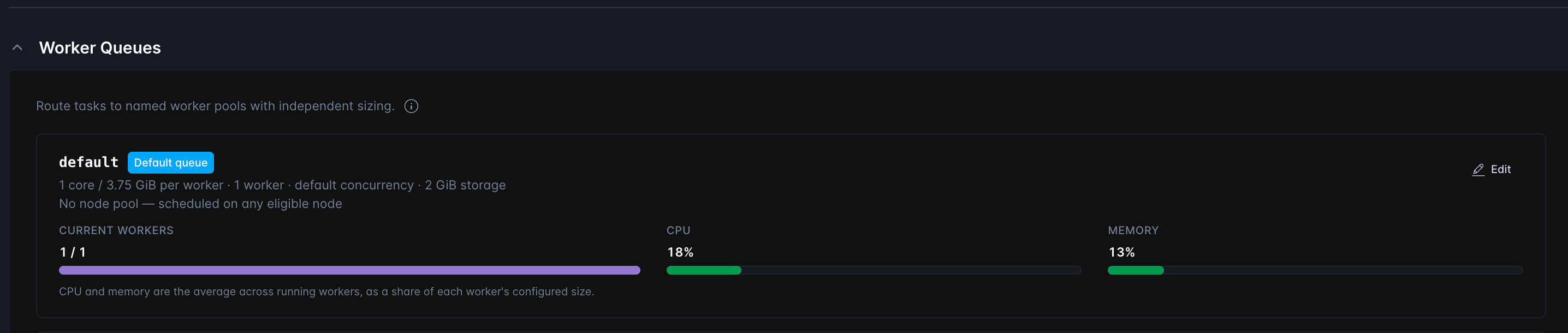
CPU and memory usage are not available on this installation. To turn cAdvisor and nodeExporter on, see Deployment metrics.
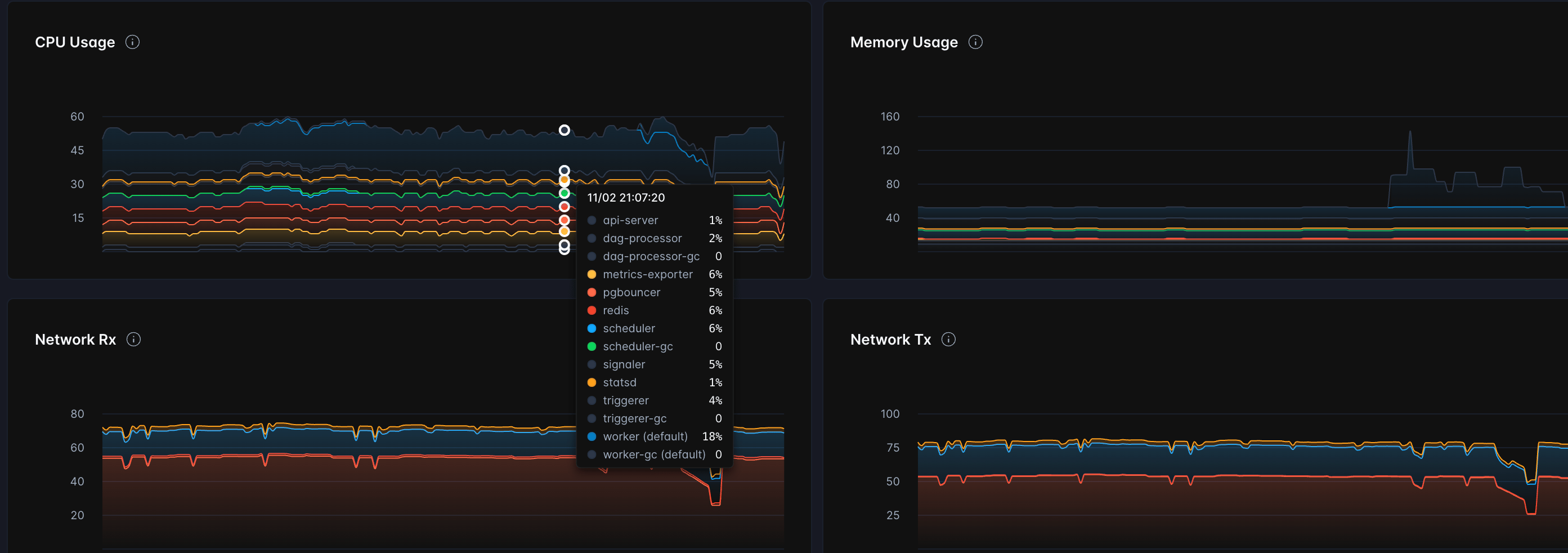
With cAdvisor and nodeExporter enabled on both planes, the Deployment’s Metrics page also breaks out CPU and memory per component once queues exist, listing each queue’s worker and worker-gc sidecar as their own named series rather than folding them into a single worker line:
Edit a worker queue
- Astro UI
- APC API
Open the Deployment’s Settings tab, expand Worker Queues, click Edit on the queue, change the settings you want, click Save, then click Deploy Changes.
AIRFLOW__CORE__PARALLELISM, which is derived from the total across all queues. For example, raising heavy-etl from 3 to 6 workers at a concurrency of 10 adds 30 task slots. See Parallelism. Because the setting is Deployment-wide, the Airflow components that read it restart alongside the workers. A queue with a worker range counts at its maximum, so changing only its minimum restarts nothing. See What restarts when you change a queue.
Rename a worker queue
Renaming a queue deletes the old queue and creates a new one. The form shows a Renaming replaces this queue warning when you change the name of a saved queue.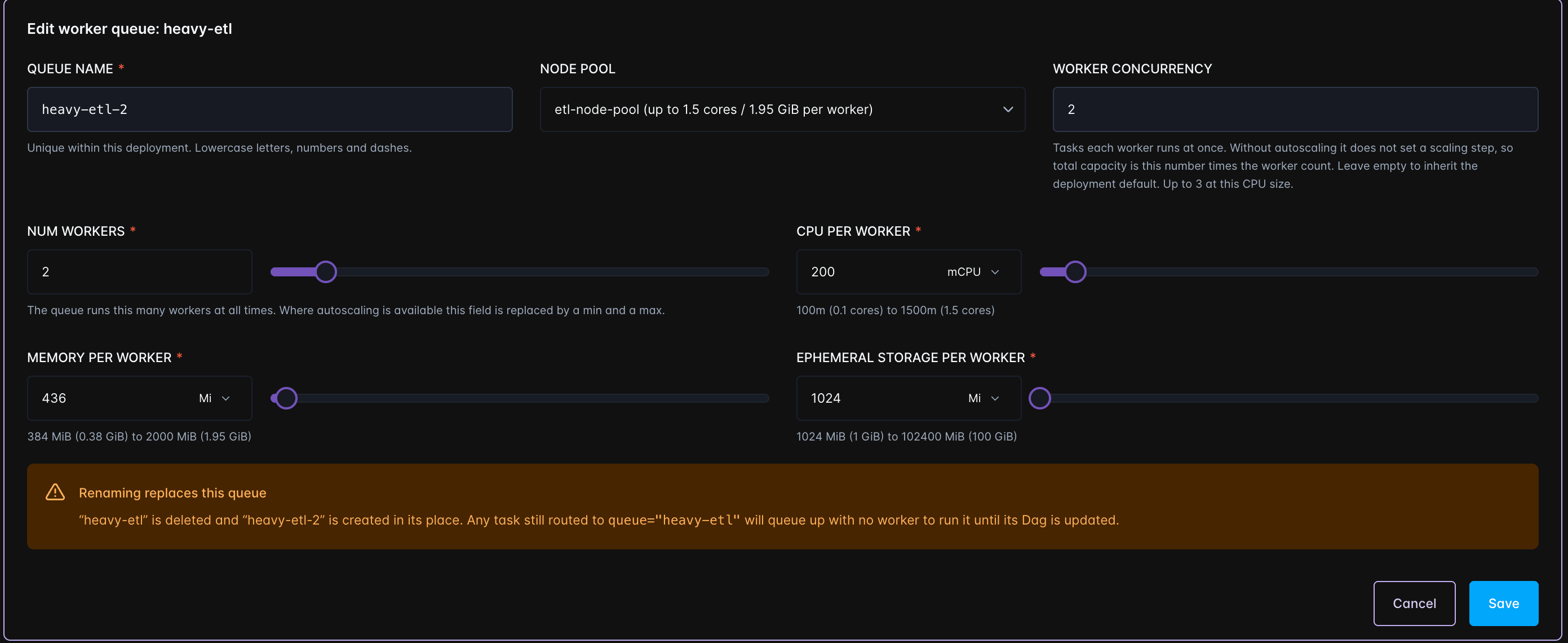
Delete a worker queue
- Astro UI
- APC API
- Open the Deployment’s Settings tab and expand Worker Queues.
- Click Delete on the queue.
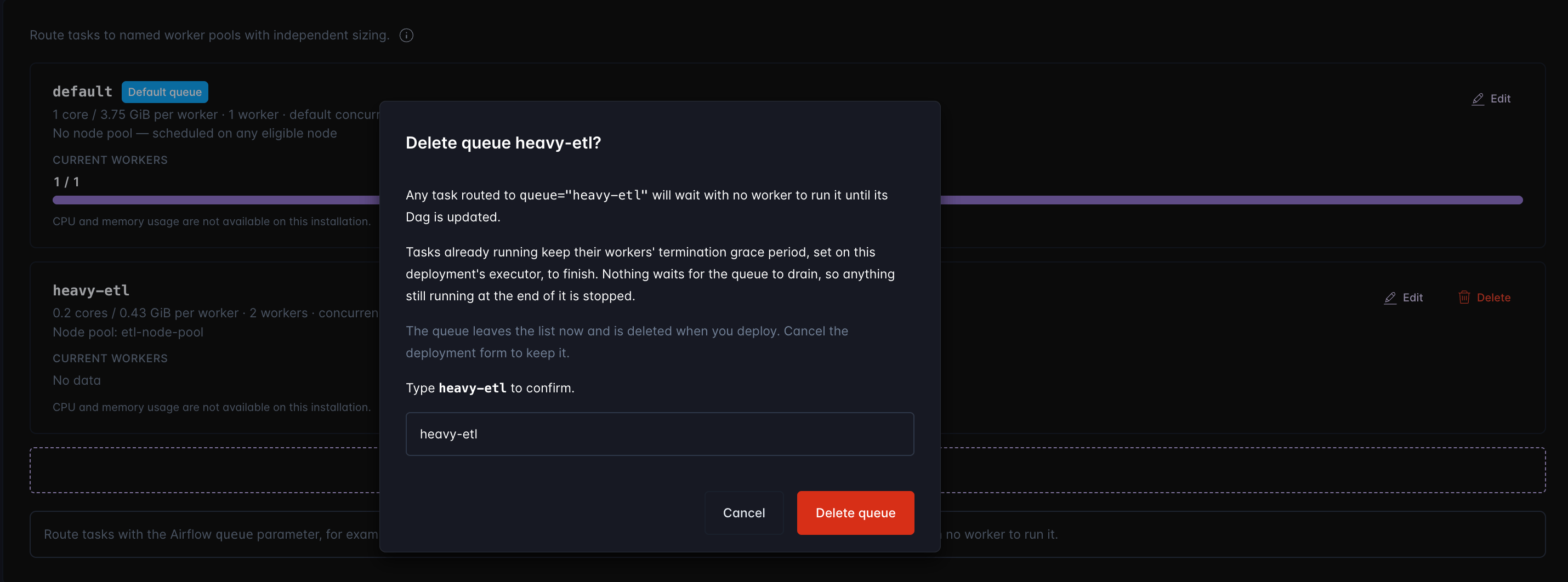
- Enter the queue name to confirm, then click Delete queue.
- Click Deploy Changes to apply the change.
Permissions
Deployment Admins and Deployment Editors can add, edit, and delete worker queues on their own Deployments. Deployment Viewers can see queues but not change them. Selecting a node pool needs read access to the cluster’s node pools, which Deployment Editors have. Creating and editing node pools themselves is a cluster or system administrator task. See Configure node pools.Troubleshoot worker queues
A task stays in the queued state and nothing reports an error
The task names a queue this Deployment doesn’t have, and Airflow has no fallback. Check for a typo in thequeue argument, a renamed queue, and a deleted queue. Compare the queue names in Deployment settings against the queue values in your Dag code.
A queue’s workers stay in the Pending state
The workers can’t be scheduled. Usual causes: a node pool whose node selector matches no nodes in the cluster, a node pool whose nodes carry taints the pool’s tolerations don’t cover, or a cluster with no spare capacity. Runkubectl describe pod against one of the Pending workers to see the scheduler’s reason.
A queue reports that its node pool isn’t declared on this cluster
The node pool the queue references no longer exists. Select another pool, or ask a cluster administrator to recreate it. The queue’s workers aren’t placed until you do.An out-of-range resource value returns an INTERNAL_SERVER_ERROR
Out-of-range CPU, memory, and ephemeral storage values returnINTERNAL_SERVER_ERROR rather than BAD_USER_INPUT. The message names the field, the value, and the allowed range. Component resource validation has the same known issue.