

- Risks associated with and use cases for database Access
- Access to Airflow’s database in local development
- Decode Astronomer’s metadata Secret
- Access to Airflow’s database on Astronomer
- Example DAG that incorporates a query to the database
Airflow’s “Ad-Hoc Query” feature used to be a common way to test DB connections and query the Airflow metadata database via the Airflow UI but was deprecated in 1.10 for security reasons.
Risk associated with database access
As noted above, every Airflow Deployment’s metadata database on Astronomer is hosted within the Platform database your team initiated during the install process for Astronomer Software. Given its importance to the scheduler’s performance, it’s worth noting the risks associated with accessing Airflow’s database. We strongly recommend users do not write to the database directly as it can compromise both the integrity of your Airflow Deployment and both of our team’s ability to support a user in the case of an issue.Use cases
Keeping the above risk in mind, pulling from and reading the database safely can be a great way to gather metadata from your Airflow Deployment that isn’t otherwise exposed on Astronomer and Airflow (yet). A few examples of what you can query for:- Completed Task Count
- Tasks started per hour, per week
- Task duration
Local access to the Airflow database
To successfully query from your Airflow Deployment’s database, you’ll need to set up your local Postgres connection. 1. Find theairflow_db connection Object
On the Airflow UI, navigate over to Admin > Connections.
The airflow_db connection is generated by default.
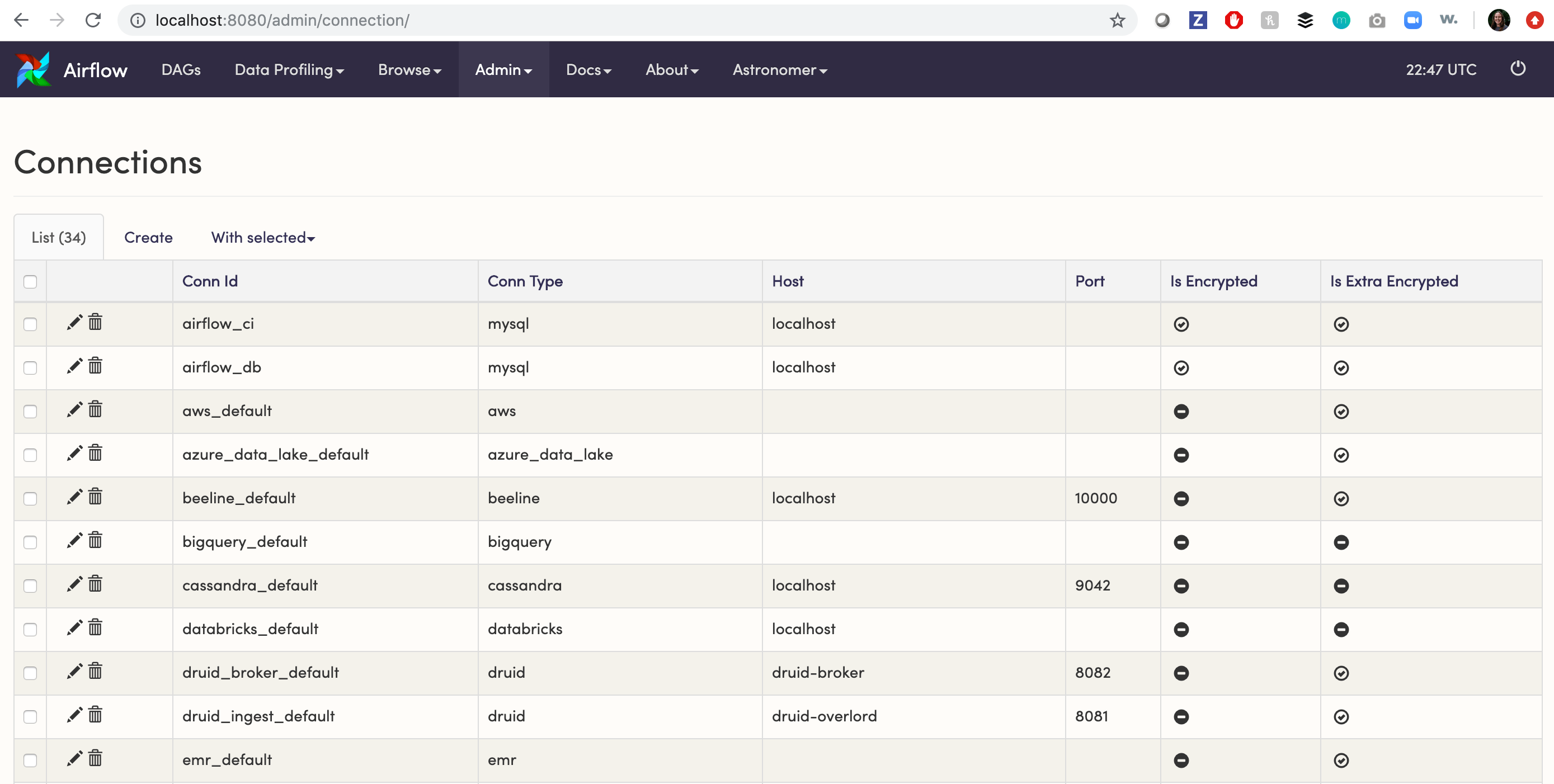
airflow_db connection object:
-
Change the
Conn TypetoPostgres -
Add the following connection information:
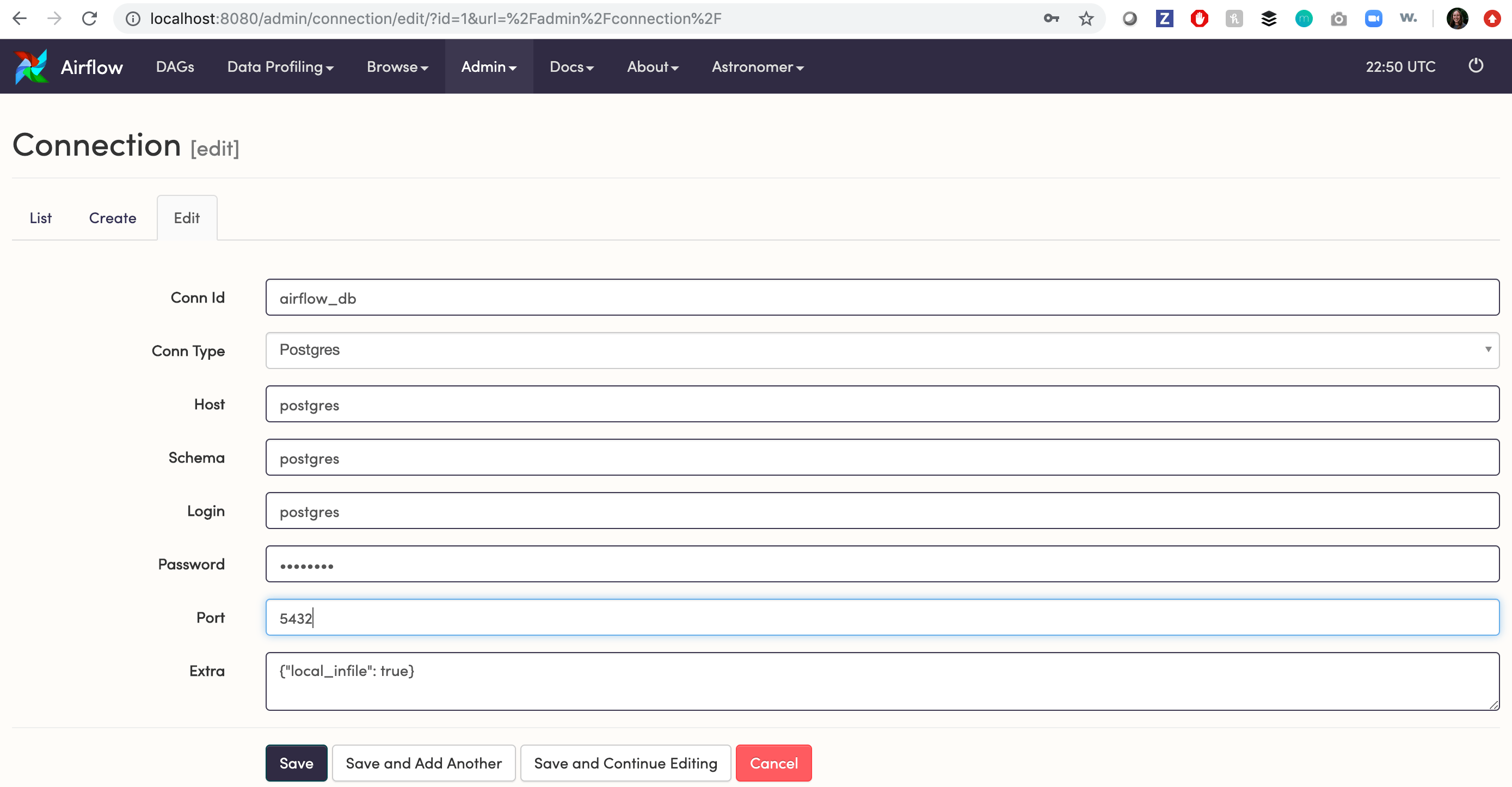
airflow_db in your DAG
Here’s an example DAG, where postgres_conn_id is set to airflow_db:
dag_ids stored inside dag table within Airflow’s metadata database.
Connect to the DB using a PostgreSQL client
With the connection information above, you should also be able to connect to the Airflow database from any PostgreSQL client. Usingpsql, a terminal-based front-end to PostgreSQL, run:
psql command.
To do so, run:
Access to the Airflow database on Astronomer
The easiest way to pull from Airflow’s metadata database on Astronomer is to leverage theAIRFLOW_CONN_AIRFLOW_DB environment variable, which we set here.
This environment variable, which we set by default, silently enables users to leverage the airflow_db connection. It’s worth noting that the connection itself in the Airflow UI will NOT reflect the correct credentials (Conn Type, Host, Schema, Login, Password, Port).
To pull from the Airflow database, follow the steps below. Note that you do not have to set this Environment Variable yourself and you do not have to populate the airflow_db connection in the Airflow UI.
1. Leave your airflow_db Connection as is
Your airflow_db connection by default will look like the following:
airflow_db in your DAG
You can use the same example DAG outlined above where postgres_conn_id is set to airflow_db.
3. Verify the connection in your task logs
To verify a successful connection, you can inspect the corresponding task log -
Decode the Airflow metadata Secret on Astronomer
On Astronomer, your deployment’s Postgres credentials are also stored as a Kubernetes Secret (airflow-metadata) in your deployment’s Kubernetes namespace. For users with kubectl access to the cluster who want to properly populate the airflow_db connection in the Airflow UI with the proper credentials, follow our instructions below.
This is entirely optional and is not required, as the
AIRFLOW_CONN_AIRFLOW_DB Environment Variable is pre-set on Astronomer and will allow users to reference the airflow_db connection in a DAG even though the connection itself isn’t populated in the Airflow UI.Prerequisites
- Access to your Kubernetes cluster with permissions to:
- List Namespaces
- List Pods
- List Kubernetes Secrets
- Kubectl
- kubectx (optional)
Pull Postgres Credentials via Kubectl
1. Switch into your Kubernetes Cluster The rest of this guide will assume the use of kubectx - a command line tool that allows you to easily switch between Kubernetes clusters and Namespaces. To start, switch into the Kubernetes cluster that hosts Astronomer Software.login:password@host:port/schema
In this example, that’d be:
airflow_db connection in the Airflow UI.
If you want to store this connection and access it programmatically, you’re also free to store it in a secret backend.